
Any union member can sign up for the phone app using the information you want them to provide. Unless your local approves new accounts automatically, an admin must verify each new sign-up before that member gets full use of the app. Here’s how to verify new sign-ups:
- Login to the app manager.
- From the menu on the left-hand side, click Users and Devices.
- Click the second tab at the top of the list, right after All. Its name depends on how your local admits members (see below), and the number in parentheses is how many members are waiting.
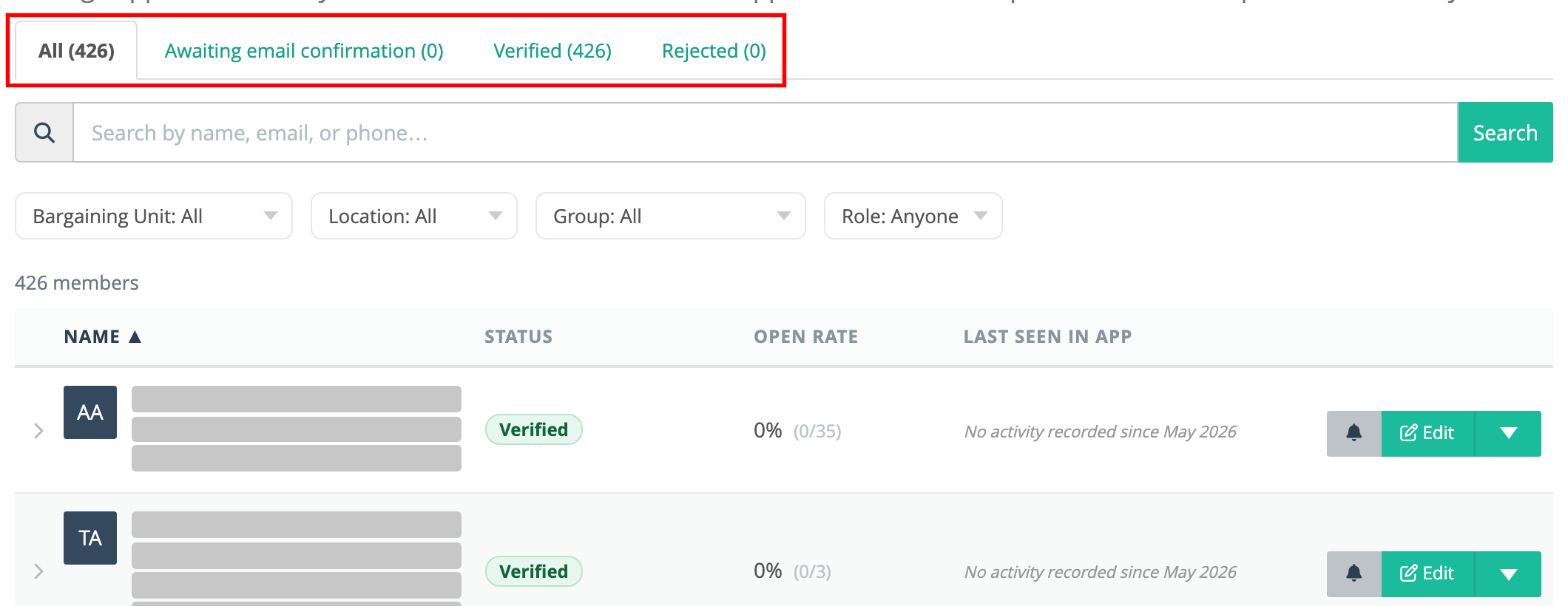
The tabs are All, then your local’s word for members who aren’t verified yet, then Verified and Rejected. That second tab is called:
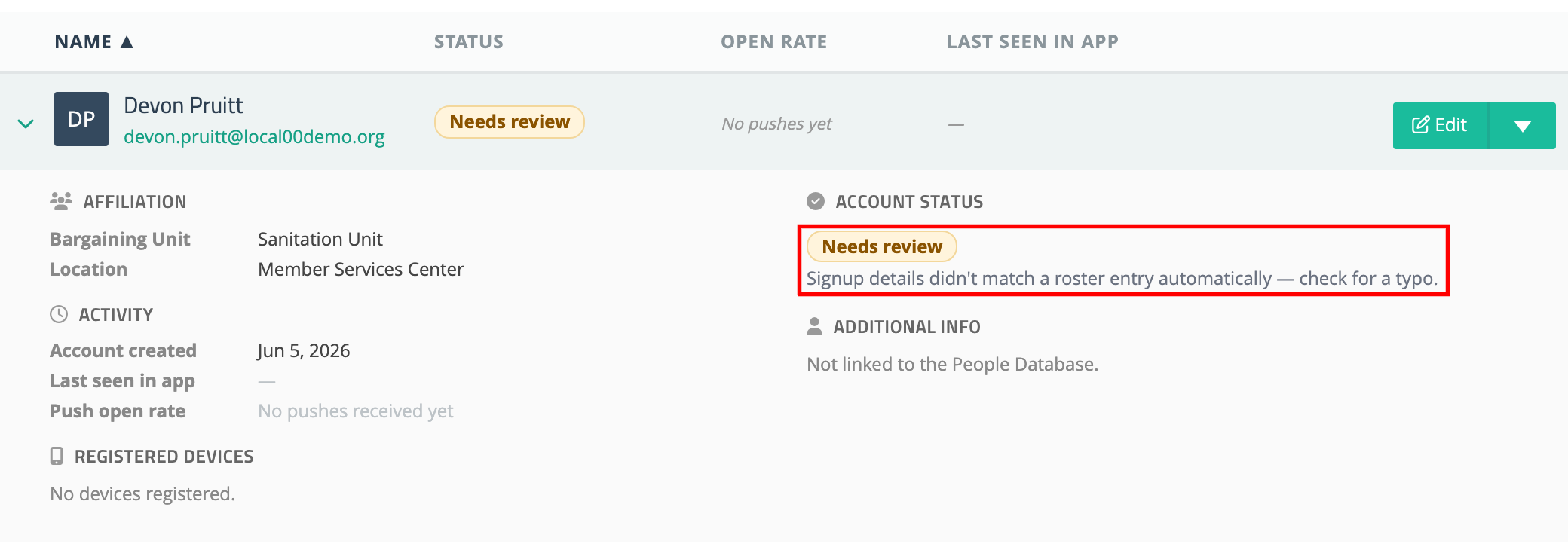
- Needs review — the usual case, where an admin approves each member. These members can’t sign in until you verify them. If your local uses Member Roster Verification, a member lands here when their sign-up details didn’t match a roster entry automatically — often just a typo, so check their details against your roster.
- Limited access — if your local lets members use the app before they’re verified. They’re already using the app, but don’t get group push notifications, chat or protected forms until you verify them.
- Awaiting email confirmation — if your local has Auto-approve new accounts turned on. Members are verified automatically once they confirm their email address.
Each member’s row has a labelled Status pill: Verified, Rejected, or one of the words above. For members who aren’t verified, and for rejected members, hover over the pill to see what it means for that member. You can also click anywhere on a row to expand it and see the member’s registered device(s), their account status with the same explanation, and the information they submitted during sign-up — useful for confirming the person is who they say they are before approving them.
- For each member you want to verify, click the dropdown arrow ▾ next to the green Edit button at the right end of the row, then click Verify.
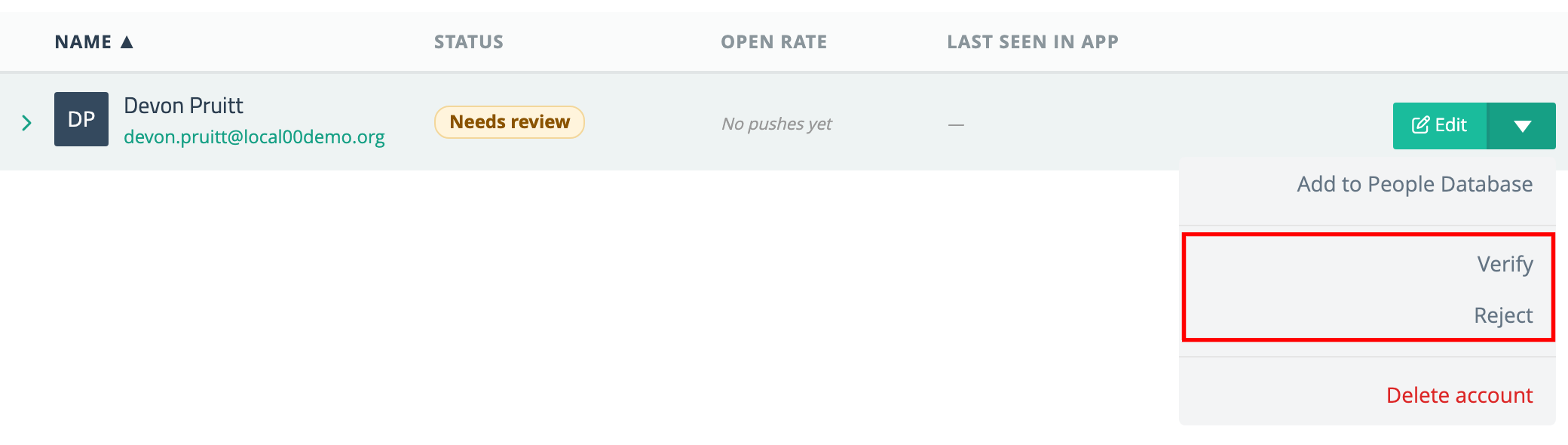
Confirm the prompt and the member’s status pill changes to Verified. They’ll move to the Verified tab and can start using the app immediately. We’ll send them a welcome email and push notification.
If a sign-up is fraudulent or doesn’t belong in your local, click Reject from the same menu instead. Rejected members appear under the Rejected tab, stop getting union notifications, are removed from the member directory and chat, and are emailed that their request was denied. A rejected member can no longer sign in to the app, even if they were verified before. If they are signed in at the moment you reject them, they stay signed in until they sign out, and then can’t sign back in. Verifying them later clears the rejection.
Changing a verified member’s status
The same row menu on a verified member offers Reject, plus one more option depending on your local:
- Move back to Needs review — where members need verifying before they can sign in and Auto-approve new accounts is off. The member can’t sign in again (if they’re signed in now, they stay signed in until they sign out), stops getting union notifications, and is removed from the member directory and chat.
- Limit access — where members can use the app before they’re verified, whether or not Auto-approve new accounts is on. The member keeps using the app but loses the sections marked Restricted, stops getting union notifications, and is removed from the member directory and chat. Their status shows as Limited access.
Otherwise, at locals with Auto-approve new accounts turned on, a verified member’s menu offers only Reject. A rejected member’s menu offers Verify. If the member holds an admin role, rejecting them, limiting their access or moving them back also removes their admin privileges, and the prompt warns you first. You can’t change your own account’s status.
The same actions also appear on the member’s Edit page, next to their status.
Email not confirmed
If your local asks members to confirm their email address, a member who hasn’t done so yet shows an Email not confirmed · Resend line under their email in the list. Click Resend to send the confirmation email again. Members shown as Awaiting email confirmation don’t get this line, because their status already says they’re waiting on the email. This is separate from verification: a member can be verified and still have an unconfirmed email.
You can also make this process automatic by uploading your membership roster and letting the app approve members the moment they sign up — and even file them into the right bargaining unit, group, and location. See Member Roster Verification. (If you don’t see that option in your account, contact UnionConnect support to turn it on.)