
Chat lets members send private, one-to-one messages to other members of their union from inside the app. A member can message a steward or officer without exchanging phone numbers, and gets a notification on their phone when a reply arrives.
This page covers turning chat on, controlling who members can reach, what members see in the app, and how to take a member out of chat.
Turning chat on
Chat is an add-on feature. UnionConnect support must enable it for your union first; contact us if you want it. Once it is enabled, a Chat row appears in your menu settings, and you control whether members see it:
- Log in to the app manager
- Click Edit local, then open the Menu Items tab
- Find the Chat row and tick its checkbox to show the Chat tile in the app (untick it to hide it)
- Optionally, type a different label in the text box to rename the tile, and drag the row to move it in the menu
- Click Update
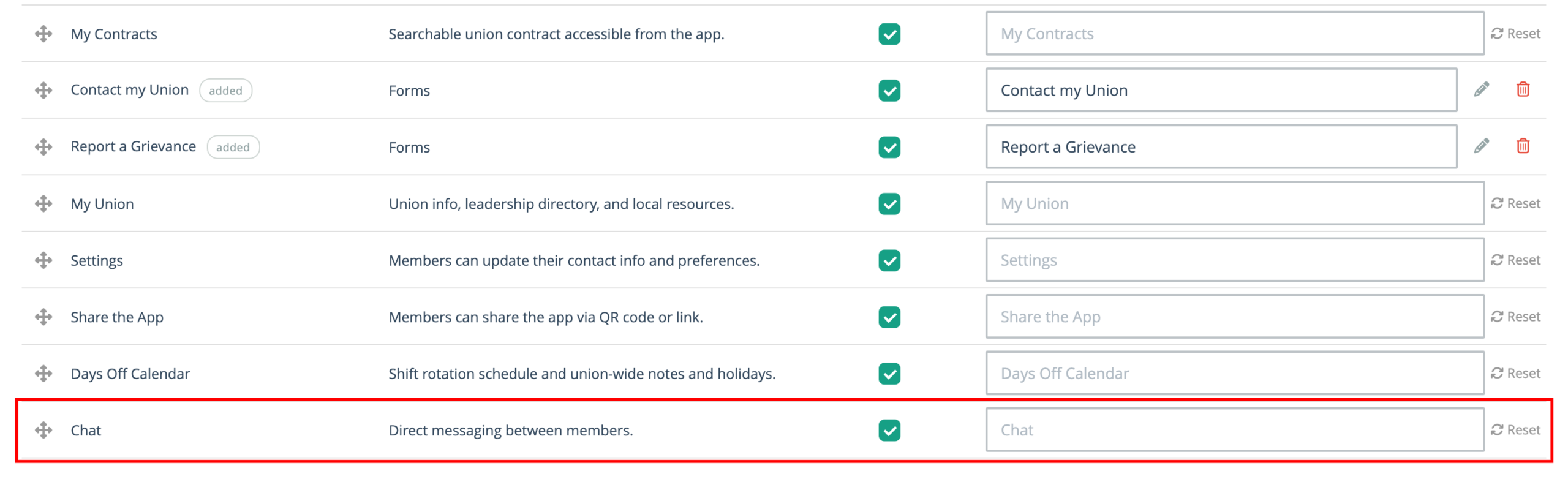
See Main Menu for more on the Menu Items tab. If the Chat row is missing, chat has not been enabled for your union yet.
Who members can message
Members cannot message just anyone in the union. When a regular member starts a new chat, the list only shows people who hold a position in a directory that the member can see:
- union-wide directories
- directories for the member’s location(s) and sublocation
- directories for the member’s bargaining unit
- directories for groups the member belongs to
Membership directories are not included. For someone to appear in the list, they must also:
- have a person record that is linked to their user account
- be a verified member
- have chat turned on (see Turning chat off below)
In practice, members can reach the stewards, officers, and other representatives you list in your directories. To make someone reachable, add them to the right directory and link their person record to their account. The title they hold in that directory (for example “Steward”) appears under their name when members pick who to message.
To keep members from starting chats with one particular person, such as a staff member who prefers members call, open their People Database entry and untick Chat under How members can contact them. They drop out of members’ New Message list and the Chat option on their directory entry. They can still message members, and a member can reply once they have.
Administrators are not limited this way. An administrator can start a chat with any verified member of the local who has chat turned on.
These rules only apply to starting a chat. After a conversation exists, both people can keep replying to each other from their inbox.
Using chat in the app
The Chat inbox
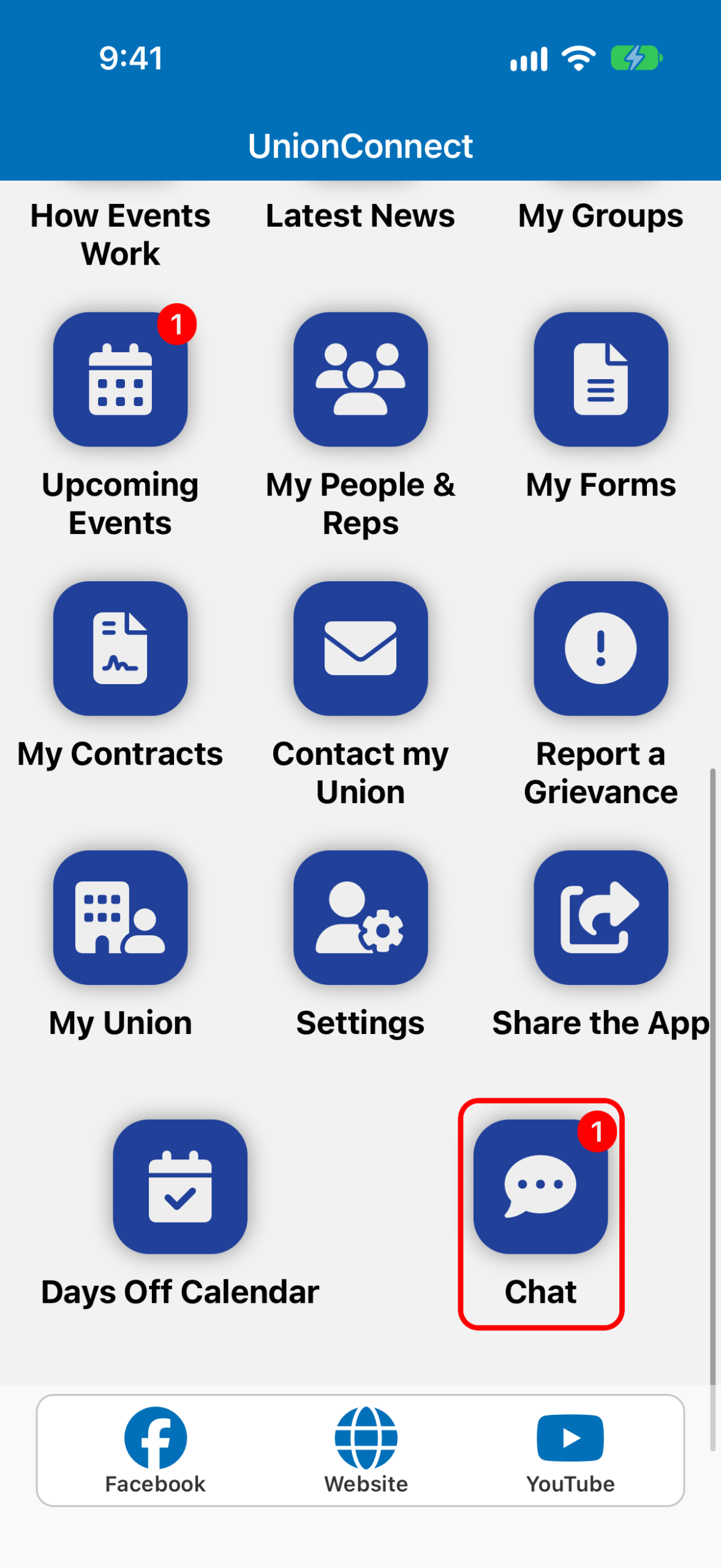
Members open chat from the Chat tile on the home screen. A red badge on the tile shows how many unread chat messages they have.
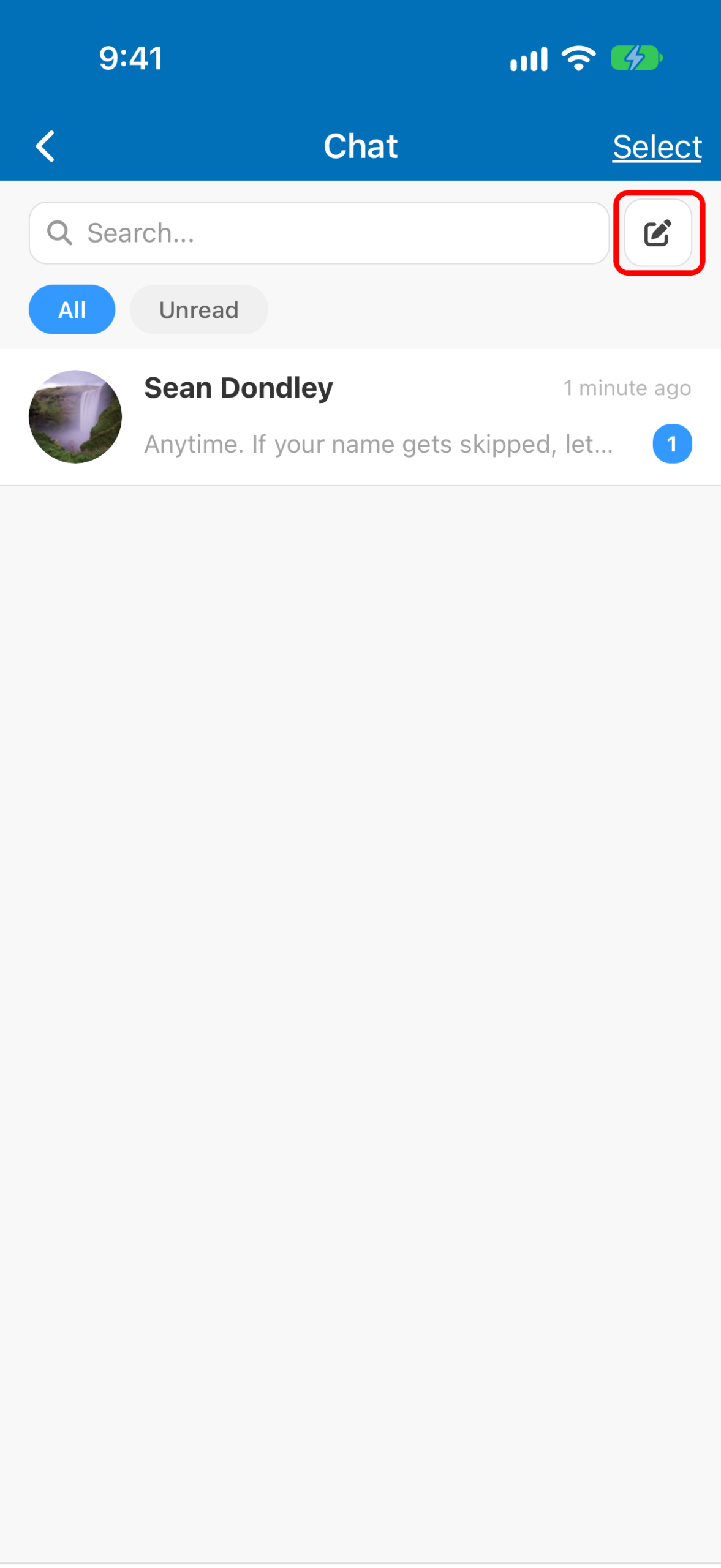
The inbox lists the member’s conversations with the most recent at the top. Each row shows the other person, a preview of the last message, when it was sent, and a blue count of unread messages. Use the All / Unread filters or the search box to find a conversation.
Starting a new chat
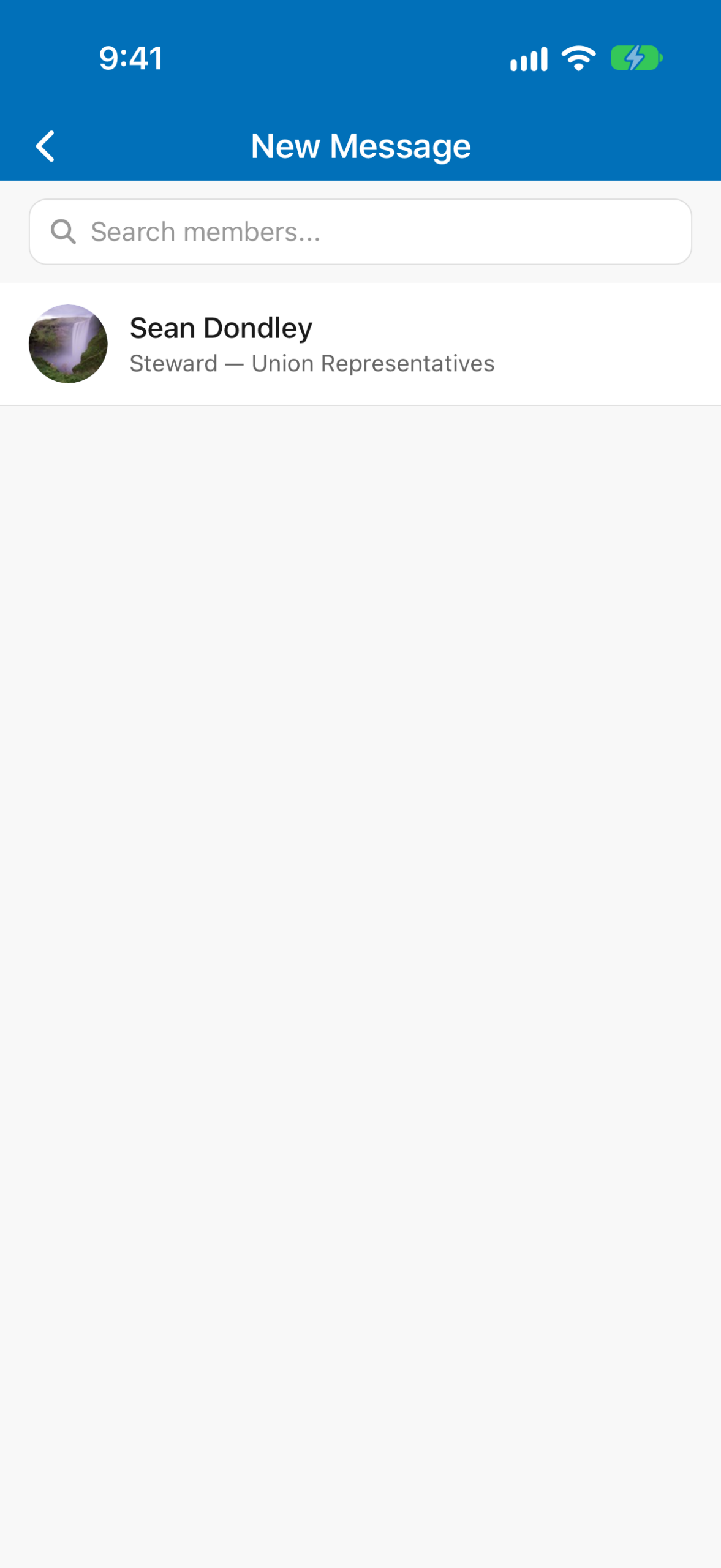
Tap the pencil button next to the search box to open New Message. It lists everyone the member is allowed to message (see Who members can message), with each person’s directory title underneath. Type in Search members… to narrow the list, then tap a name to open the conversation.
Members can also start a chat from My People & Reps. Open a person, tap Contact, and choose Chat. The Chat option appears only when that person is linked to a user account, has chat turned on, and has Chat ticked under How members can contact them.
The conversation
Messages the member sends appear on the right in blue. Messages they receive appear on the left. New messages arrive instantly while the conversation is open, and a “typing” indicator shows when the other person is writing. Chat is text only; photos and files cannot be attached.
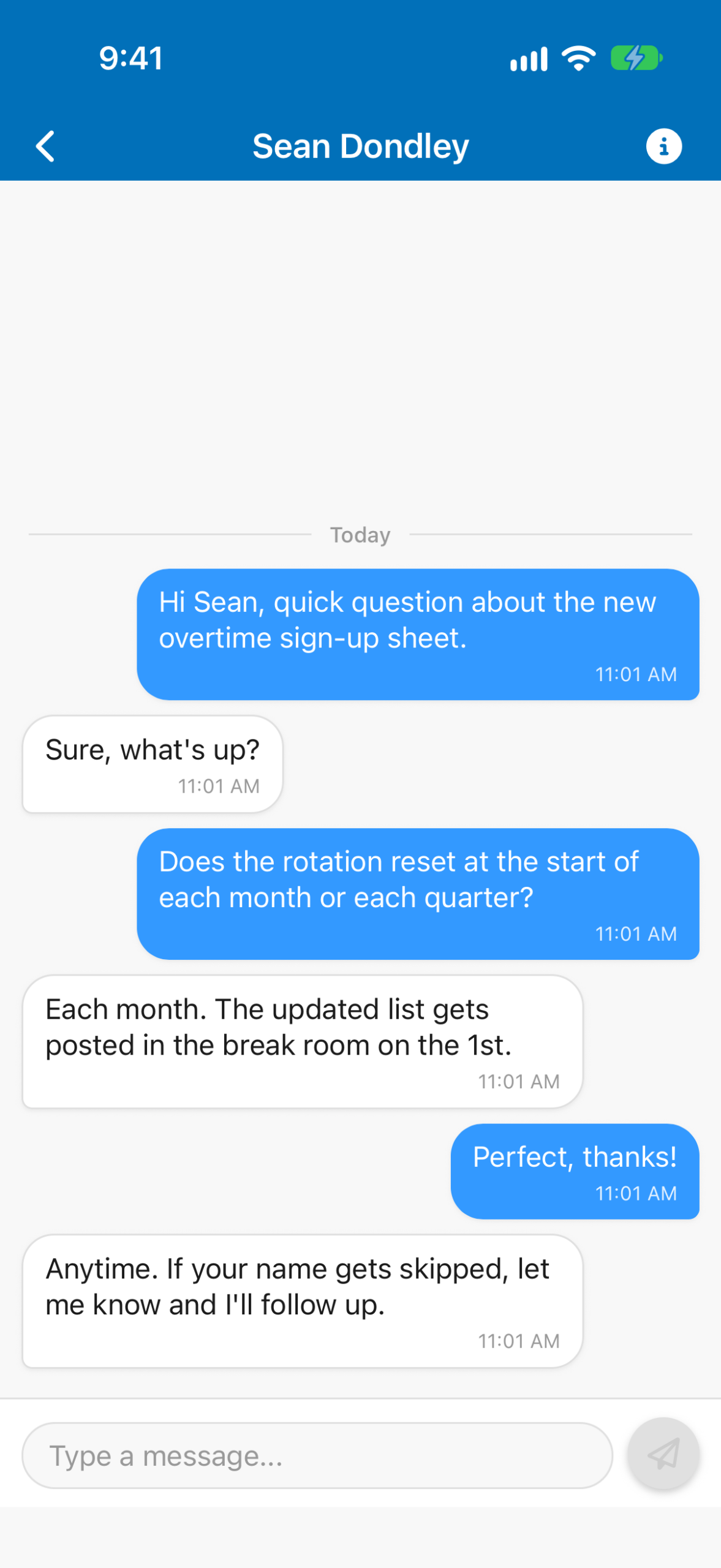
When the app is closed, the member gets a push notification for each new chat message. The notification shows your union’s name, the sender’s name, and the start of the message. Chat notifications are separate from your union’s push notifications: they do not appear in My Messages and do not change its badge.
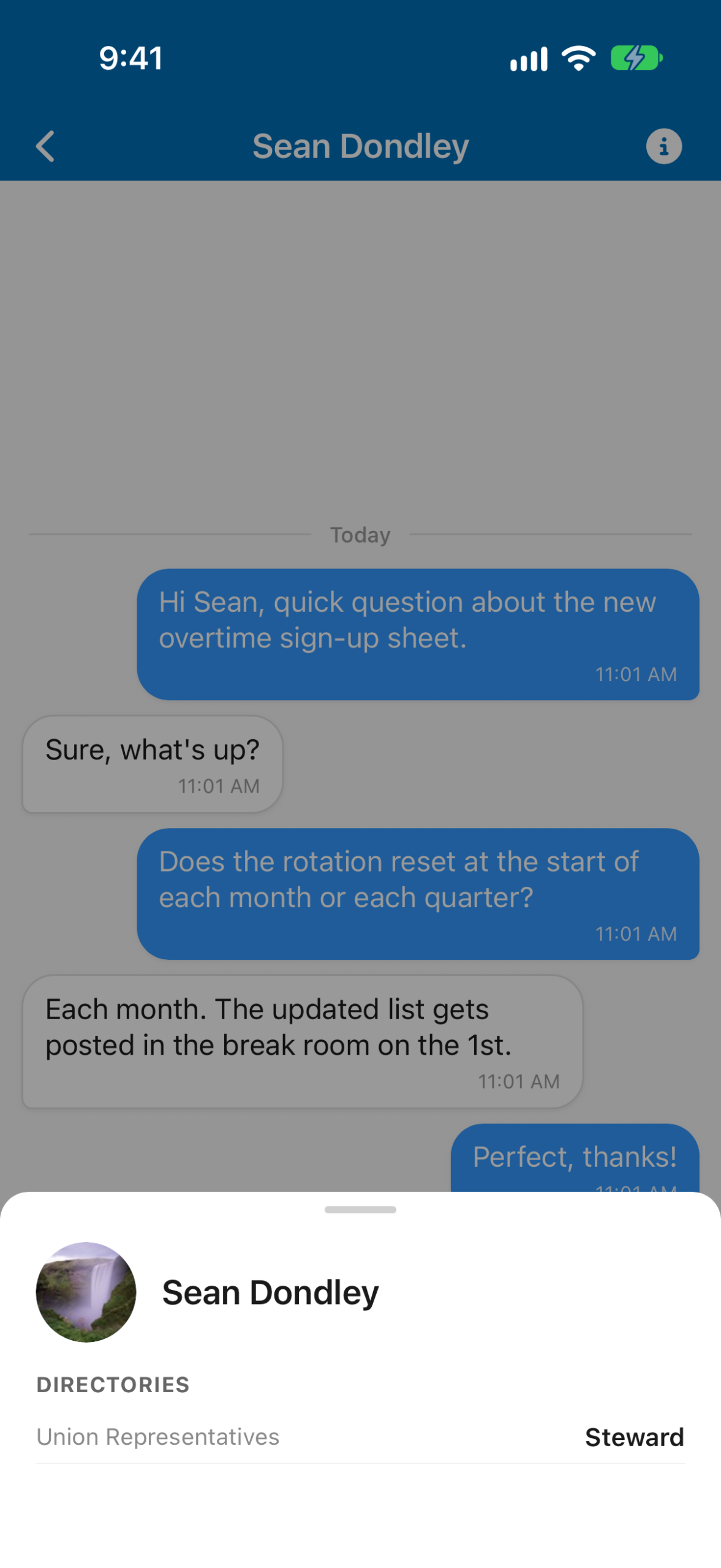
Tap the ⓘ button in the top-right corner to see which directories the other person is listed in, and their title in each one. When an administrator opens this panel, it also shows the member’s email, phone, employee number, bargaining unit, locations, and groups.
Clearing conversations
To tidy up the inbox, tap Select (or press and hold a conversation), tick the conversations to remove, and tap Clear. This removes them only from that member’s own inbox. The other person still sees the full conversation. If a new message arrives later, the conversation reappears and shows only messages sent after it was cleared.
Turning chat off (members)
Any member can opt out of chat. In the app, they go to Settings, then Preferences, and switch off Receive chat messages.
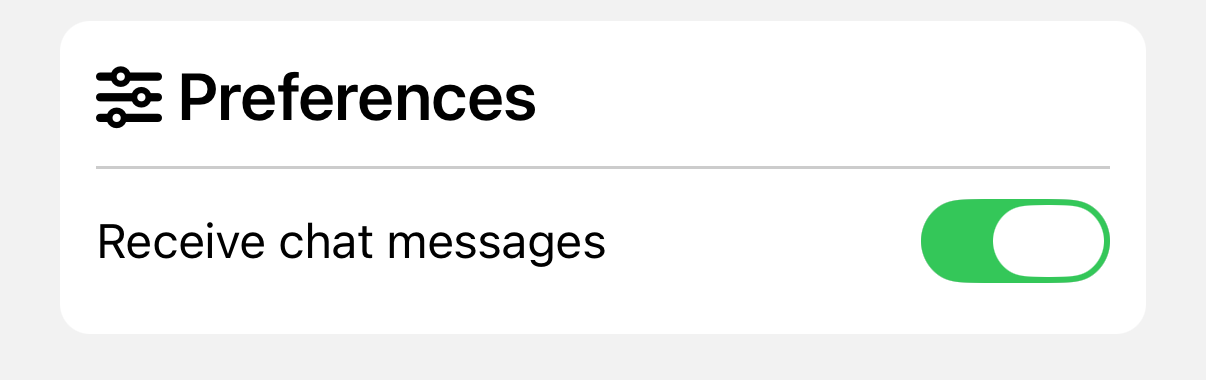
With chat off, the member drops out of everyone’s New Message list and cannot receive messages. They also cannot send any: their conversations show “Chat is turned off for your account.” Other people who open a conversation with them see “Name can’t receive messages right now.” Switching the setting back on restores everything, including past conversations.
In the app manager, a member who turned chat off shows Turned chat off in the app in their details on the Users and Devices page (click their row to open them). Their Edit form shows a Chat turned off in the app note under the Remove from chat checkbox. You can’t switch it back on for them; only they can, from the app.
Removing a member from chat (administrators)
If a member is misusing chat, you can take them out of it without affecting the rest of their account:
- Go to Users and Devices in the sidebar and find the member
- Click Edit
- Tick Remove from chat
- Save the user
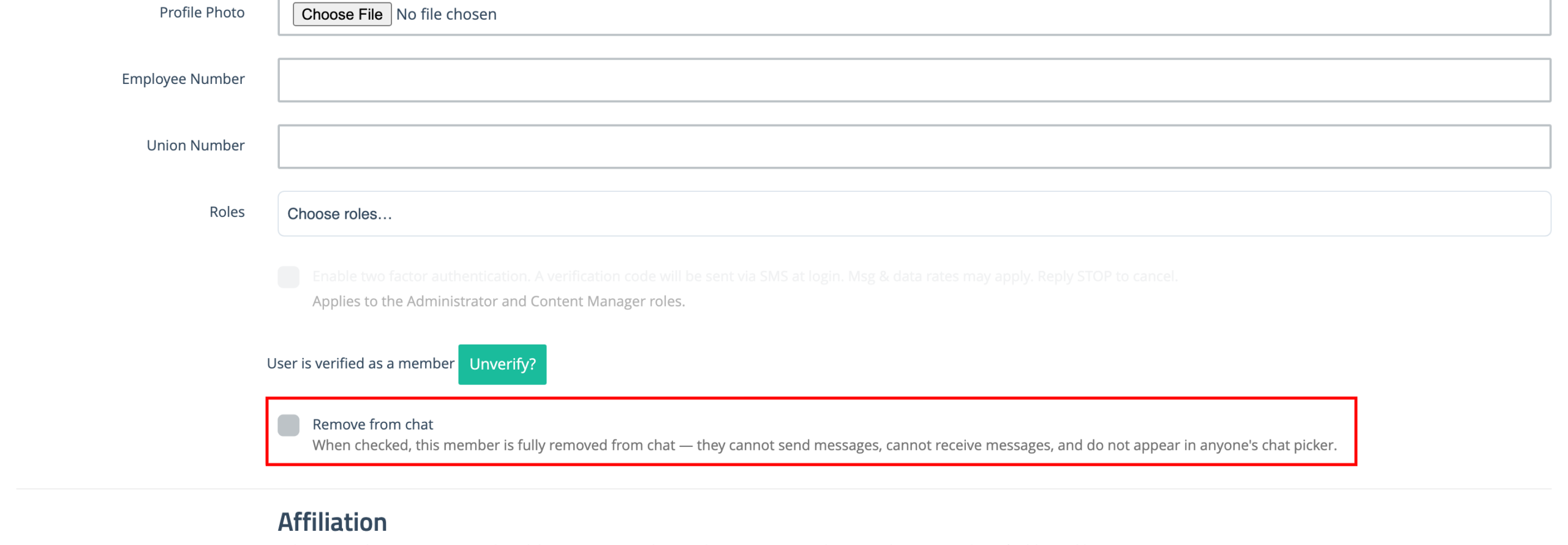
A removed member cannot send or receive chat messages and does not appear in anyone’s New Message list. In their app, the Receive chat messages switch is greyed out and labelled “Disabled by your administrator,” so they cannot turn chat back on themselves. On the Users and Devices page, their details show Removed from chat by an admin. To restore them, untick Remove from chat and save.
Privacy
Chats are private between the two people in the conversation. The app manager has no screen for reading members’ chat messages.