
People can be listed in any directory under a bargaining unit, location, group, or the entire local. Use this window to see every directory one person is in and add or remove them in one go. To manage all of the people in one directory, use Manage/Reorder People on that directory instead. To add several people to one directory at once, tick them on the People Database list and use Add to Directory.
- Log in to the app manager.
- From the left menu under Union-Wide Resources, click People Database.
- Search for the person you want to assign.
- Click the green dropdown arrow next to the person’s Edit button and choose Manage Directories. (You can also click Manage Directories at the bottom of the person’s details panel.)
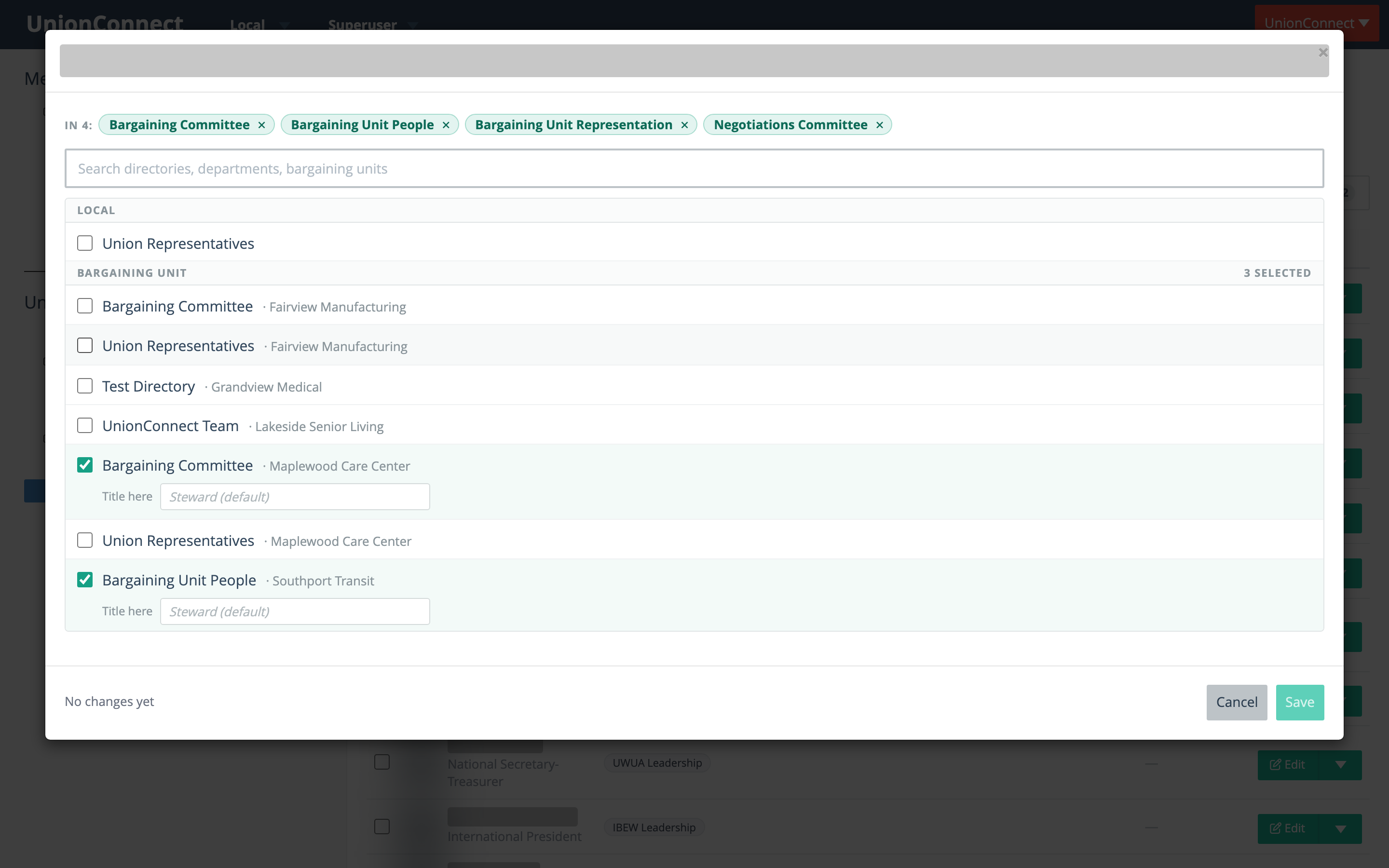
The window shows one list of all your directories, grouped into Local, Bargaining unit, your locations (shown as Departments unless your local uses a different name), and Groups. Each directory under a bargaining unit, location or group shows which one it belongs to.
- Chips at the top list every directory the person is in now. Click a chip’s × to untick it.
- Search the list by directory name or by the bargaining unit, location or group it belongs to.
- Tick a directory to add the person, or untick it to remove them. Each section heading shows how many are selected.
- When you tick a directory, a Title here field appears. Leave it blank to use the person’s own title (shown in grey), or type a title just for that directory.
- The footer summarizes what will change. Save stays greyed out until you change something.
- Click Save.
Directories the person was already in keep their place in the order. Only the directories you ticked or unticked change.