
UnionConnect comes with two built-in roles — Administrator and Content manager, described below. You can also create your own custom roles that grant access to just the parts of the app manager someone needs, and even limit them to specific bargaining units, groups, or locations. See Roles & Permissions to get started.
Admins
Admins can manage everything in the app. They have full access to all content, app settings, and user information. Admins log into the App Manager with their username and password. You can have as many admins as you need.
If your app has no admins set up, contact the UnionConnect team so we can assign admin access to the initial people who should control the app.
Content Managers
Content Managers can add and update content in the App Manager, but their access is limited. They can edit your local’s settings, but they cannot manage user accounts, devices, or roles.
You can add as many Content Managers as you need, and they can start posting updates without having access to the sensitive parts of your app.
Specifically, a Content Manager can:
- Create and edit content — news, events, resources, directories, the People Database, forms, and messages.
- Manage bargaining units, groups (including who belongs to them), and locations.
- Change app and local settings (Union Settings).
- Edit their own profile.
A Content Manager cannot:
- Verify, approve, or reject members.
- See Users and Devices, so they can’t view or download the member list, or edit or delete another member’s account.
- Manage members’ devices.
- Change anyone’s role or open the Roles & Permissions tab.
Both roles are scoped to your own local (or, for a national-level admin, the locals under it) — an admin of one local can’t act on another. And both Admins and Content Managers must use two-factor authentication if your local requires it for its admins.
Change a User’s Role
- Login to the app manager.
- From the menu on the left, click Users and Devices. (You can also do this from Union Settings → Roles & Permissions; see Assigning Roles to Members.)
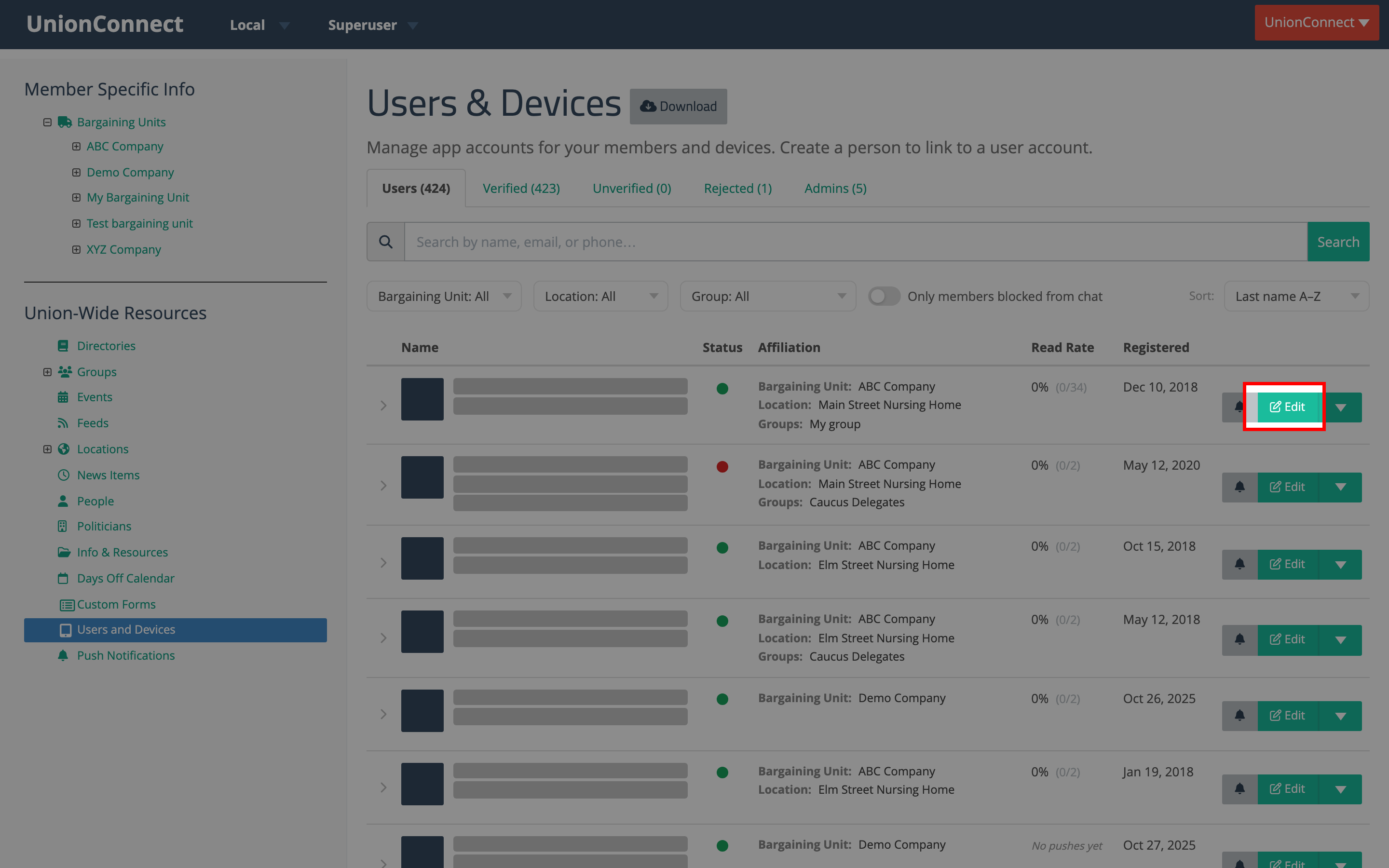
- Find the user whose role you want to change (use the search box if needed), then click the green Edit button on their row:
- On the edit form, click the Roles field and choose the role or roles you want the user to have (for example, Administrator or Content manager). The field takes more than one role; click the × on a role to remove it. It only appears for admins who hold both Users & Devices and Local Settings.
- Scroll down and click Finish to save your changes.
The change takes effect immediately. The next time the user logs in, they’ll have the access level for their new role.