
You can delete several entries at once from the People Database. This is useful after a reorganization or when cleaning up old records.
Selecting people to delete
- Log in to the app manager.
- From the left menu under Union-Wide Resources, click People Database.
- Tick the checkbox on the left of each person you want to delete. The checkbox in the column heading selects everyone on the current page.
Deleting the selected people
Once at least one row is ticked, a bar appears over the column headings showing how many are selected, with Add to Directory, a red Delete Selected button, and Clear.
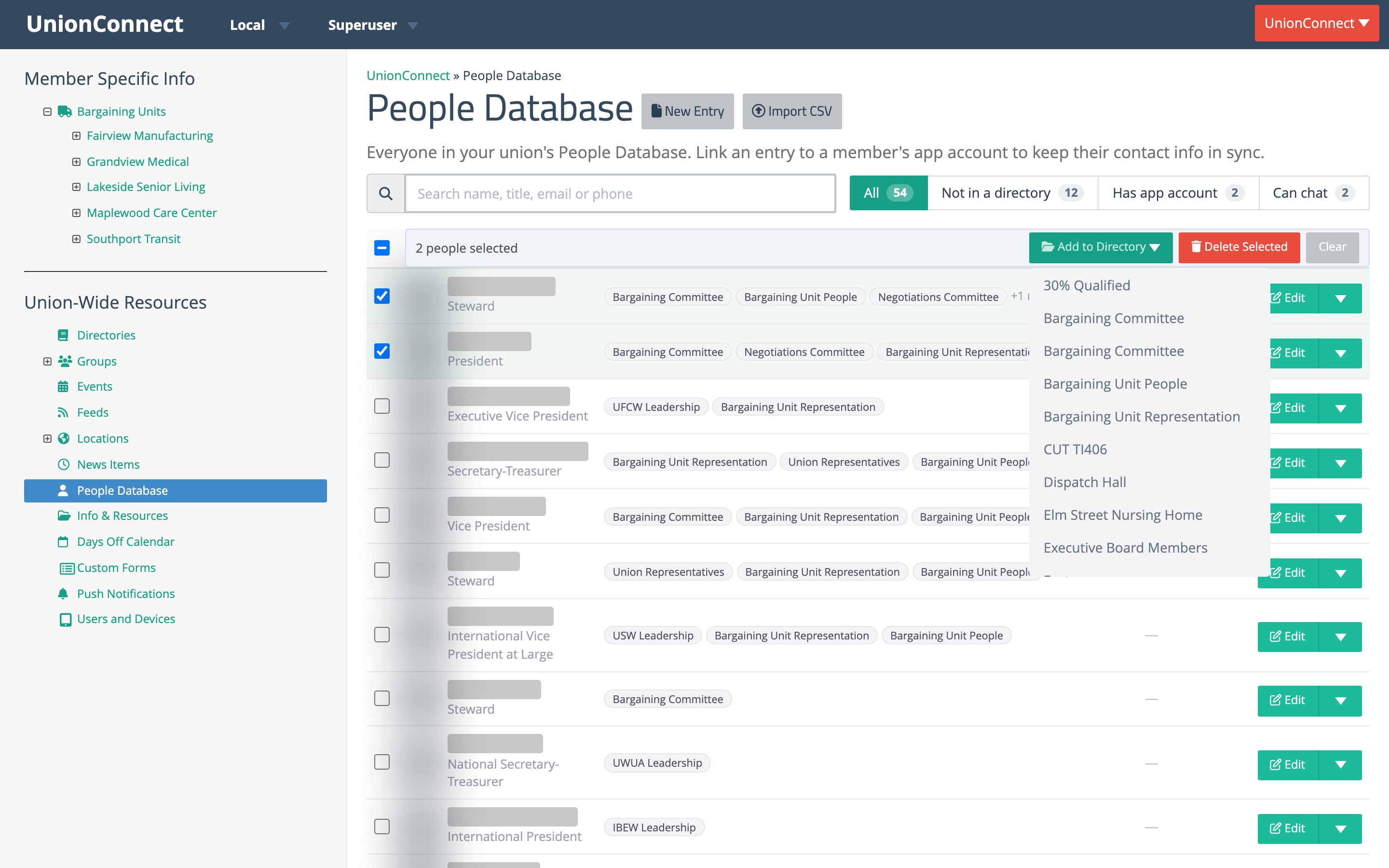
- Click Delete Selected.
- The rows disappear and a message at the bottom of the page says Deleted N entries. with an Undo button.
Things to know
- You have 6 seconds to undo. There is no confirmation prompt. Click Undo while the message is showing to bring the rows back. After that, or if you leave the page first, the entries are permanently deleted.
- Starting another delete ends the previous one’s Undo window, so only the most recent delete can be undone.
- The heading checkbox only selects people on the current page. If your list spans several pages, delete page by page, or use the search box and filters to narrow the list first.