
- Log in to the app manager.
- From the left menu under Union-Wide Resources, click People Database.
- Click the New Entry button next to the page heading.
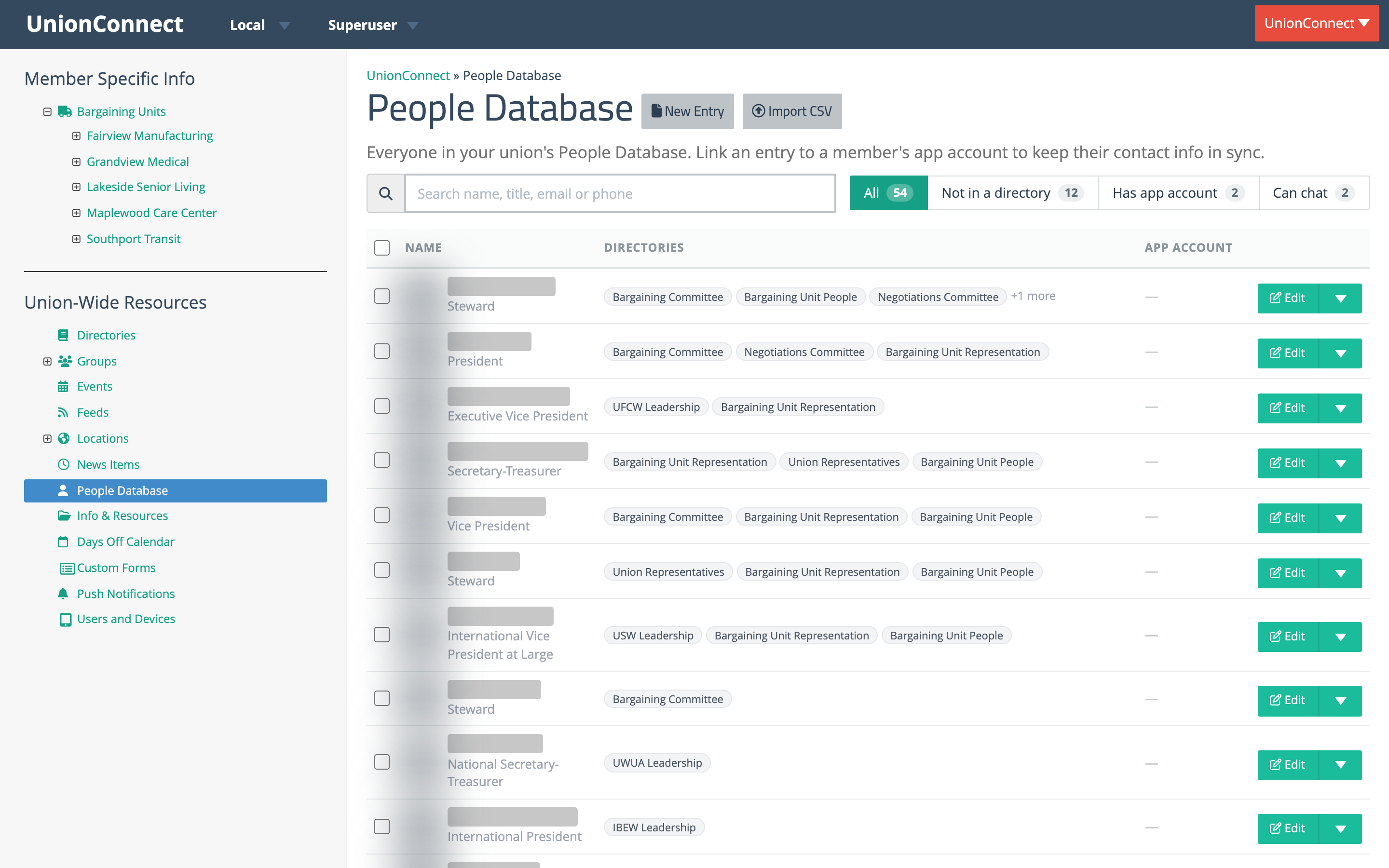
- Fill out the form. Each field has an example placeholder to show you the expected format:
- First name and Last name
- Title — the person’s role (e.g. President, Steward, Business Agent)
- Primary phone and Secondary phone — both optional. Each has its own ext. field for extensions. Both U.S. and international phone numbers are accepted.
- Photo — drag and drop an image onto the box, or click browse to pick one (PNG, JPEG, or WebP, up to 10 MB). A thumbnail and the file name appear so you can confirm the picture; click Undo to drop it. Nothing uploads until you save. When editing an entry that already has a photo, use Replace or Remove.
- Contact — which ways members can reach this person from the app: Email, Call, and Chat. See How members can contact them below.
- Bio — a short description shown on the person’s own page in the app, when a member taps their name. Directory listings show the photo, name, and title.
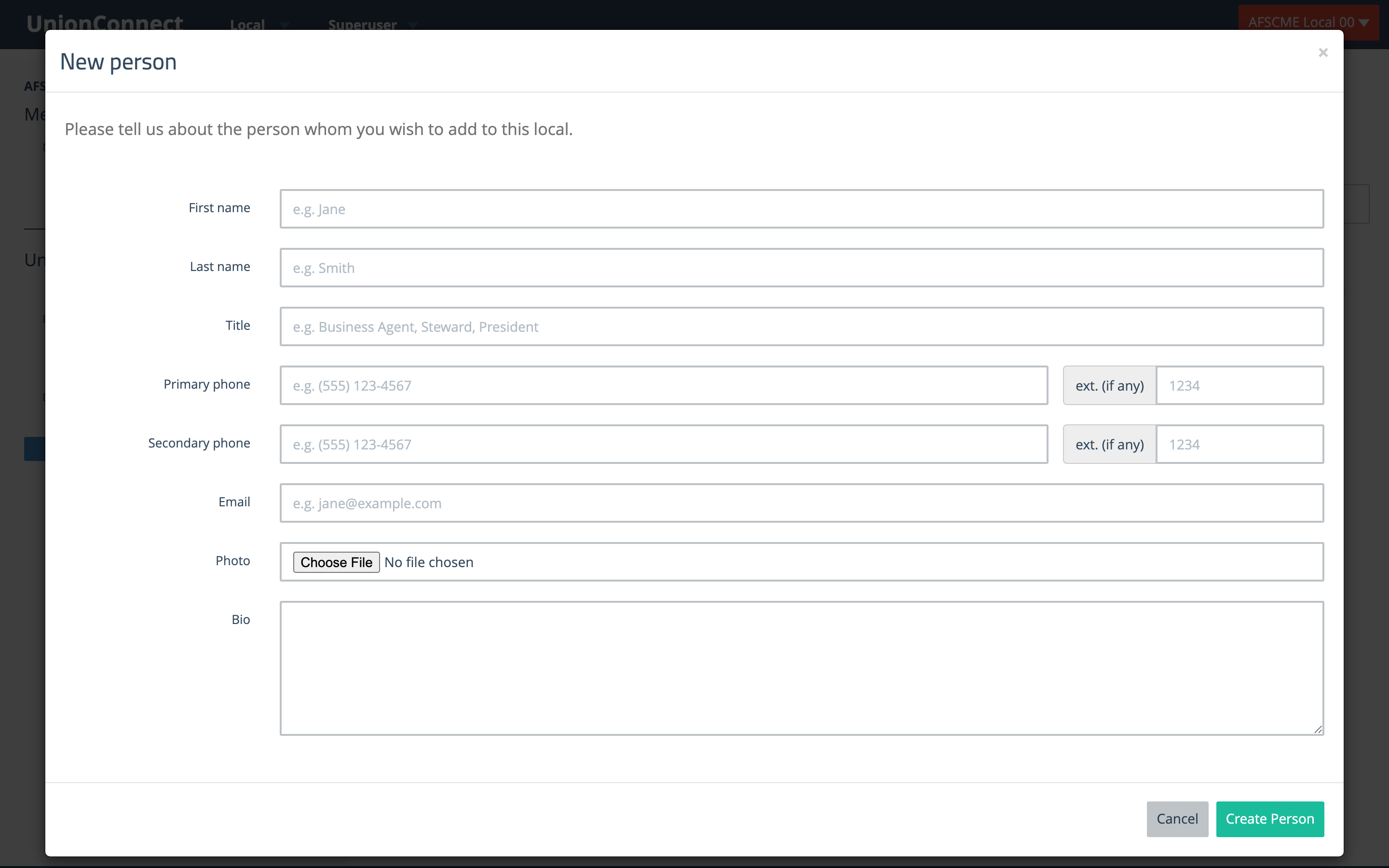
- Click Create Person. The new entry appears in the People Database list immediately.
How members can contact them
The Contact row on the New Entry and Edit forms controls what a member sees when they tap Contact on this person in the app. All three are ticked for new and existing entries, so nothing changes until you untick one.

- Email — members can email the address on the entry. Untick it and the app no longer receives this person’s email address, so there is no Email option.
- Call — members can call the phone numbers on the entry. Unticking it hides both the primary and secondary numbers.
- Chat — members can start a chat with this person in the app. Untick it and members no longer see a Chat option for them, they drop out of members’ New Message list, and a member can’t send them a first message. The person can still message members, and a member can reply once they have. Administrators can still start a chat with them.
Chat is greyed out, with the reason shown underneath, when it couldn’t work anyway: your local has chat off, the entry isn’t linked to an app account (always the case on a new entry), an admin removed the person from chat, or the person turned chat off in the app.
If you untick every method the person has details for, the app shows no Contact button for them at all. A directory’s preview in the app manager follows the same settings, so you can check what members will see there.
Once a person is created you can add them to one or more directories or link them to an app account.