
The Email tab on the Edit Local page controls where your local’s notification emails go: new member signups, contact messages, contract violation reports, and custom form submissions. It also keeps a history of the notification emails that have been sent. To get here, go to Local → Edit local and click the Email tab.
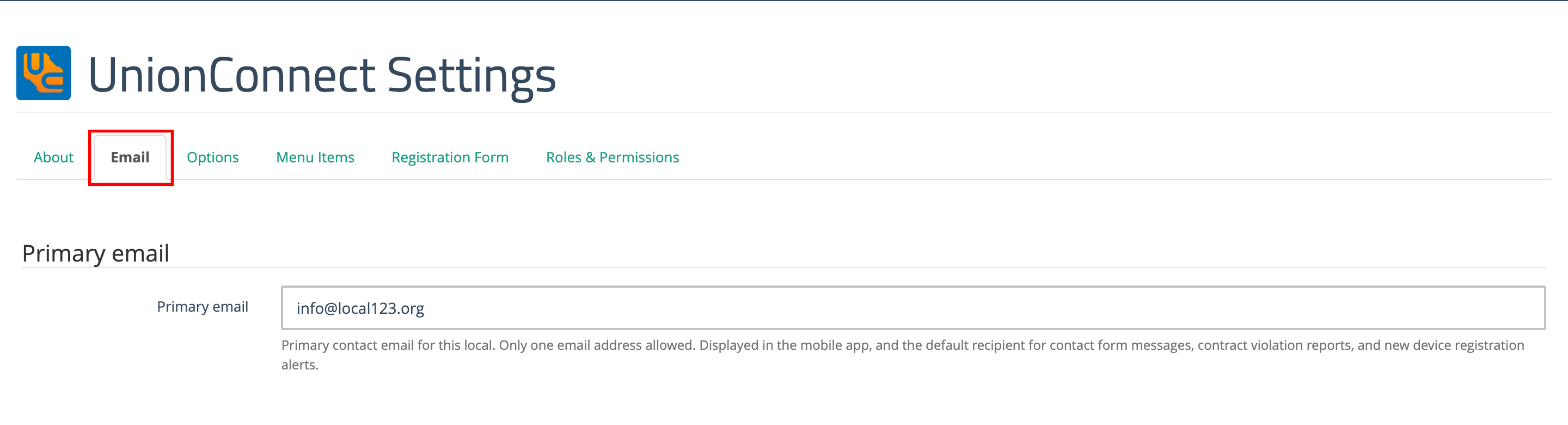
Primary email
The main contact address for your local. Only one address is allowed. It is:
- Shown to members in the app, under Contact My Union and My Union → About
- The default recipient for contact messages and contract violation reports
- Where new device registration alerts are sent, if Notify on new device registration is turned on in App Settings
Signup notifications
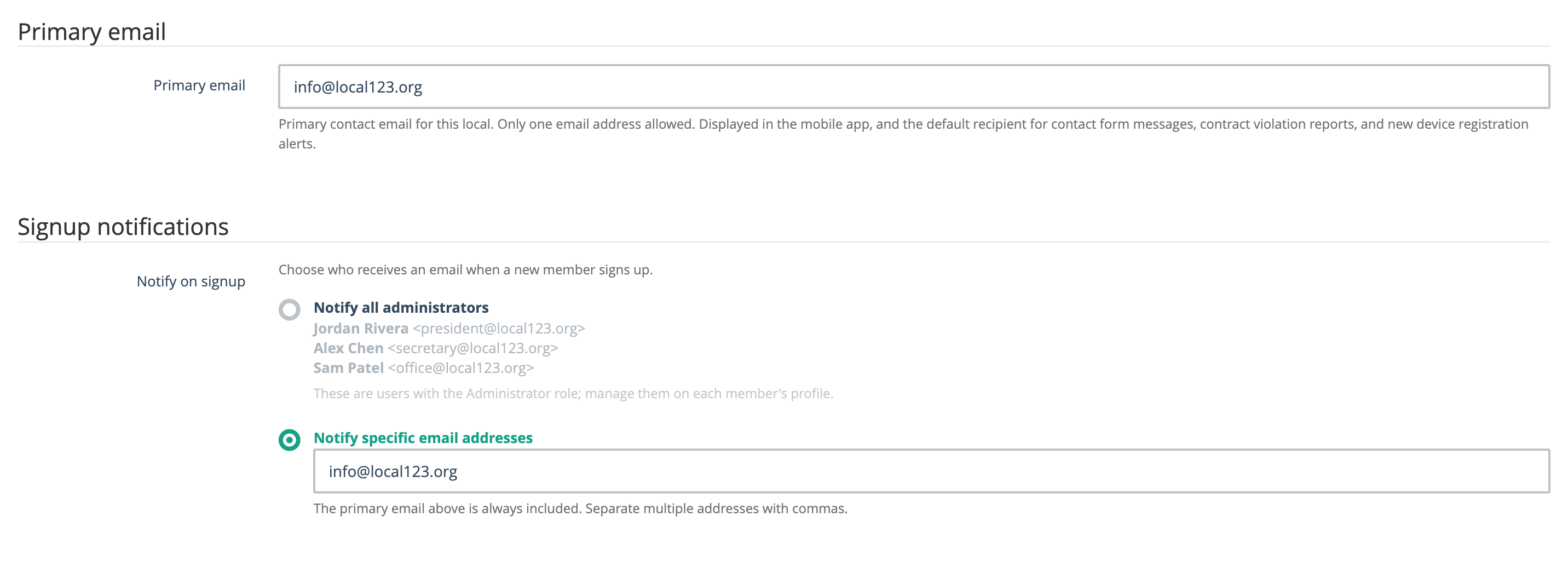
Choose who receives an email when a new member signs up. Pick one of two options:
- Notify all administrators — Every user with the Administrator role on your local is emailed. The list under this option shows who that is right now. To add or remove someone, change their role on their member profile (see Assigning Roles to Members).
- Notify specific email addresses — Only the addresses you choose are emailed. Enter them in the box, separated by commas. The primary email is always included, even if you don’t list it.
The option you haven’t selected is greyed out so it’s clear which one is in effect.
Work status notifications
This section only appears if the UnionConnect team has turned on the work status feature for your local. It sends an email when a member changes their “looking for work” status in the app. It has the same two options as signup notifications, with one difference: with Notify specific email addresses, only the addresses you enter are emailed. The primary email is not added automatically, so if you leave the box empty, nobody is notified.
Custom form recipients
Every custom form on your local is listed here in alphabetical order, with the addresses that are emailed each time someone submits it. Forms that belong to a bargaining unit show the unit’s name in parentheses.
The list includes the built-in Contact my Union and Report a Grievance forms. The addresses on those rows are the people who receive contact messages and contract violation reports from the app.
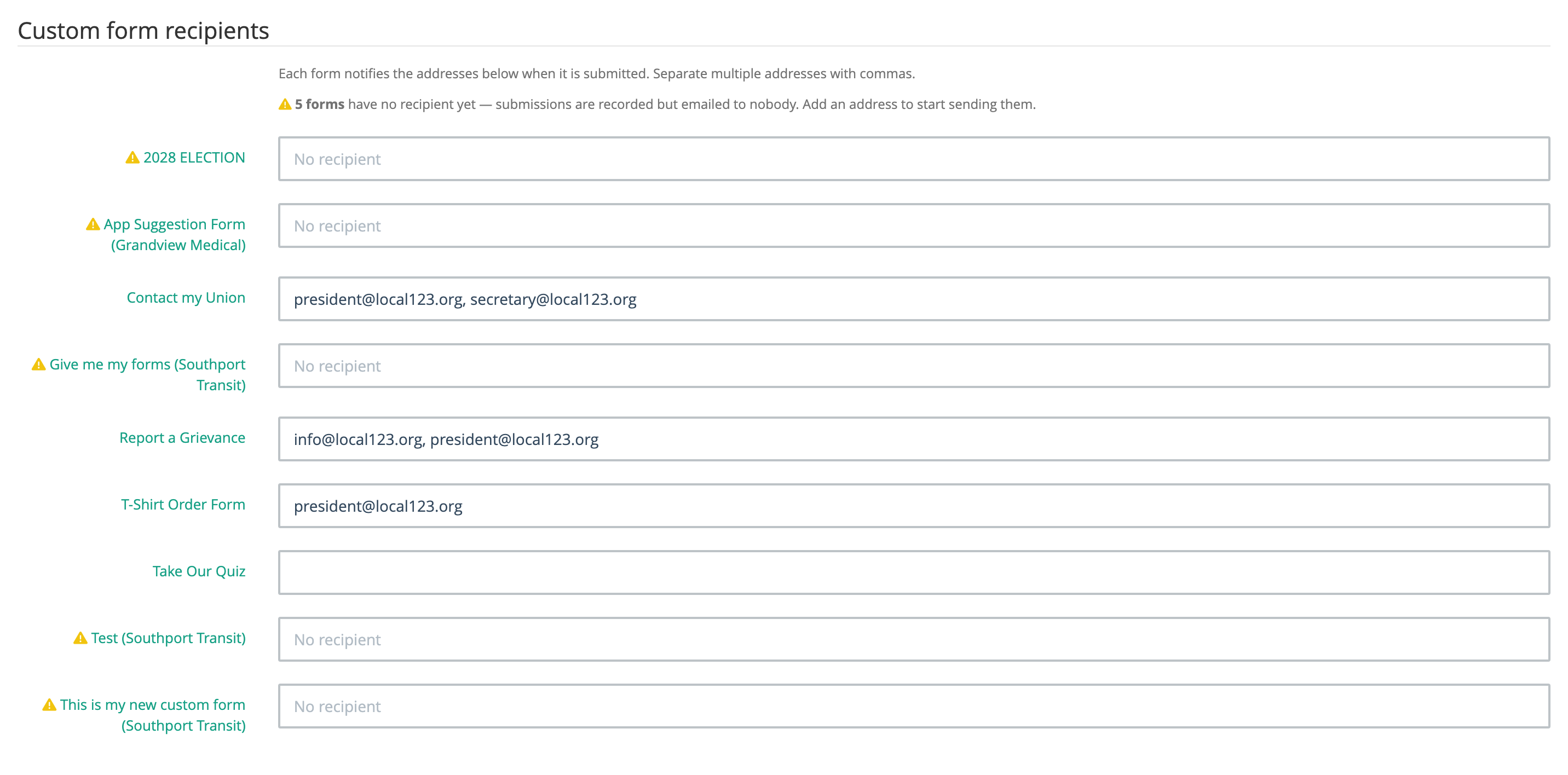
- To set recipients, type one or more addresses in the form’s box, separated by commas.
- A warning icon next to a form means it has no recipient. Submissions to that form are still saved, and you can see them in the form’s submissions list, but nobody is emailed. A line at the top of the section tells you how many forms are in this state. Add an address to start sending them.
- A greyed-out box reading “Notifications are off for this form” means someone turned off submission emails in the form’s own settings. The box can’t be edited here. Turn notifications back on in the form builder first.
- Click a form’s name to open it in the form builder. It opens in a new tab, so you don’t lose unsaved changes on this page.
Email history
At the bottom of the tab is a log of the notification emails sent for your local, newest first. Each row shows when the email was sent, who it went to, its subject, and its type. Sent in the Status column means the email was handed off for delivery. It doesn’t confirm the email reached the inbox, so if someone says they never got it, check their spam folder. Click View on any row to read the full email.
The history covers these types of email:
- Member signup — the signup notifications described above
- Contact / violation — contact messages and contract violation reports
- Form submission — custom form submission notifications
- Profile update — profile update alerts (set up in App Settings)
- Role granted — the email a member receives when they’re given a role
Once your local has sent some emails, a filter bar appears above the list. You can search by subject, recipient, or message text, filter by type or date range, and switch between newest and oldest first. Click Apply to filter and Clear to reset.
Saving your changes
Click Update at the bottom of the page to save. Every address is checked before anything is saved. If one isn’t a valid email address, that field is highlighted in red and nothing is changed until you fix it. When that happens on a form’s row, you’ll also see Not saved with the address that is still on file, so you can tell your typing apart from what’s actually saved.