
News
News items are how you publish stories, announcements, and updates to your membership. News can be displayed union-wide or scoped to a specific bargaining unit or group.
The News Items page lists every story for the current scope. It has three tabs — All, Featured, and Not featured — with a count next to each so you can see at a glance how many stories are in each bucket. A search box above the list searches title and body text; type a word and press Enter.
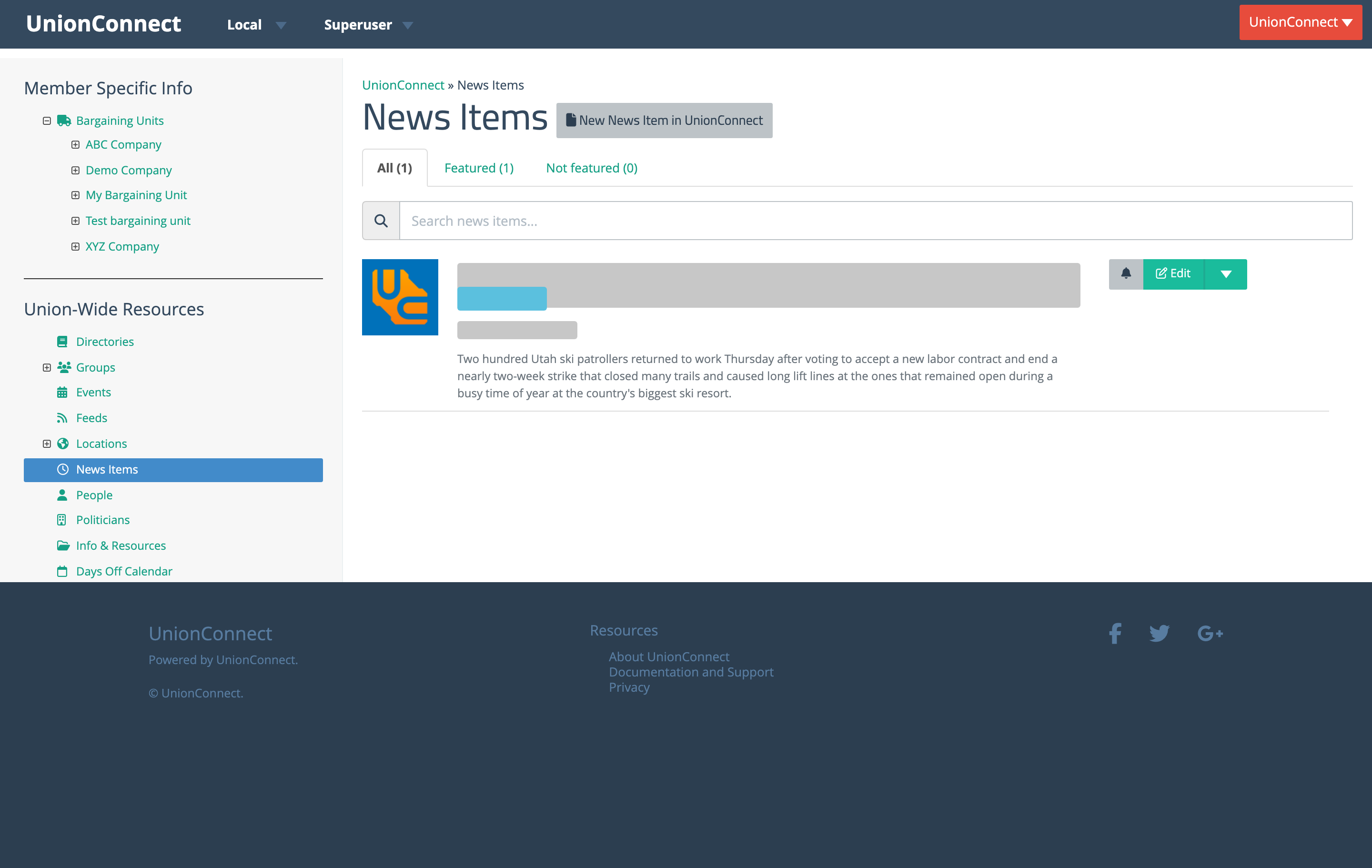
Each story shows the feature image, the headline (linked to the full story), a Featured Article badge if applicable, the date the story was added, and the first part of the body text. If the body is long it’s truncated with a Read more toggle so the list stays scannable.
Adding a News Story
- Login to the dashboard
- From the left menu, click the News Items item under whichever section you want to add it to (specific bargaining unit, group, or union-wide section)
- Click New News Item in… at the top of the list
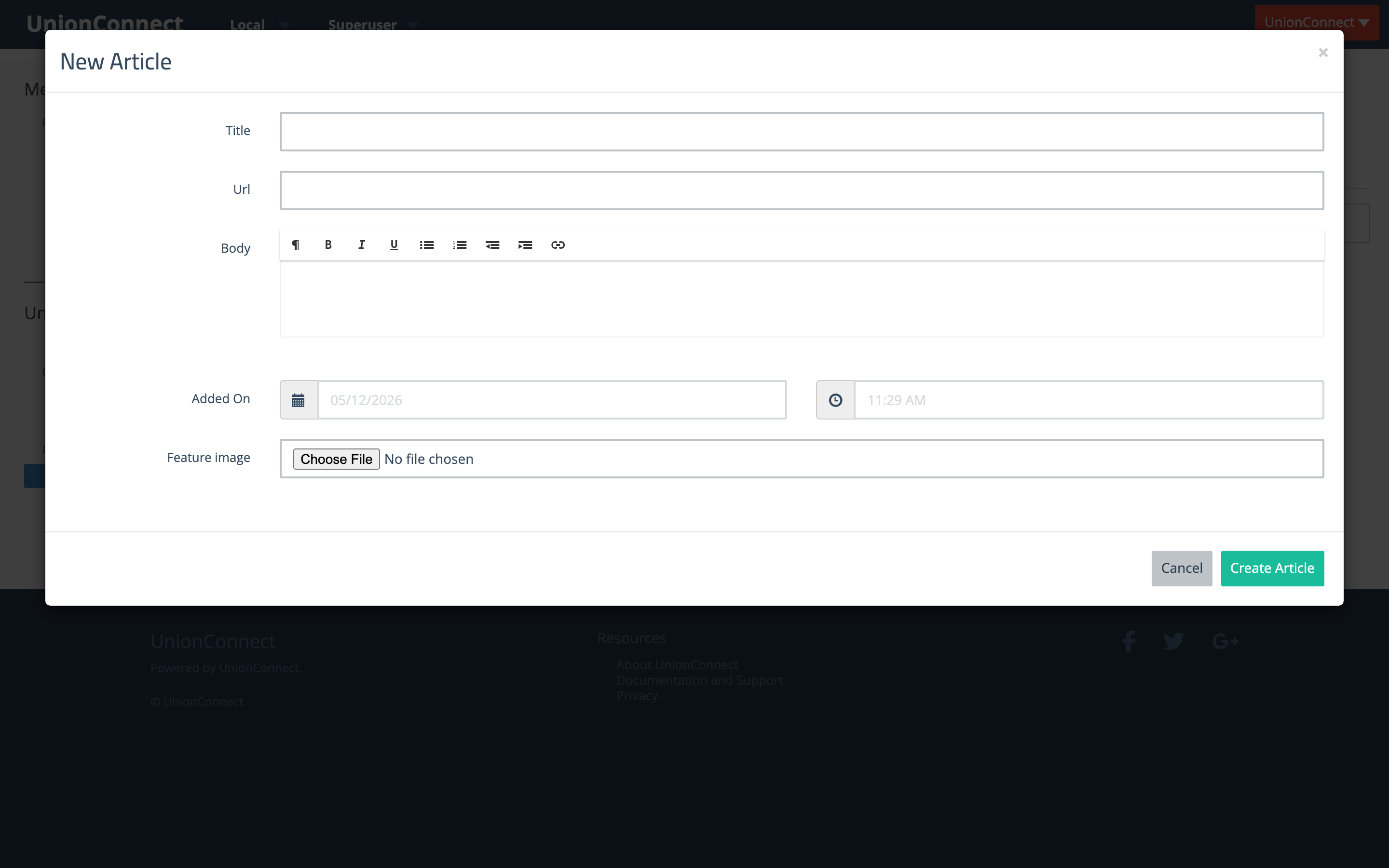
- Fill out the New Article form
- Title — The headline of the article
- URL — Optional. If set, tapping the article in the app opens this link (useful for linking to a longer story or external coverage)
- Body — The body text. The editor has formatting controls for headings, bold, italic, underline, bulleted and numbered lists, indent/outdent, and links
- Added On — The date and time the article should be dated. Defaults to now. Useful for backdating an older announcement or scheduling the article’s display date
- Feature image — Optional. The image that appears at the top of the article and next to the headline in the news list and (if featured) on the app’s home screen
- Click Create Article to publish
Viewing and Editing a Story
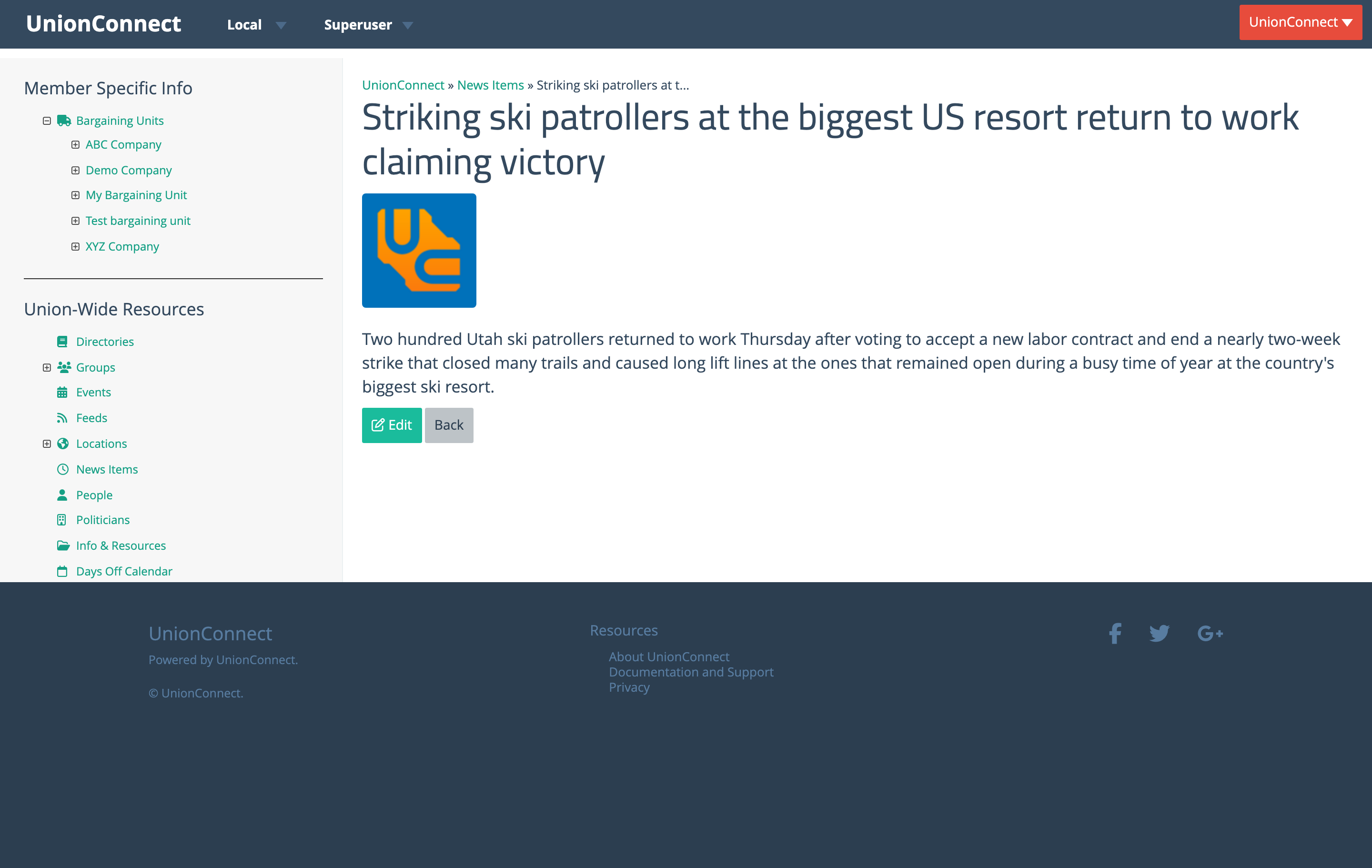
Click the headline of any story in the list to open the article view page. The page shows the feature image, headline, and full body, with Edit and Back buttons at the bottom. Edit opens the same modal as creating a new article, pre-filled with the article’s current values.
Story Actions
Each story row has a green Edit button with a dropdown caret. Click the caret to see the rest of the actions.
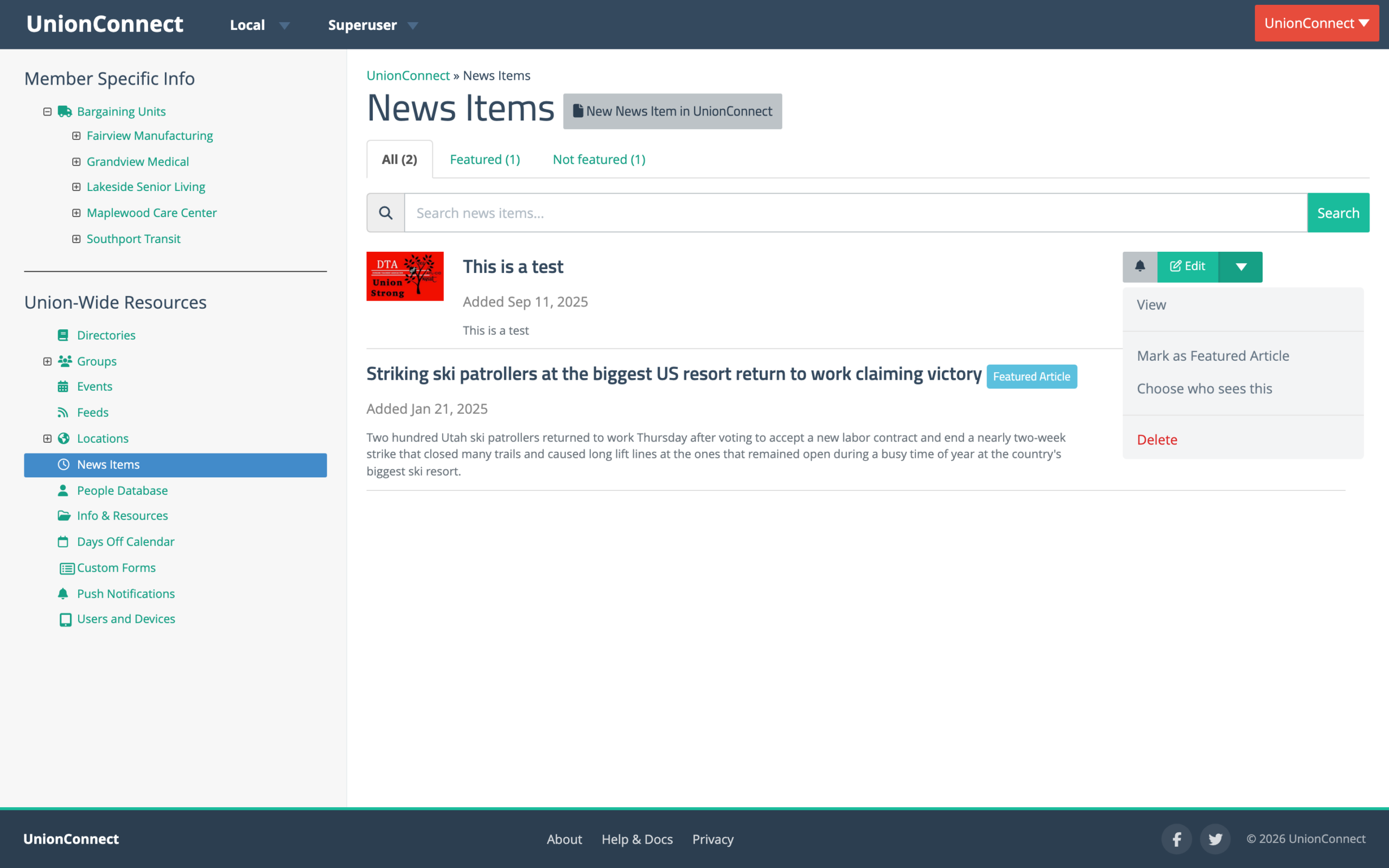
- View — Open the article view page (same as clicking the headline)
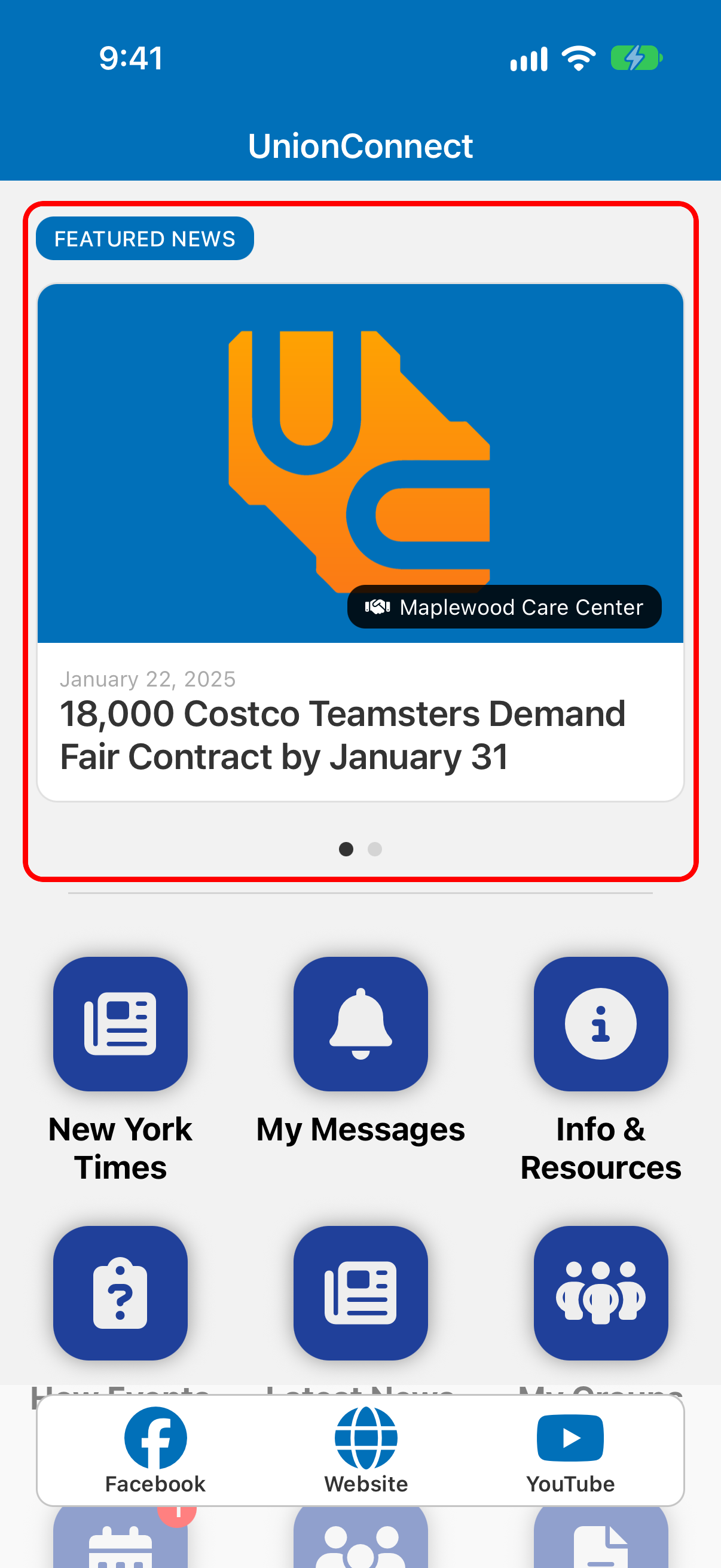
- Mark as Featured Article / Unmark feature article — Promote the article to the app’s home screen (or demote it). You can feature as many stories as you like; when more than one is featured, the app shows them as a slideshow
- Choose who sees this — Change which bargaining units, groups, or scopes the article appears in
- Delete — Permanently remove the article
Featuring a Story
Featuring a story makes it appear on the home page of the app above the menu items. You can mark as many stories as you like as featured; when more than one is featured, they appear as a slideshow on the app’s home screen.
- Login to the dashboard
- Find the story under the bargaining unit, group, or union-wide section where it lives
- Click the dropdown caret next to the story’s Edit button and choose Mark as Featured Article
Featured stories show a green Featured Article badge in the list and are included on the Featured tab.
Changing Where a Story Appears
Use Choose who sees this from the story’s dropdown to move or copy an article between bargaining units, groups, or the union-wide section.
- Find the story in the news list
- Click the dropdown caret next to Edit and choose Choose who sees this
- Check off every scope where the article should display, then click Submit
Something has to stay ticked. If you click Submit with nothing selected, the window shows Pick at least one group, or delete this instead. and nothing is saved. To take an item down for everyone, delete it instead.
Deleting a Story
Click the dropdown caret next to the story’s Edit button and choose Delete. Deletion is immediate and removes the story from every scope it was associated with.
Feeds
Feeds pull news from external RSS sources into the app’s Latest News list. Use feeds to surface, say, your international’s news, a labor news site, or your local newspaper alongside the stories you write yourself.
Feeds can be added union-wide or to a specific bargaining unit or group. Feeds are fetched automatically every hour, and stories show up in members’ news lists shortly after the next fetch. You can also pull articles right away from the feed’s row menu.
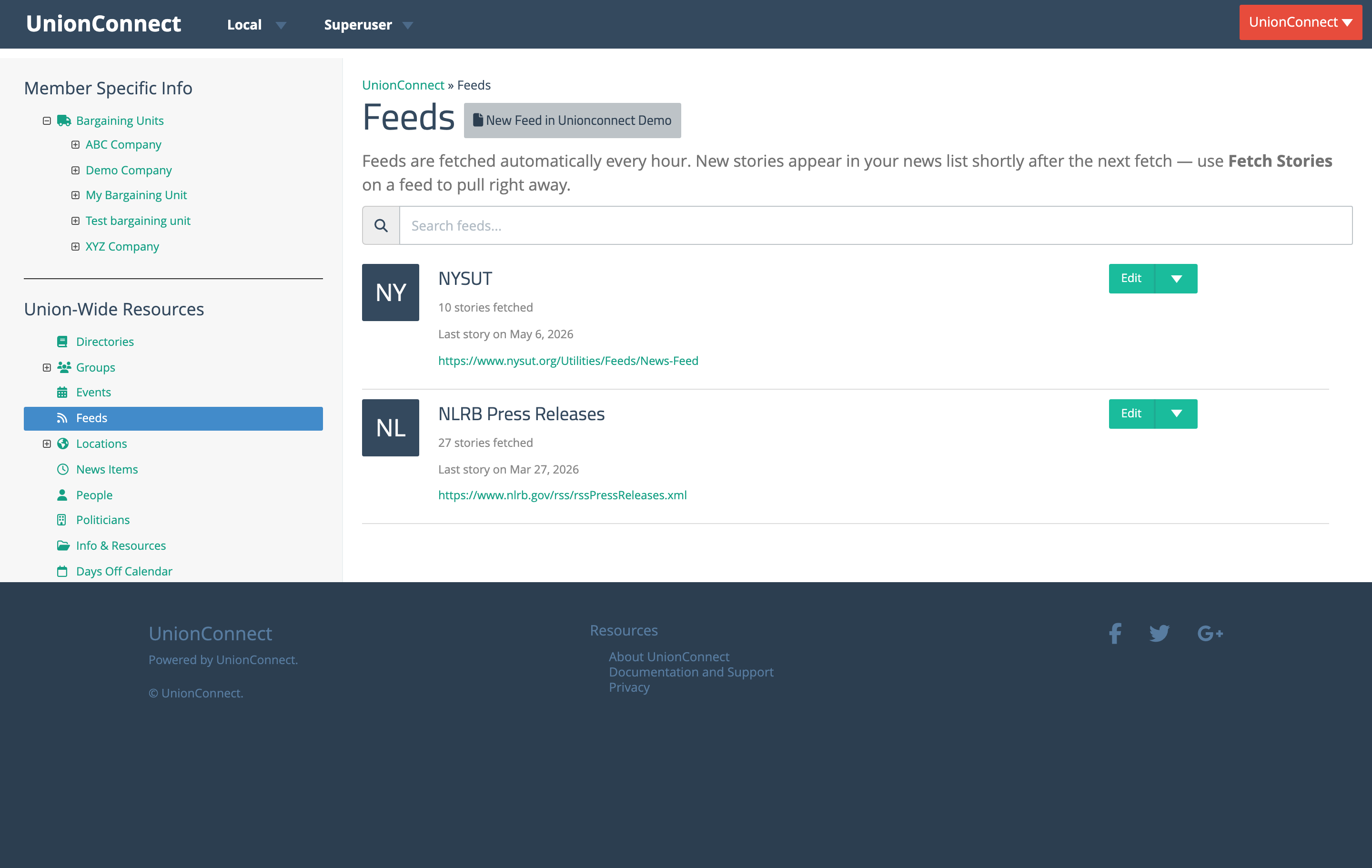
Each feed row shows the feed name, how many stories have been fetched so far, when the most recent story was published, and the source URL. The search box filters feeds by name or URL.
Adding a Feed
- Login to the dashboard
- From the left menu, click the Feeds item under whichever section you want to add it to (specific bargaining unit, group, or union-wide section)
- Find the RSS feed URL for the source you want. Most news sites publish an RSS feed; if you can’t find one, paste the site’s URL into an RSS feed extractor
- Click New Feed in…
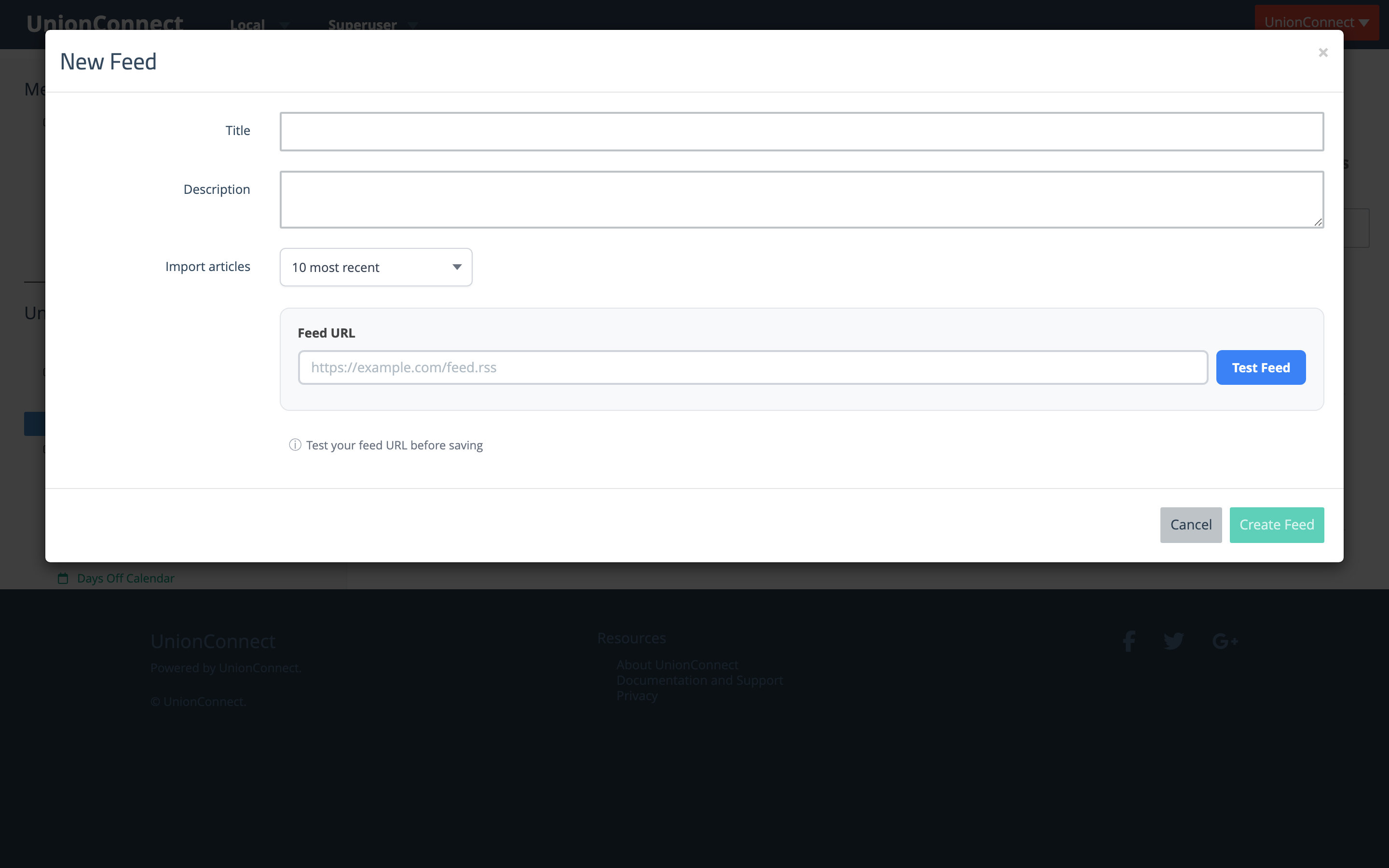
- Fill out the New Feed form
- Title — A short name for the feed. Members see it in the app’s news list, along with the feed’s description
- Description — Optional. Members see it under the feed’s title in the app’s news list, so use it to say what the feed covers
- Import articles — How many of the feed’s current articles to pull in when you first create it. Choose the 5, 10 (the default), or 25 most recent, or fetch all available articles. After creation, new articles are pulled automatically each hour
- Feed URL — The RSS feed URL itself. Click Test Feed to verify the URL parses correctly before saving — a successful test shows how many articles were found and confirms the feed is reachable
- Click Create Feed. Once a feed has tested successfully, its initial batch of articles starts importing in the background
Managing a Feed
The dropdown next to each feed’s Edit button has the rest of the actions:
- View Stories — Open the feed and see the stories it has imported
- Fetch Stories — Pull new articles from the feed right now instead of waiting for the hourly schedule. Useful when you’ve just published something on the source site and want it to appear in the app right away
- Delete — Remove the feed. Every story imported from it is deleted too, and no new ones are pulled
Events
Events let you publish upcoming meetings, conferences, picnics, and other gatherings to your membership. Events appear in the app’s Events list, where members can RSVP, view location and time details, and tap through to any linked URL.
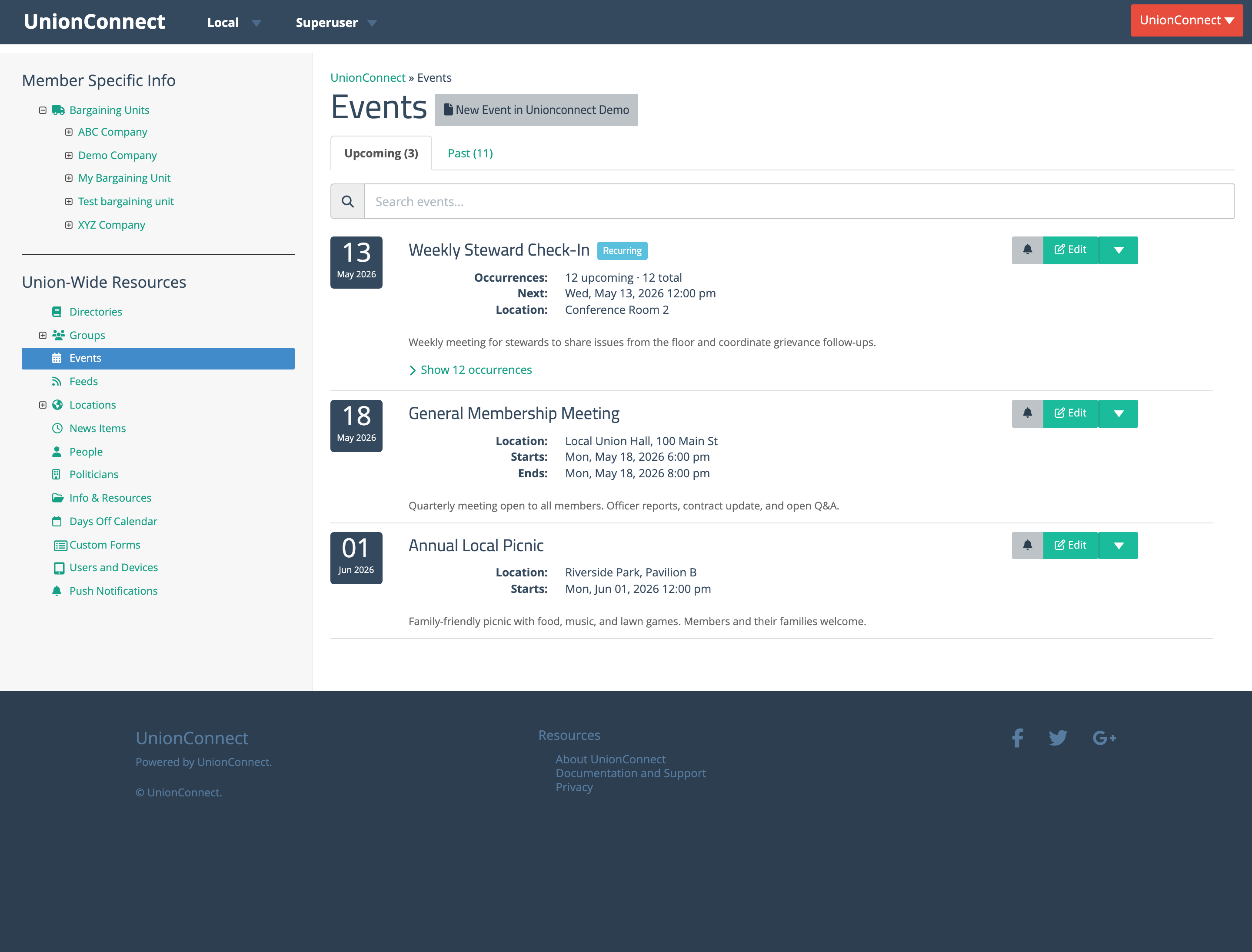
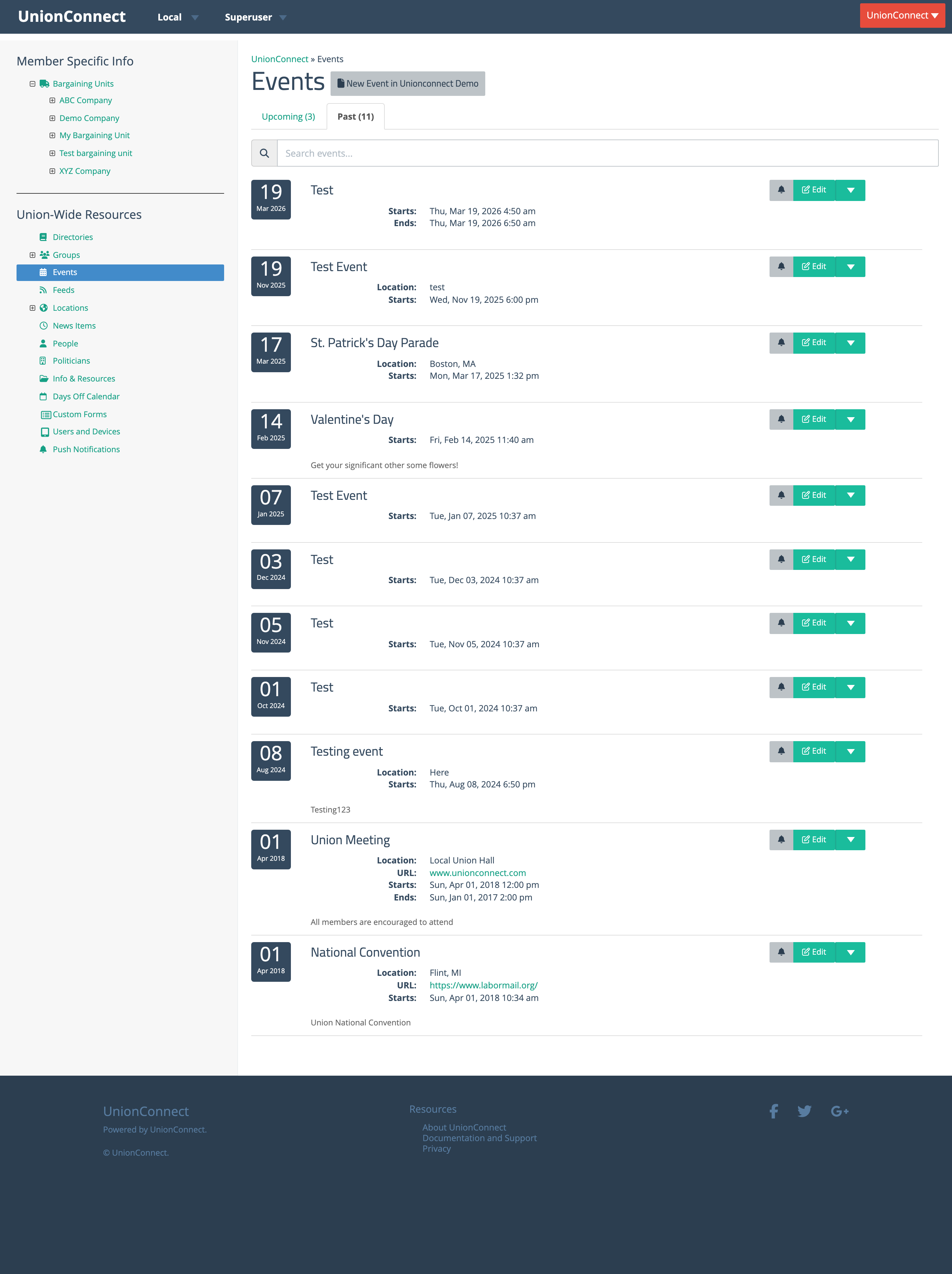
Like news items, events can be scoped union-wide or to a specific bargaining unit or group. The Events page lists each scope’s events on two tabs — Upcoming and Past — with a search box that searches titles, locations, and descriptions when you press Enter. A one-time event’s row shows its date as one line (for example, Thu, Oct 15, 2026 at 1:00 pm to 3:30 pm), then its location, link and a short description. On the right are a Notify button, which sends members a push notification about the event, and an Edit button whose menu holds View, RSVPs, Attendance (when event check-in is on for your local), and Delete. Recurring events get their own kind of row, described below.
Adding a One-Off Event
- Login to the dashboard
- From the left menu, click the Events item under whichever section you want to add it to (specific bargaining unit, group, or union-wide section)
- Click the New Event in… button at the top of the list
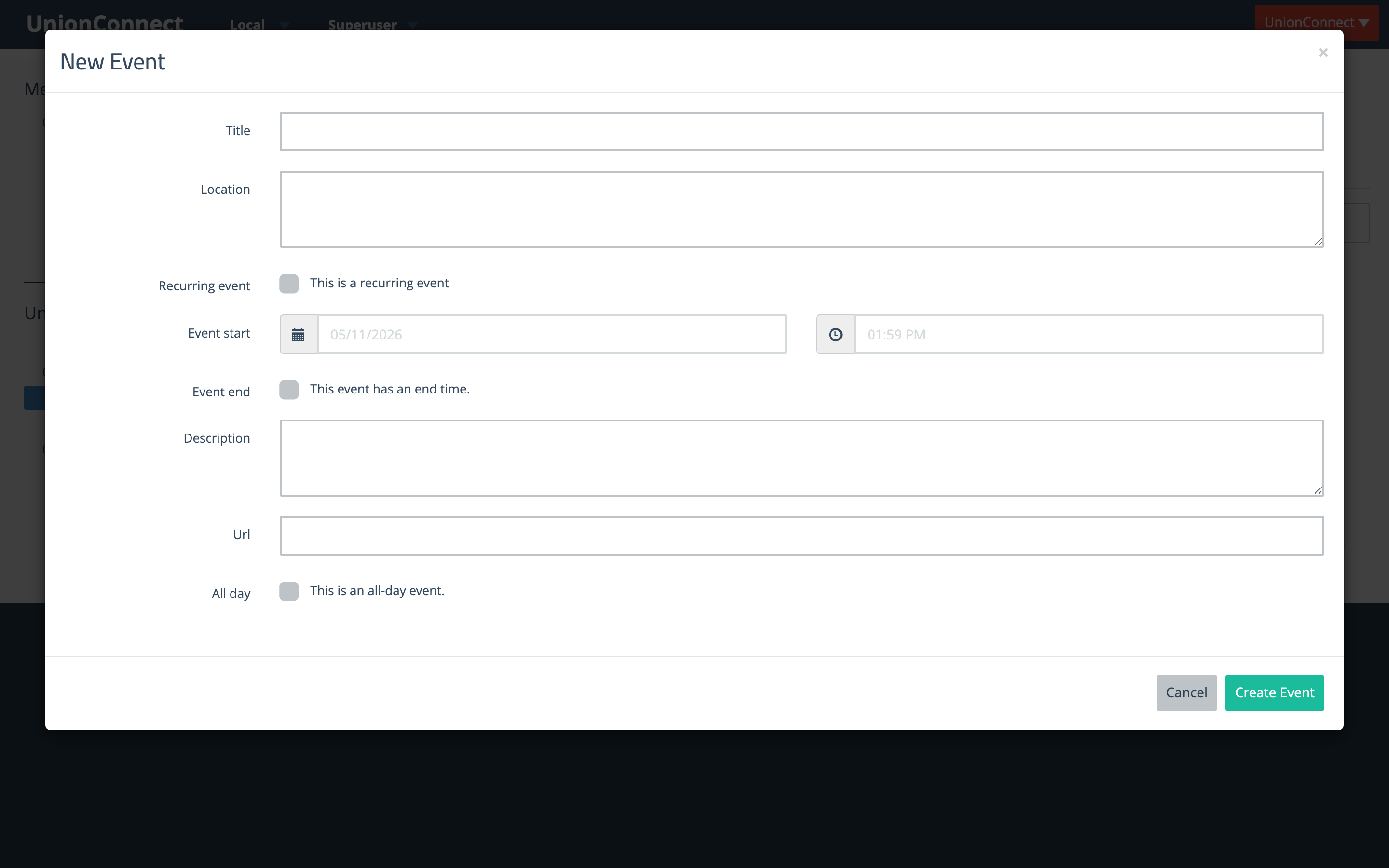
- Fill out the New Event form
- Title — The name of the event as it will appear in the app
- Location — Where the event will be held. Plain text is fine; in the app, members can tap an address to open it in their maps app
- Recurring event — Leave unchecked for a one-off. See Adding a Recurring Event Series below to schedule a repeating event
- Event start — Date and time the event starts
- Event end — Check This event has an end time to reveal a second date/time picker. Leave it unchecked if the event is open-ended
- Description — A short summary shown on the event detail screen
- URL — Optional link members can tap from the event detail screen (e.g. a Zoom link, RSVP form, or external announcement)
- All day — Check This is an all-day event to hide times in the app and show the event under its date only. Useful for things like picnics, conferences, or holidays
- Click Create Event to publish the event to the app
Adding a Recurring Event Series
For meetings or check-ins that repeat on a schedule, check This is a recurring event in the New Event modal. The form expands to show the rules that generate the series.
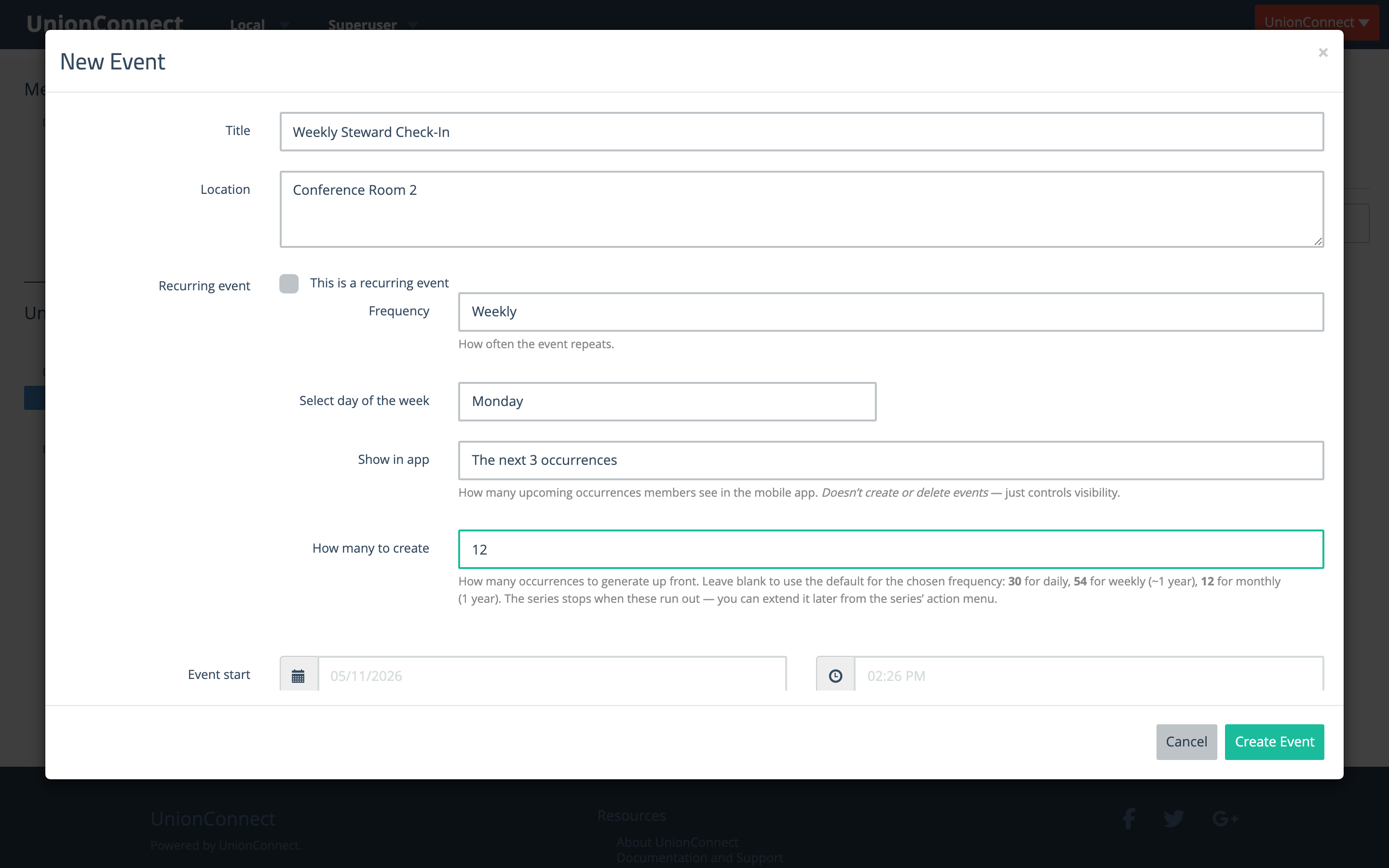
- Frequency — How often the event repeats. Choose Daily, Weekly, or Monthly
- Day of the week / day of the month — For weekly events, pick which day. For monthly events, pick a week (1st, 2nd, 3rd, 4th, or Last) and a weekday (e.g. “the third Tuesday”)
- Show in app — Controls how many upcoming occurrences members see in the mobile app. Choose All upcoming occurrences, The next 3 occurrences, or Just the next occurrence. You can change this later with Manage series → Schedule. This only changes visibility — it does not create or delete events
- How many to create — How many occurrences to generate up front. Leave blank to use the default for the chosen frequency (30 for daily, 54 for weekly — about a year, 12 for monthly). The series stops when these run out; you can extend it later with Manage series → Schedule
- Event start — The date and time of the first occurrence
When you click Create Event, the dashboard creates every date in the series at once. Each date is its own event with its own RSVPs and attendance, but the Upcoming tab shows the whole series as one row.
How a Series Appears in the Events List
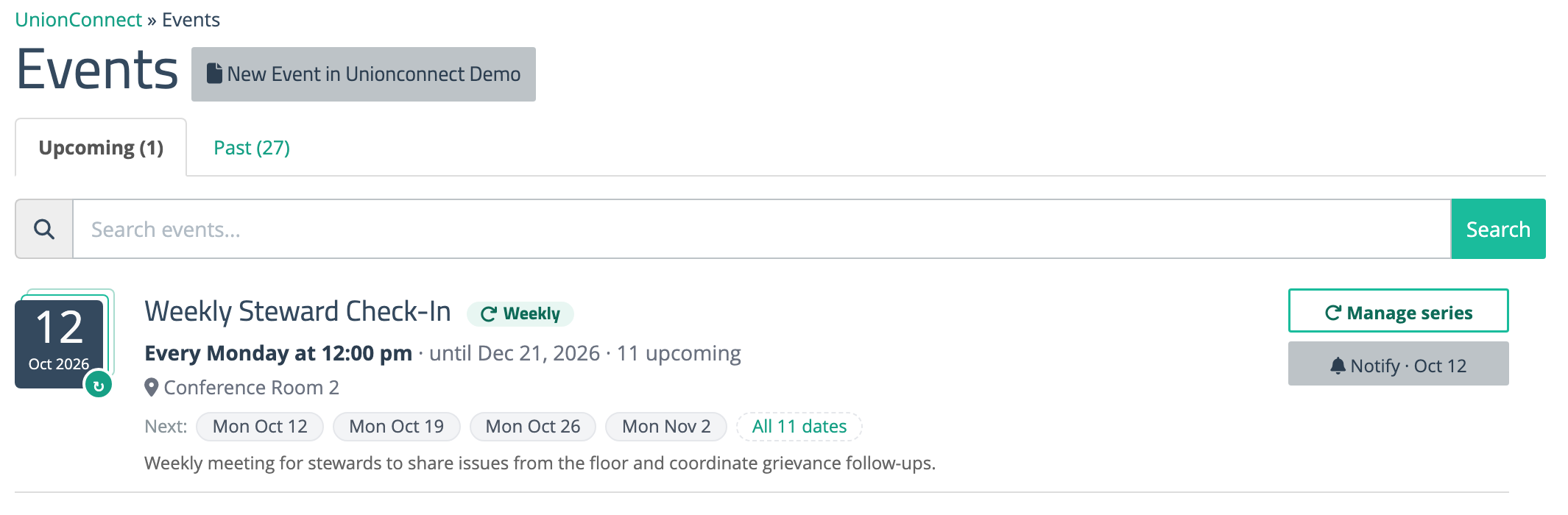
A series row is built to read as a series rather than a single event:
- Date tile — Shows the next date, drawn as a stack with a repeat badge so you can tell there are more
- Frequency pill — Daily, Weekly, or Monthly, next to the title
- The rule in words — For example Every Monday at 12:00 pm · until Dec 21, 2026 · 11 upcoming, or Every 3rd Thursday of the month at 6:30 pm
- Next dates — Chips for the next four dates. Click one to edit that date only. The last chip, All N dates, opens the series editor on its Dates tab
- Manage series — Opens the series editor (below), where everything that affects the whole series lives
- Notify · date — Sends members a push notification about the next date. The button names the date it will be about
On the Past tab, each past date of a series is listed as its own event.
Editing an Event
For a one-off event, click the Edit button on the event row. The Edit Event modal has the same fields as the New Event modal, pre-filled with the event’s current values. Change any of them and click Update Event to save.
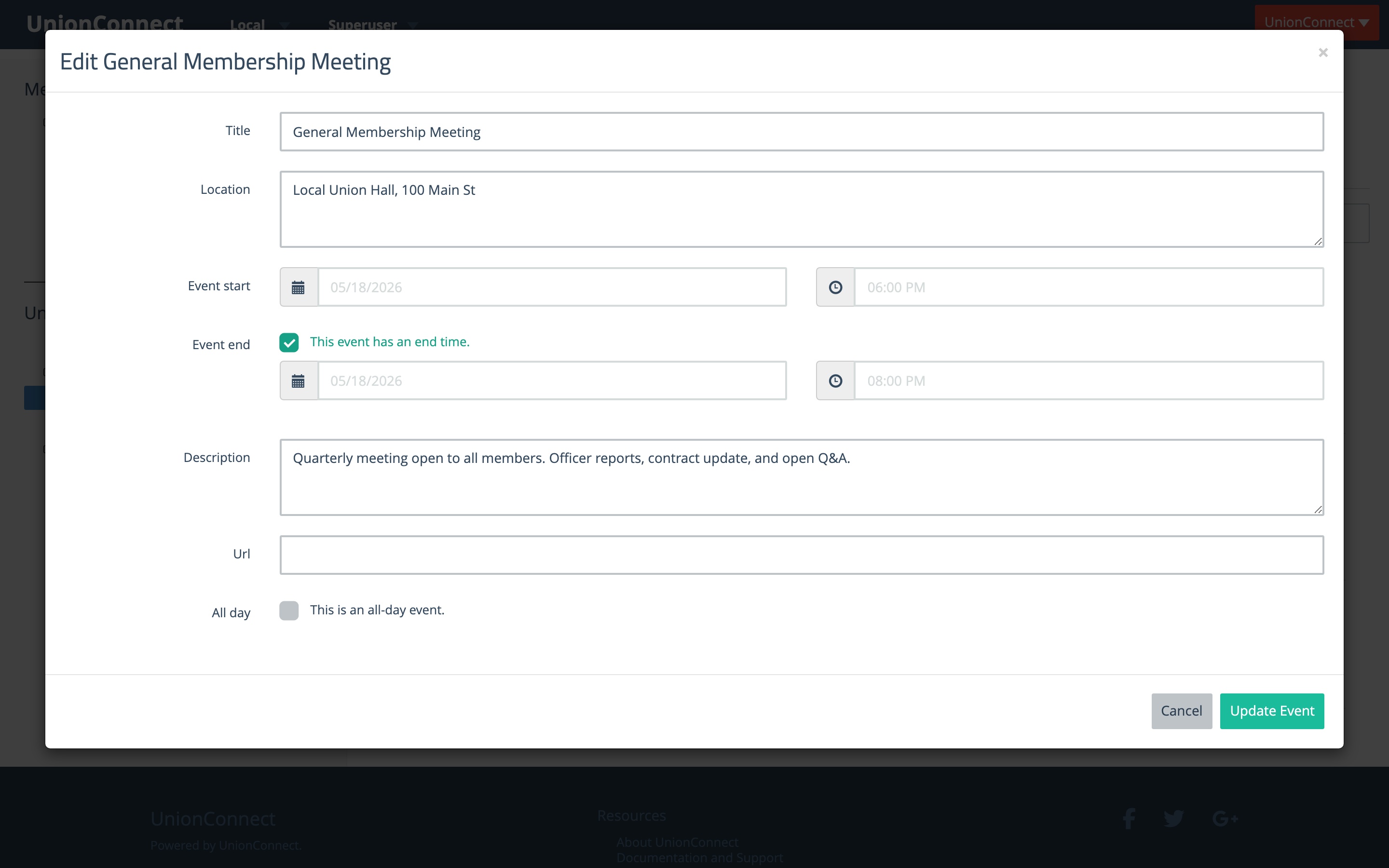
For one date of a recurring series, click its chip in the series row, or use Edit this date on the series editor’s Dates tab. A blue banner at the top of the form says Applies only to that date and how many other dates stay unchanged. Changes here, including RSVP options, affect that date only. To change every date at once, use Manage series.
Managing a Recurring Series
Click Manage series on a series row to open the series editor. Its header shows the title, the frequency, the number of dates, and the first and last date. It has three tabs: Details, Schedule, and Dates. Each tab saves on its own, and the editor stays open on the same tab with a confirmation message after you save. The Events list refreshes when you close the editor.
Details
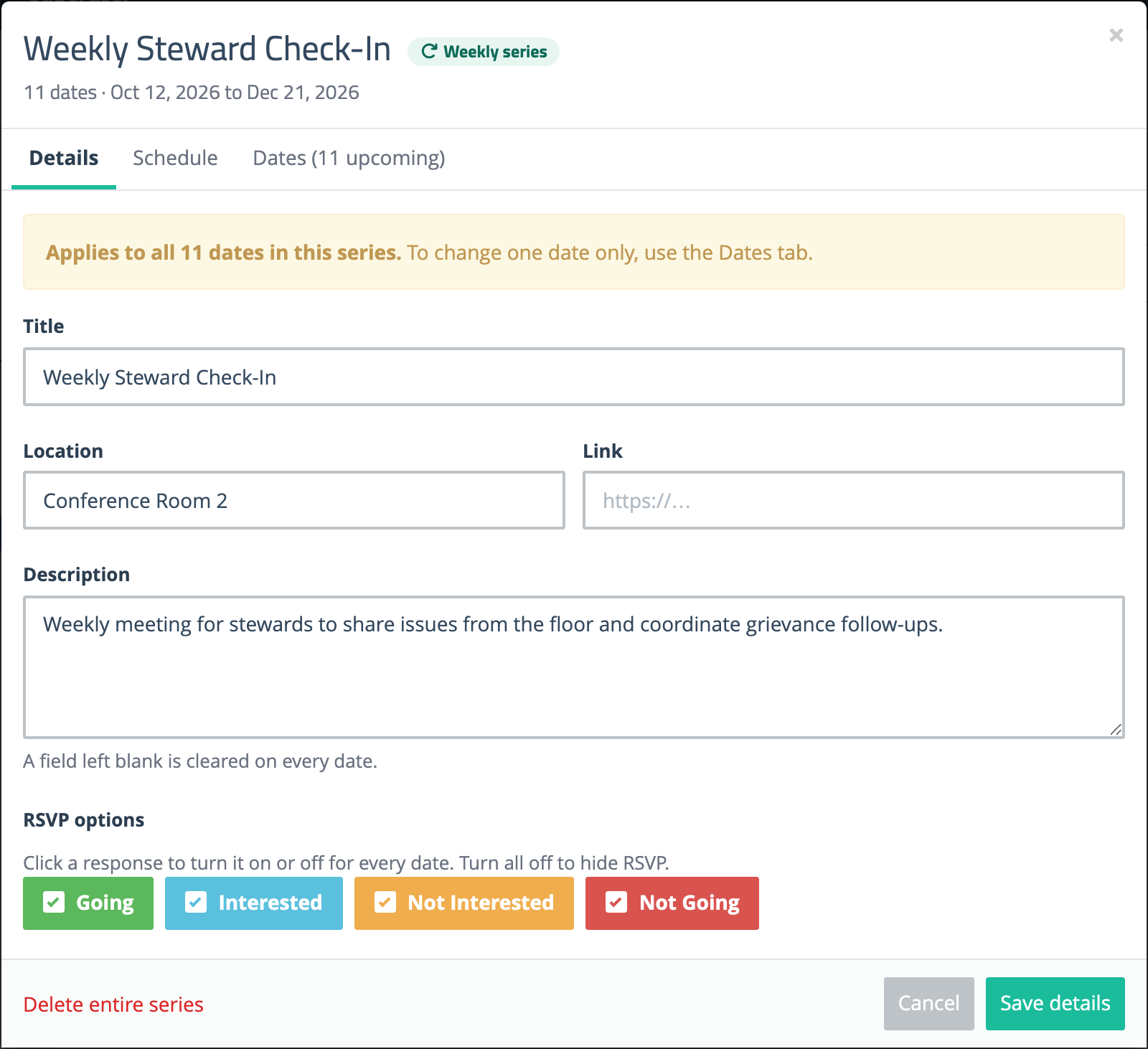
Use this tab when the title, location, link, description, or RSVP options should change for every date in the series. A yellow banner reminds you that the changes apply to all dates.
- Title, Location, Link, Description — Saved to every date. A field left blank is cleared on every date
- RSVP options — Click a response to turn it on or off for every date. Turn them all off to hide RSVP. If some dates were given their own RSVP options, a warning says that saving will set these options on every date
- Delete entire series — Deletes every upcoming date in the series after you confirm. Past dates are kept
Click Save details to apply the changes.
Schedule
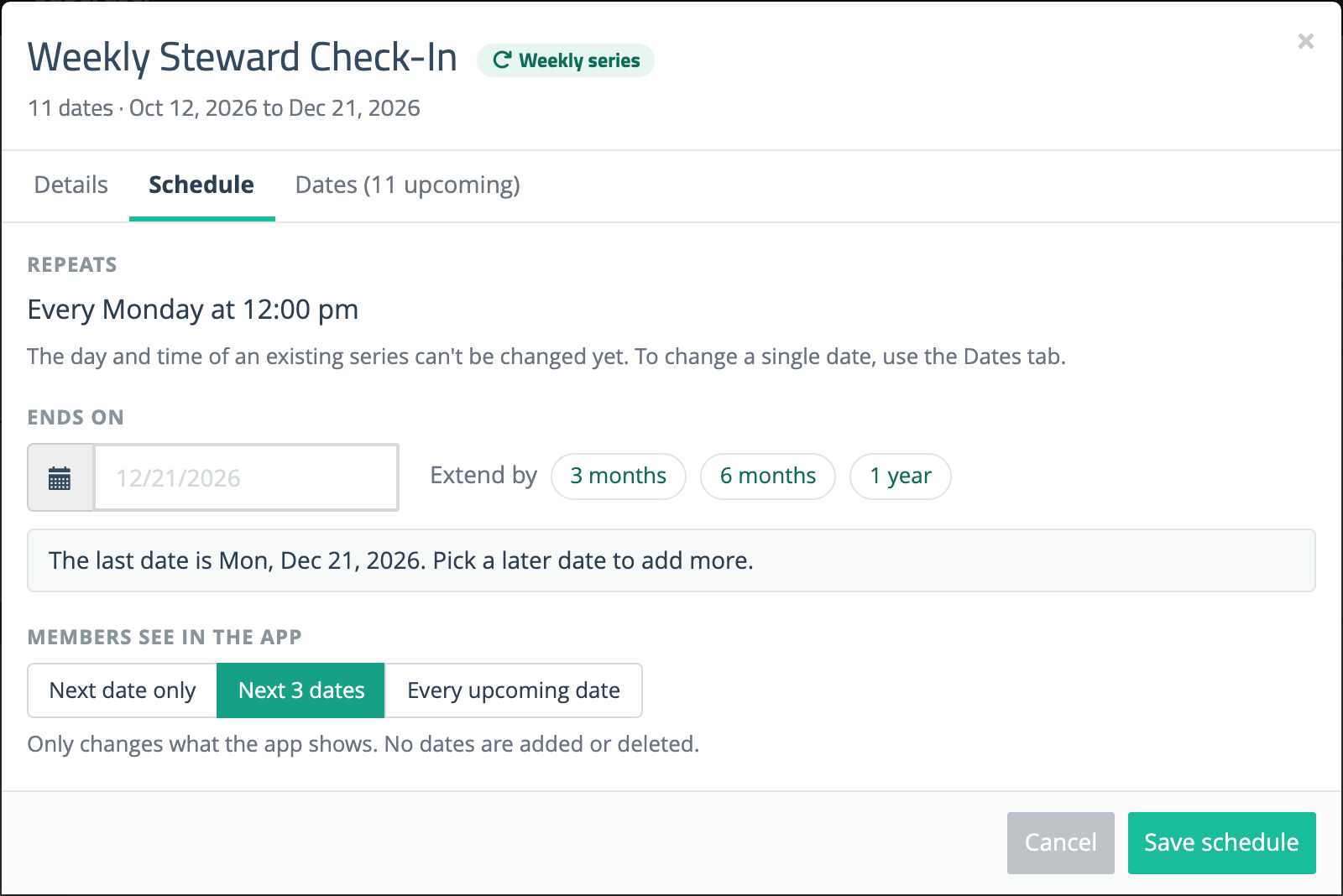
- Repeats — The series’ rule in words. The day and time of an existing series can’t be changed yet. To move a single date, use the Dates tab. To change the day, time, or frequency for good, delete the series and create a new one
- Ends on — Extends the series. Pick a later end date from the calendar, or click 3 months, 6 months, or 1 year beside Extend by. Every date the rule produces up to that end date is added. The end date can’t be earlier than the current last date, so the series can’t be shortened here. A single change can add at most 520 dates
- Members see in the app — Next date only, Next 3 dates, or Every upcoming date. This only changes what the app shows. No dates are added or deleted
Click Save schedule to apply the changes.
Dates
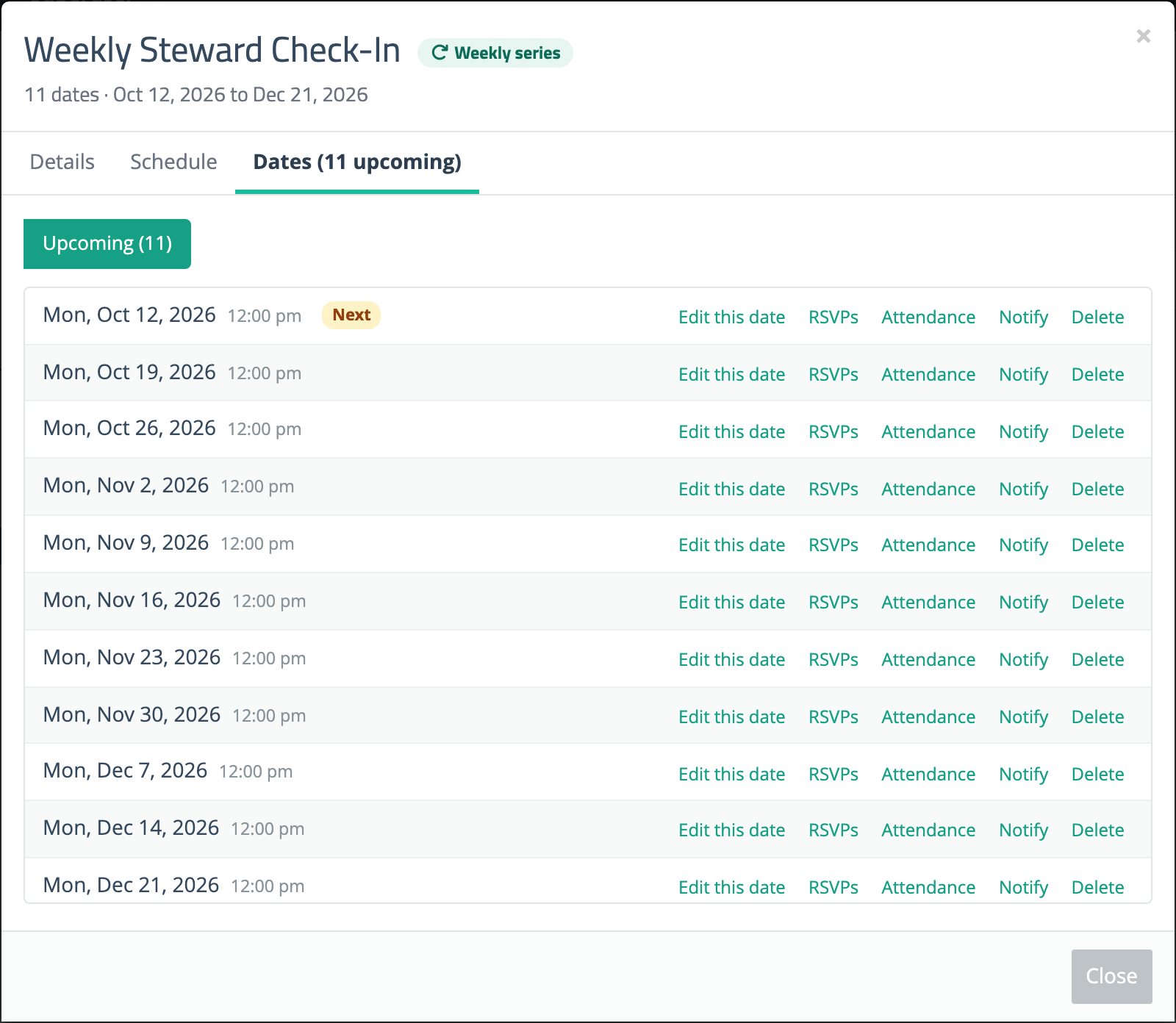
The Dates tab lists every date in the series. The next one is tagged Next. Use the Upcoming and Past buttons at the top to switch lists. Each date has its own links:
- Edit this date — Opens that date’s edit form inside the series editor. Click ‹ Back to return to the Dates tab. After you save, you also return there
- RSVPs — Who has responded to that date
- Attendance — That date’s check-in list, when event check-in is on for your local
- Notify — Sends a push notification about that date (upcoming dates only)
- Delete — Deletes that date only, after you confirm. The rest of the series stays
Subscribers and RSVPs
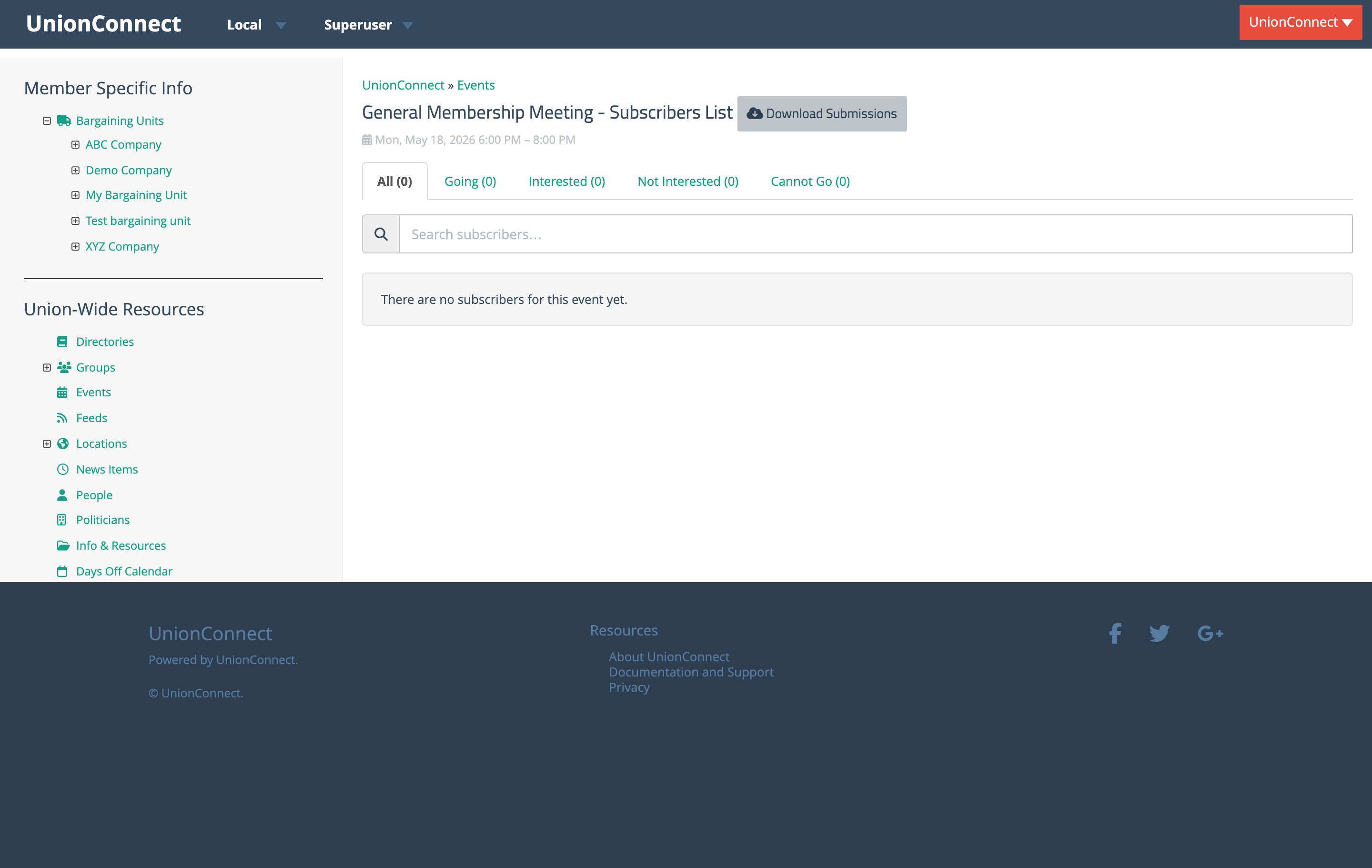
Every event has an RSVPs item in its Edit menu. This opens the event’s Subscribers List page, that shows who has responded to the event in the app along with their response (Going, Maybe, or Not Going).
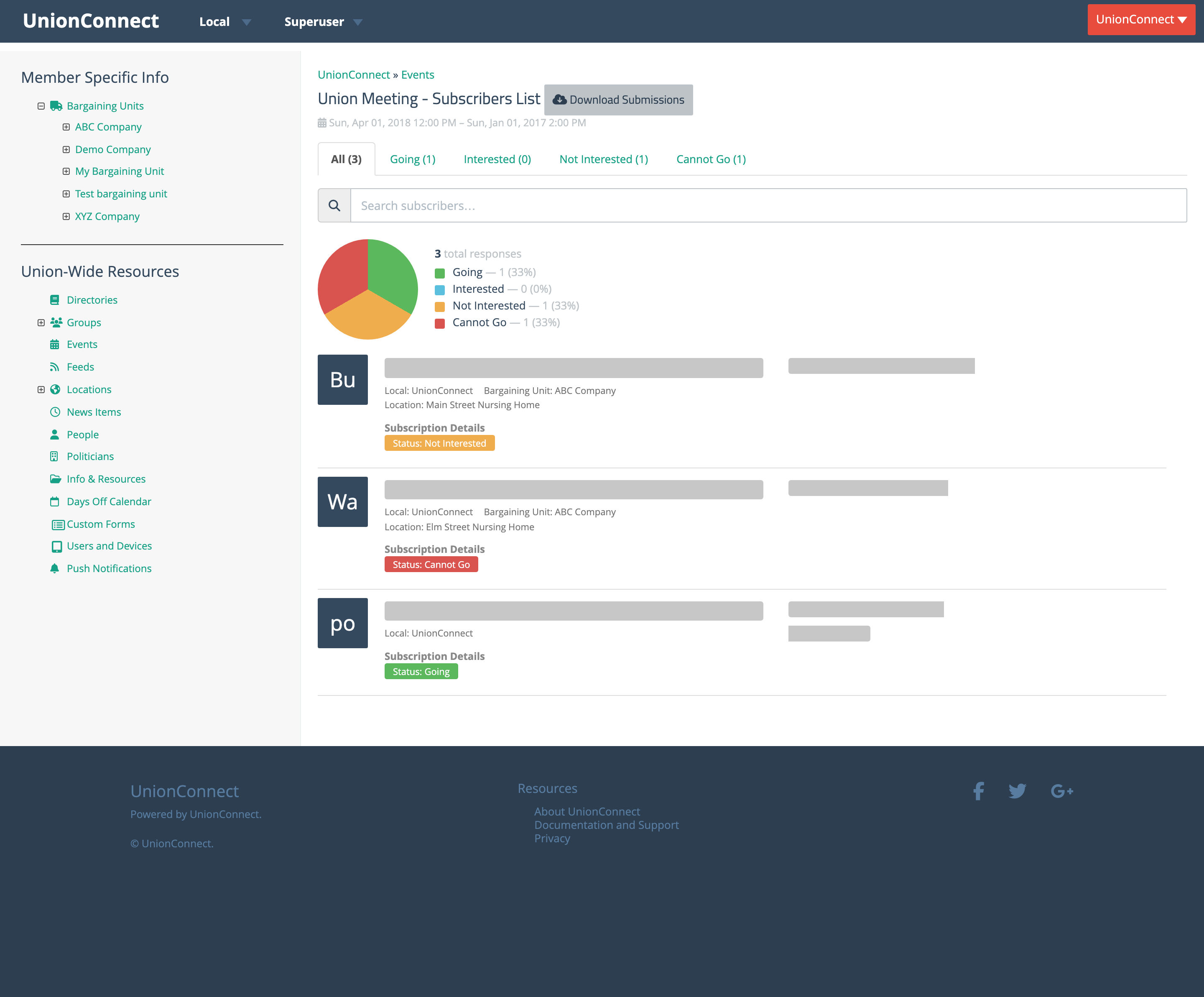
The page shows:
- A pie-chart breakdown of responses by status, with totals for Going, Maybe, and Not Going
- A list of every member who has responded, with their name, contact info, and their current response
- A Download Submissions button that exports the list as a spreadsheet (CSV file)
If no one has responded yet, the page shows a friendly empty state instead of an empty chart.
For a recurring series, each date has its own list. Open Manage series → Dates and click RSVPs next to the date you want.
Searching Events
The search box at the top of the Events list looks for your words in the event title, location, and description, so you can find an event by any of those fields. Type your search and press Enter (or click Search). The tab counts in the page header (e.g. Upcoming (3), Past (11)) update to reflect how many events match. Clear the search box to return to the full list.
Past Events
An event moves from the Upcoming tab to the Past tab the day after it ends. Past events stay searchable and keep their subscriber lists, so you can come back later to see who responded. Past events are not deleted automatically.
Deleting an Event
- A one-off event: Open the Edit menu on the event row, choose Delete, and confirm
- A single date of a recurring series: Click Manage series, open the Dates tab, and click Delete next to that date. The rest of the series is left intact
- An entire recurring series: Click Manage series and, on the Details tab, click Delete entire series. Every upcoming date is removed. Past dates are kept, with their RSVPs and attendance, and stay on the Past tab
Deleting an event also clears its RSVP records.