
Each bargaining unit keeps its own contracts, and members only see the contracts for the bargaining unit they belong to. A bargaining unit can hold more than one contract (for example, a master agreement plus a side letter), and each contract is a PDF that you can optionally make searchable so members can browse and search it article by article.
Where contracts live
- Log in to the app manager.
- Open the bargaining unit from the left menu under Member Specific Info.
- Click the Contract tab.
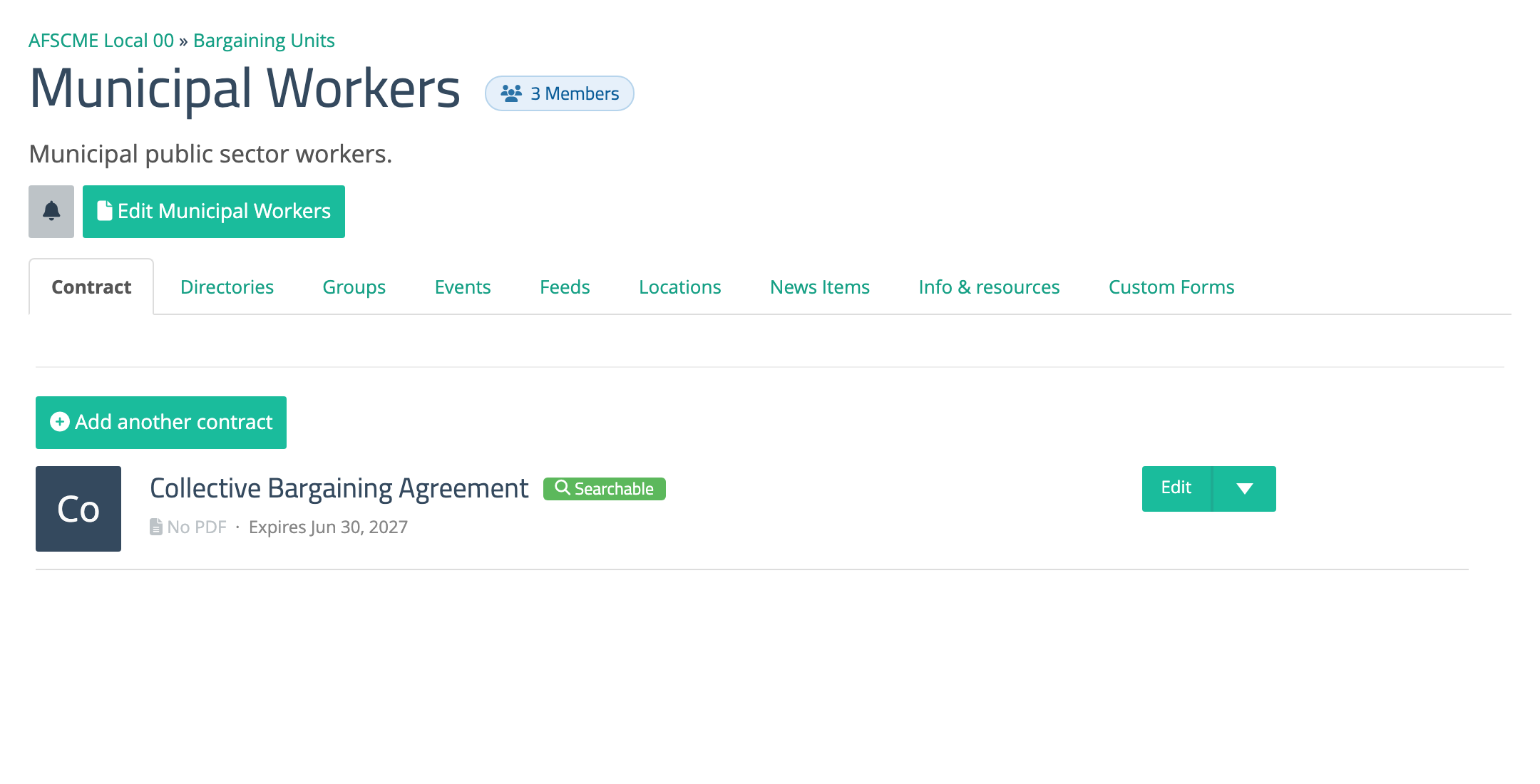
You’ll see the bargaining unit’s contracts listed here. Each row shows the contract’s title, a green Searchable label if it has been made searchable, whether it has a PDF, and its expiration date. Use the Edit dropdown on a row to View, Edit, or Delete that contract.
Adding a contract
- On the Contract tab, click Add another contract.
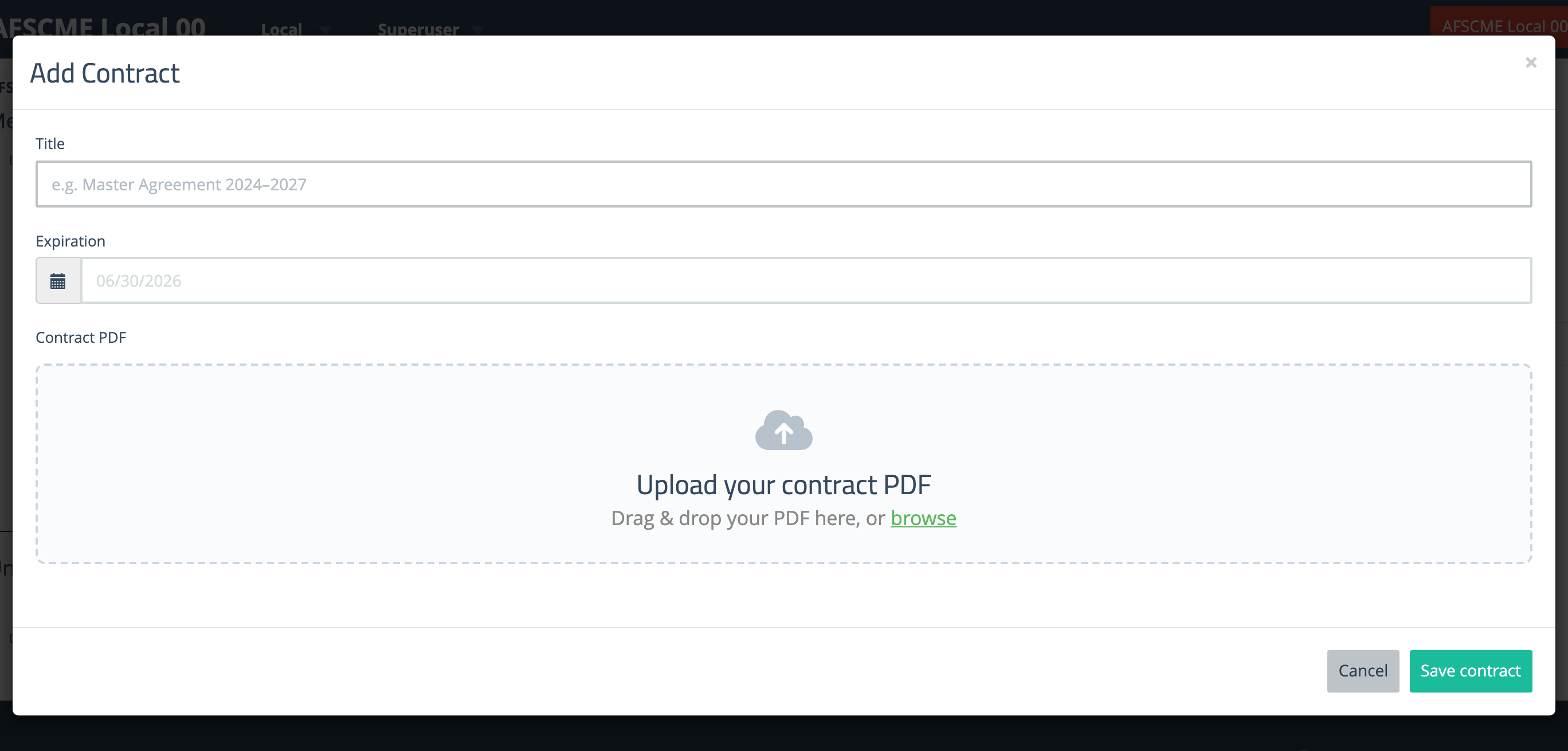
- Enter a Title (for example, Master Agreement 2024–2027).
- Optionally set an Expiration date.
- Upload the contract PDF — drag and drop it onto the upload area, or click browse to pick a file. Contracts must be PDFs, up to 75 MB.
- Click Save contract.
PDF only. Contracts accept PDF files. If you have a Word document, export or “Save As” a PDF first, then upload it.
Making a contract searchable
A searchable contract is split into individual articles that members can scroll through and search inside the app — handy for long agreements. The original PDF is kept too, so members can still open or download the full document.
You no longer need to add a special keyword or split the contract yourself. UnionConnect reads the PDF and splits it into articles automatically.
- Add a contract (or Edit an existing one) so its PDF is uploaded.
- Click Make this contract searchable.
- UnionConnect splits the PDF into articles based on its headings (for example, ARTICLE 1, ARTICLE 2, and so on) and shows them in an editor.
- Review the result:
- Reorder articles by dragging them.
- Rename an article or edit its text in the panel on the right.
- Add or remove articles as needed.
- Any article marked with a small table icon contains a table — tables don’t always convert cleanly, so check those against the original PDF.
- Click Save contract.
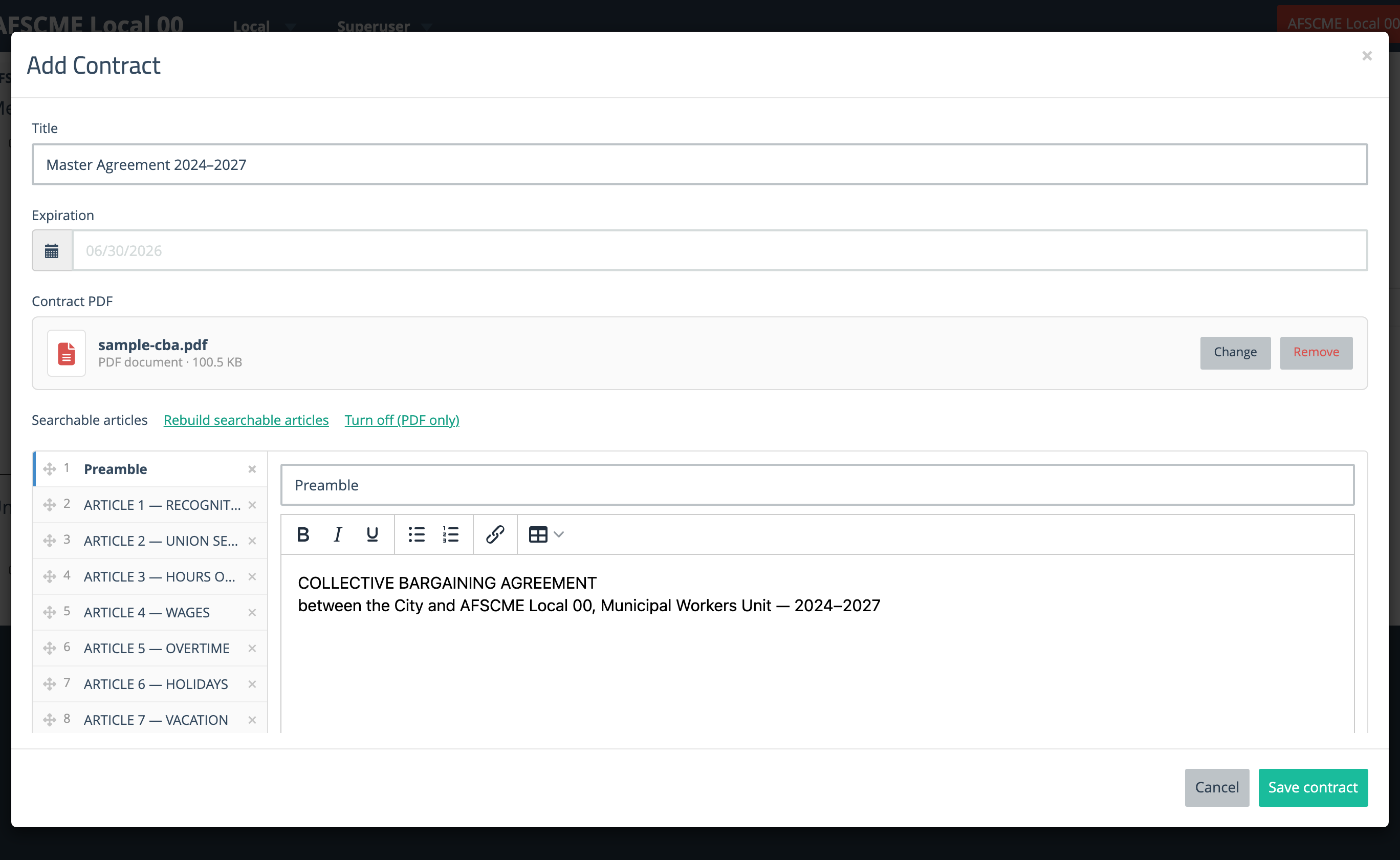
If you need to redo the split, use Rebuild searchable articles. To go back to a plain PDF (no articles), use Turn off (PDF only).
If a PDF can’t be split — for example, a scanned contract that’s really just images with no text — UnionConnect will tell you. You can leave it as a regular PDF, or build the articles by hand.
Editing, replacing, or deleting a contract
- Edit — open the Edit dropdown on a contract row. You can change the title and expiration, Replace or Remove the PDF, and turn searchable on or off. Clicking Save saves your changes and keeps the window open on the article you were working on, with a Saved confirmation, so you can keep editing. Click Close when you’re done; the contract list then refreshes. (If you replaced or removed the PDF, Save reloads the page instead.)
- Replacing the PDF on a searchable contract clears its existing articles, since they came from the old file. Make the new PDF searchable again if you want articles.
- Delete — permanently removes the contract and any searchable articles it has. This can’t be undone.
What members see
In the app, members of the bargaining unit can open the contract under their bargaining unit. For a searchable contract they can browse and search the articles and still open the full PDF; for a plain PDF contract they can view or download the document.