
People and user accounts are separate records in UnionConnect. People Database entries (names, contact info, bios) are what appear in your local’s directories. App accounts (users) are the logins members use in the app.
You can link a person to a user account to connect the two. When linked, the person entry shows which user account it belongs to, and the user account shows which person entry it’s connected to.
Why Link People and Users?
Linking keeps contact information consistent. You choose which fields sync: name, email, phone, and photo (if your registration form collects one). Synced fields are copied from the member’s app account to the person entry, and kept up to date whenever the member changes them. This means you don’t have to manually update directory listings when members change their contact details.
Which App Accounts Can Be Linked
Only an app account that can sign in to the app can be linked to a People Database entry. That rules out accounts that are:
- rejected,
- not yet verified, unless your local lets unverified members use the app,
- demo accounts,
- banned, deactivated, or closed.
These accounts don’t appear in the lists you pick from, and Add to People Database doesn’t appear in their menu on the Users page.
How to Tell If a Person Is Linked
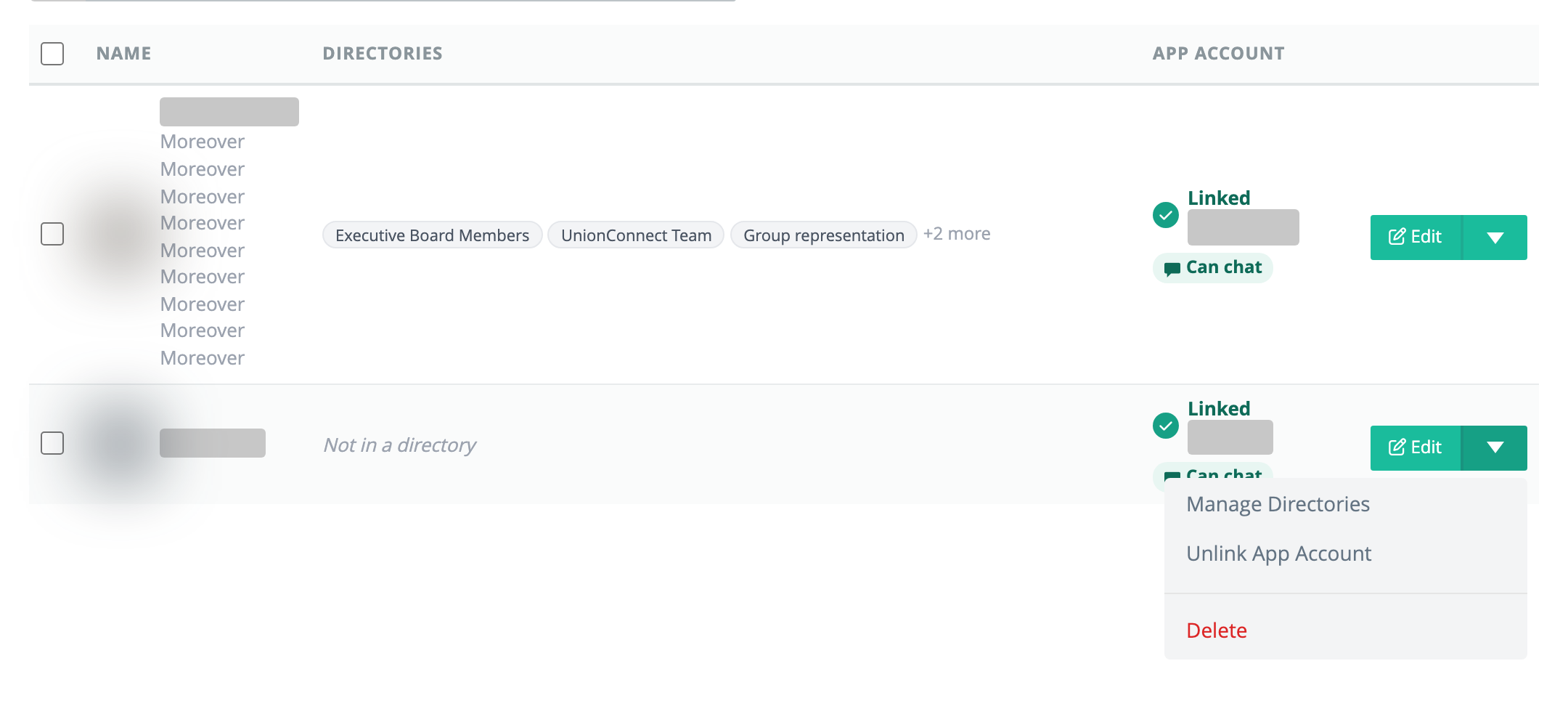
On the People Database page, the App account column shows a check mark, Linked, and the name on the linked app account. Unlinked entries show a dash. Click the row to open its details panel, which links to the app account and says “contact info stays in sync” when at least one field syncs. The Has app account filter shows only linked entries.
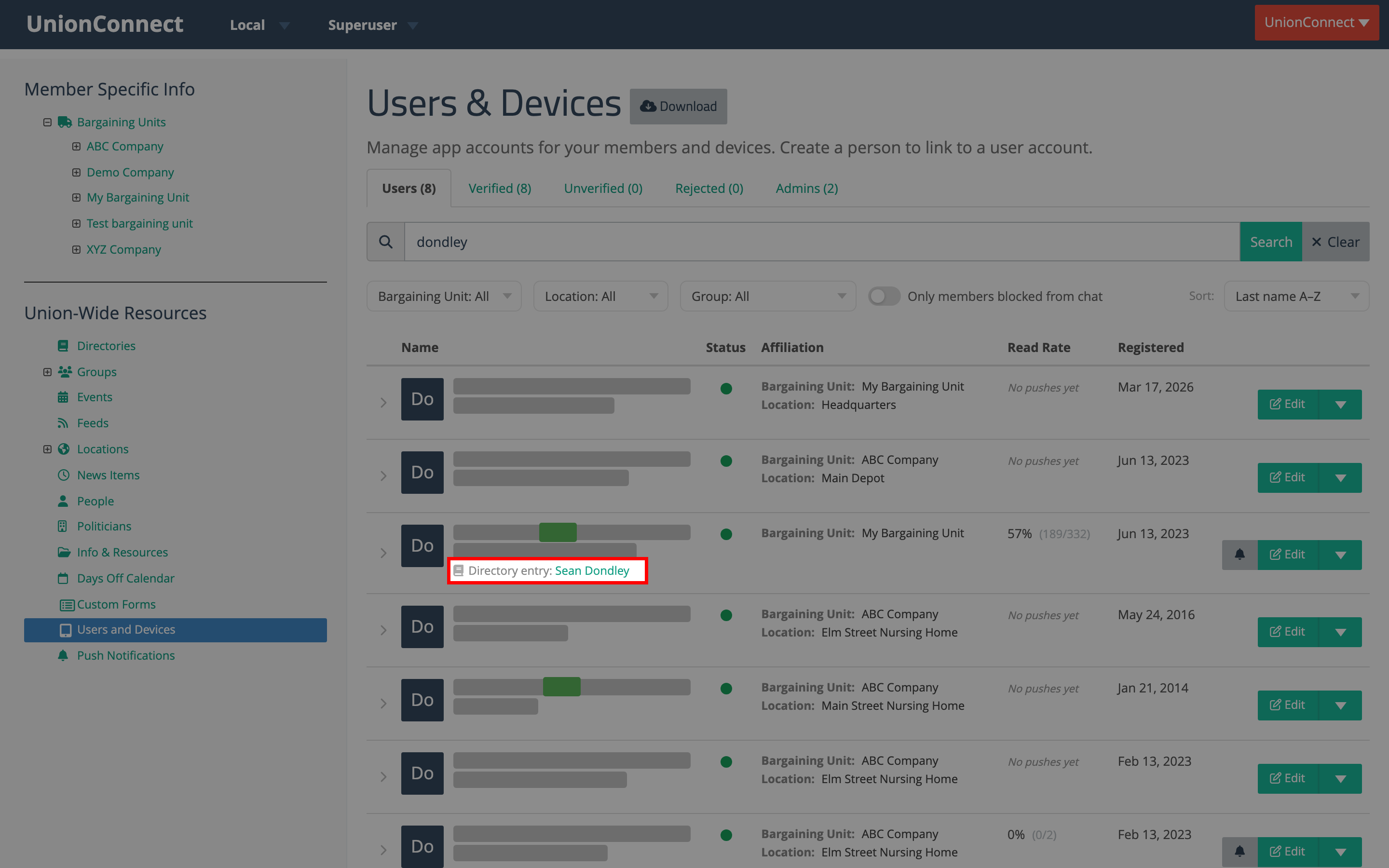
On the Users and Devices page, a linked user shows a People Database: line with the linked person’s name in the row’s name cell.
The edit screens say so too. Editing a linked person shows a Linked app account banner with the account holder’s name at the top of the form. Editing a linked user shows a Linked People Database entry banner with the entry’s name; click the name to open that entry’s edit form. Click the ⓘ in the banner for a short explanation, or Unlink to remove the link.
Linking from the People Database
Link a Person to a User Account
- Go to People Database in the sidebar.
- Find the person you want to link.
- Click the dropdown arrow next to Edit and select Link to App Account. (When you’re editing an unlinked person, the Connect to app account button at the bottom of the form opens the same screen.)
- At the top, Fields to sync from the app account lists Name, Email, Phone, and Photo (Photo only when your registration form collects a profile photo). All are ticked to start with. Untick any field you don’t want copied from the app account. If you untick them all, the person is linked but nothing syncs.
- Pick the account:
- If any app accounts match the person’s email or name, they’re shown first under Suggested for the person’s name, each tagged Email matches or Name matches. Click a card to tick it. To pick someone else, click Search for a different account.
- If nothing matches, you go straight to the search list. Search by name or email, then tick the account you want.
- The button at the bottom changes from Link account to Link followed by the name you ticked (for example “Link Jane Rivera”). Click it to create the link.
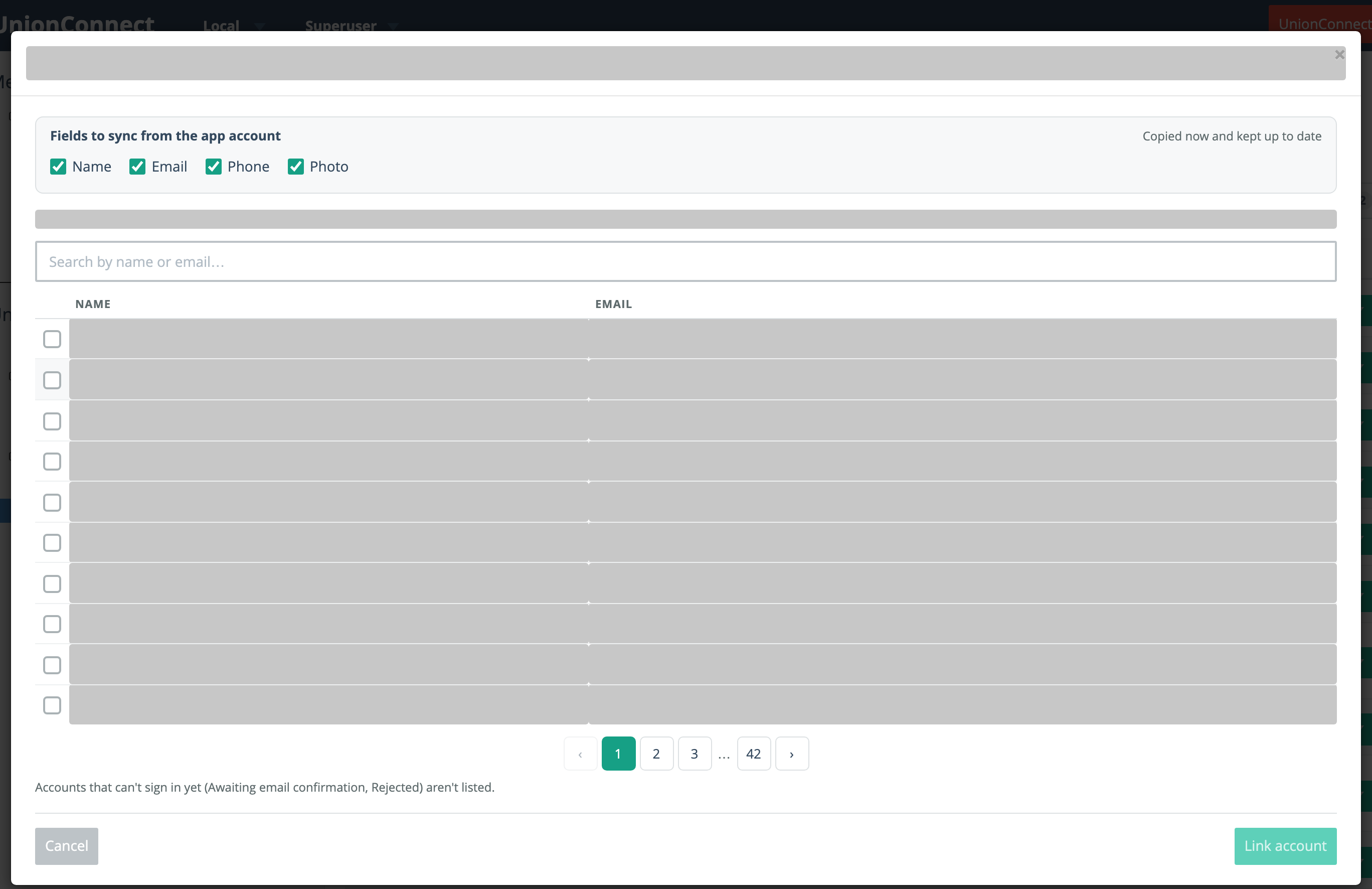
Only accounts that can sign in are listed (see Which App Accounts Can Be Linked, above). A note under the list names the statuses that are left out. When your local lets unverified members use the app, the list also has a Status column showing Verified or Limited access.
Unlink a Person from a User Account
- Find the linked person on the People Database page.
- Click the dropdown arrow next to Edit and select Unlink App Account. You can also click Unlink in the banner at the top of the person’s edit form.
- Confirm the prompt (“Syncing stops; their current info is kept.”) by clicking OK.
The person and user are now separate records again, and nothing syncs.
Linking from the Users Page
Link or Create a Person Entry for a User
If a user doesn’t yet have a matching person entry, you can either link them to an existing entry or create a new one. Both start from the same screen.
- Go to Users and Devices in the sidebar.
- Find the user who needs a person entry (use the search box if needed).
- Click the dropdown arrow ▾ next to the green Edit button on their row and select Add to People Database.
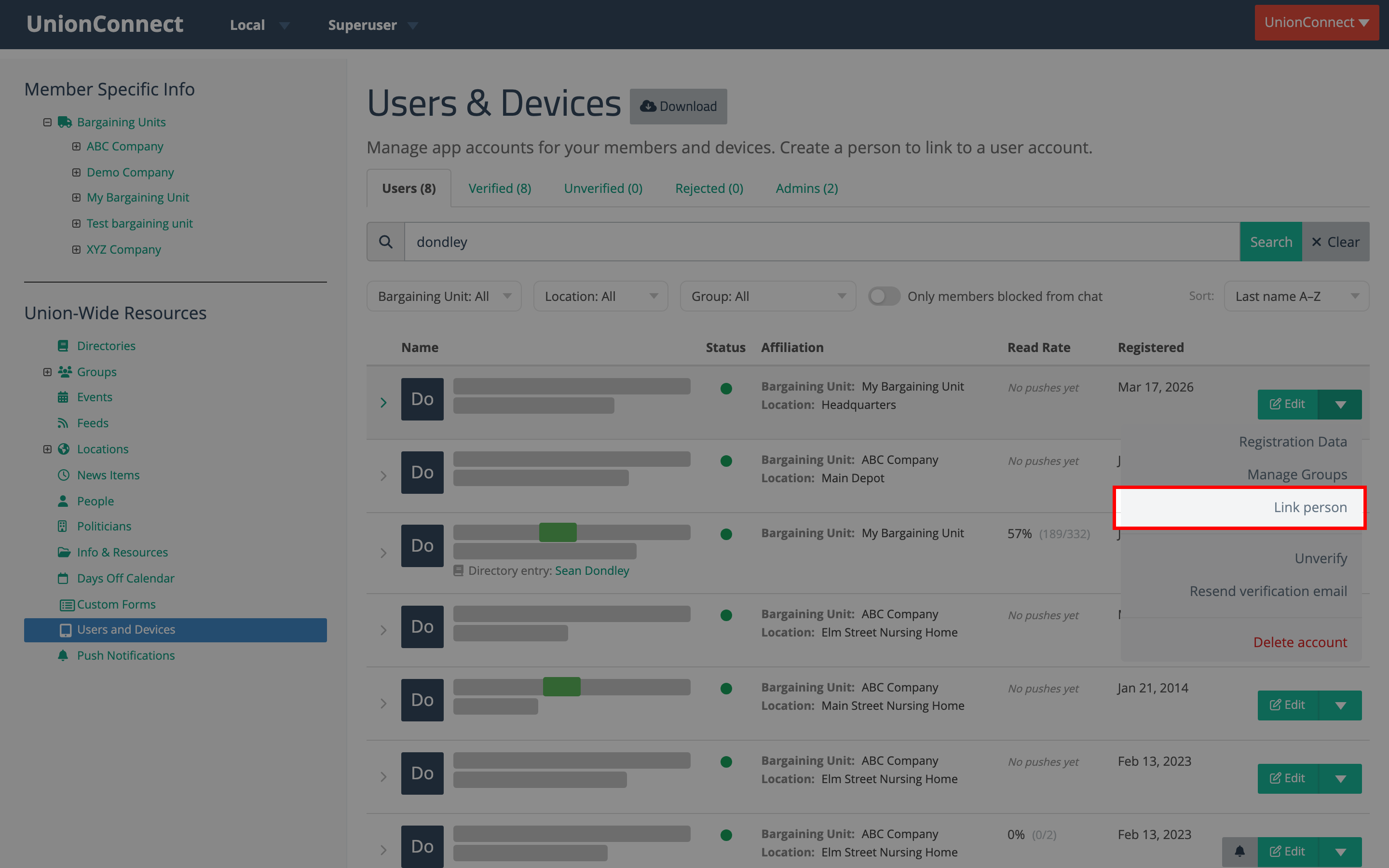
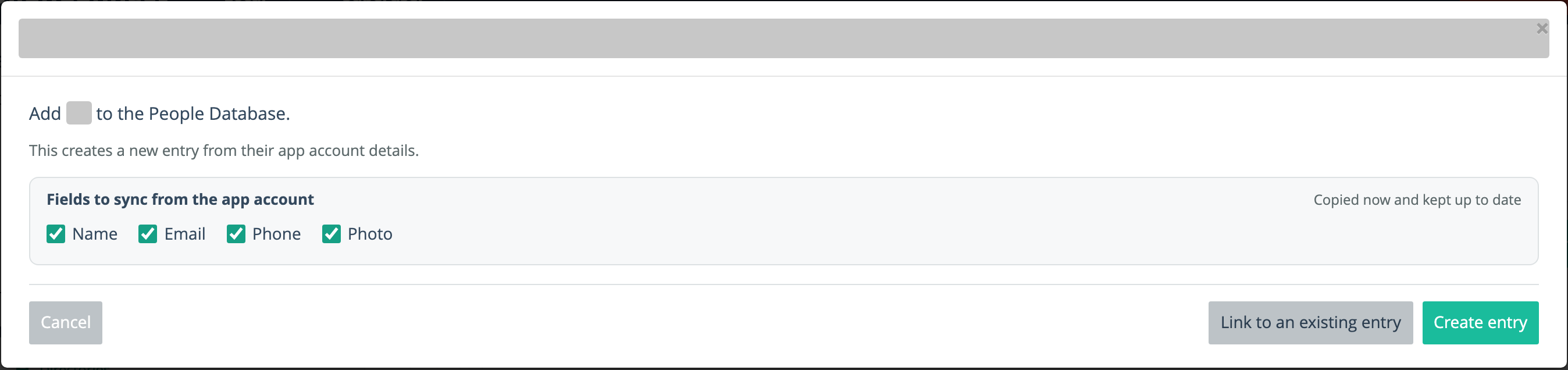
- The Add to People Database screen opens with the same Fields to sync from the app account checkboxes. Untick any field you don’t want synced.
- If existing People Database entries match the user’s email or name, they’re shown under Suggested entries so you can link one instead of creating a duplicate. Then choose one of:
- Link entry: tick a suggested entry, then click the button (it shows the entry’s name once you tick one).
- Search the People Database: browse the full list to find a different entry.
- Create new entry: create a new person entry from the user’s name, email, and phone.
- If nothing matches, the screen offers Create entry (a new entry from their app account details) and Link to an existing entry (the search list).
Search and Link an Existing Person
Clicking Search the People Database or Link to an existing entry opens a searchable list of People Database entries that aren’t linked yet. It shows each person’s name, email, and up to two of their directories.
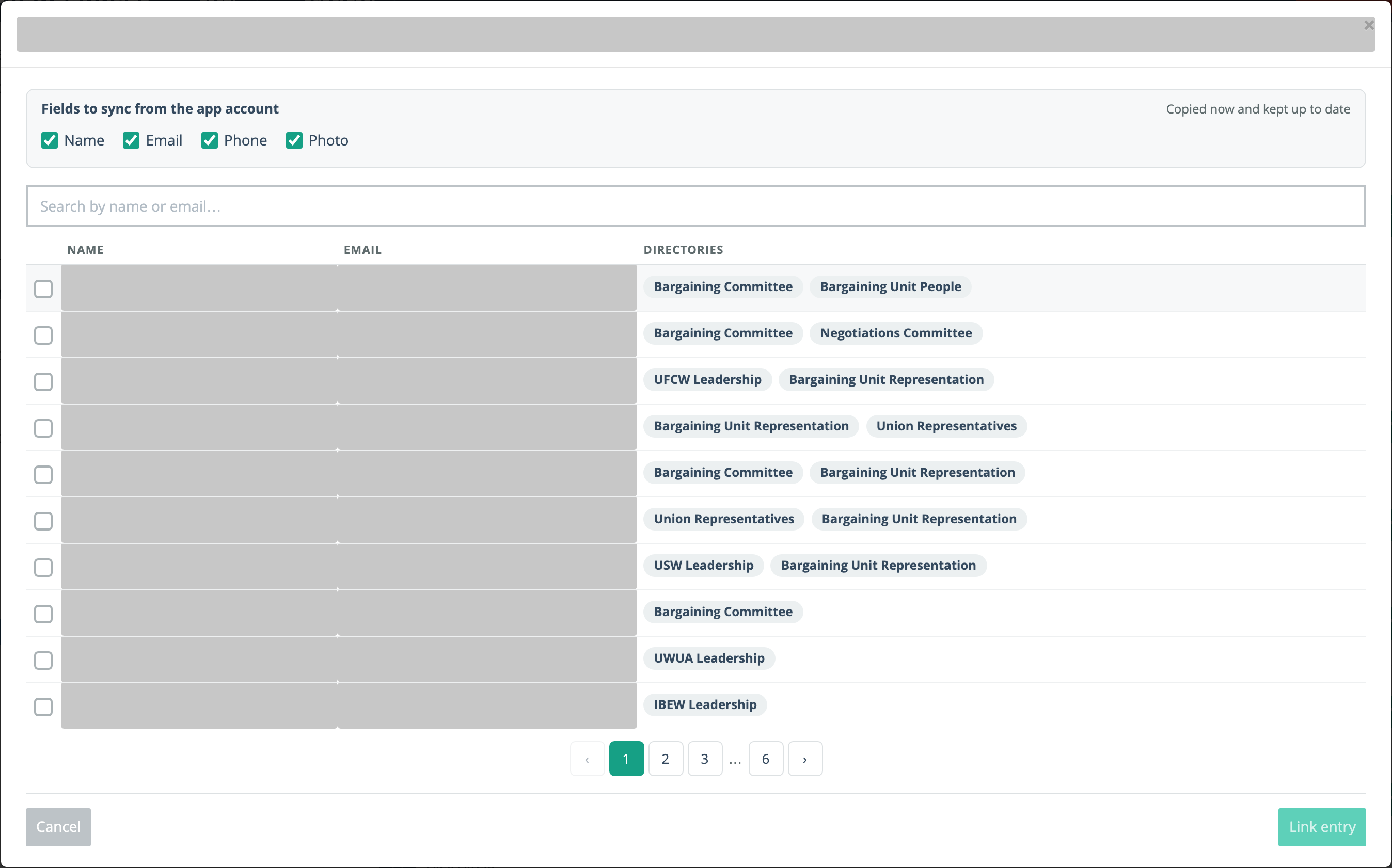
Check the Fields to sync boxes, search by name or email, tick the entry, then click Link followed by the entry’s name.
Unlink a Person from a User
- Find the linked user on the Users and Devices page. Linked users show a People Database: line in the row’s name cell.
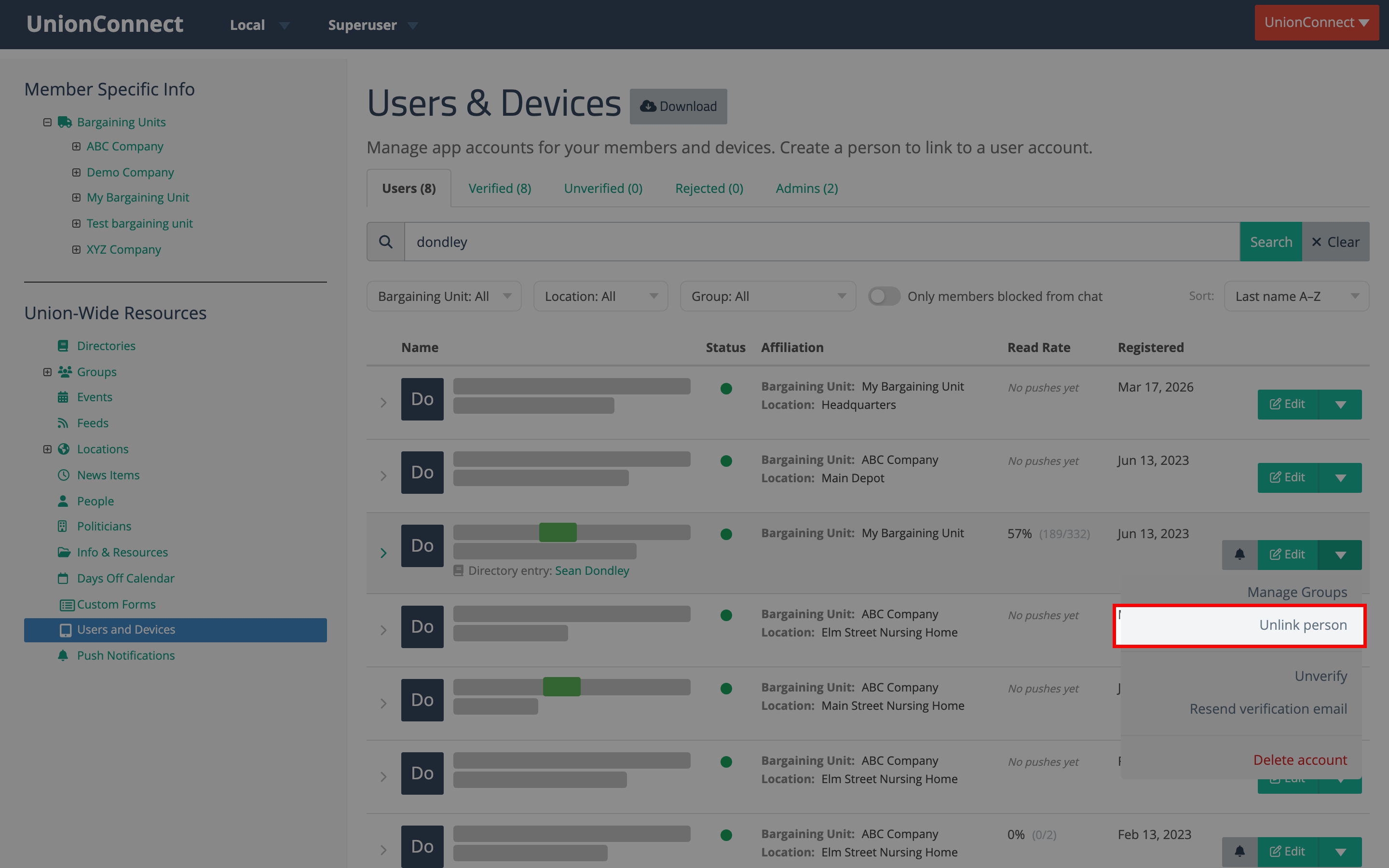
- Click the dropdown arrow ▾ next to the green Edit button and select Unlink from People Database. You can also click Unlink in the banner at the top of the user’s edit page.
How Sync Works
Each field you choose to sync is copied from the app account to the person entry as soon as you link, and again whenever the user updates their account:
- Name: first and last name
- Phone: copied into the person’s Primary phone
- Photo: only when your registration form collects a profile photo
Fields you didn’t choose are left as they are. A blank value on the app account never erases what’s on the person entry.
Sync is one-way only: changes flow from the user account to the person entry, not the other way around. Editing a person’s contact info directly will not update the linked user account.
Changing Which Fields Sync
You choose which fields sync on the person’s edit form (on the People Database page). Once a person is linked, that form has a Sync column. Each syncable field has its own switch, labelled Synced or Not synced. Name has one switch that covers both first and last name. Photo has a switch only when the member’s local collects a profile photo.
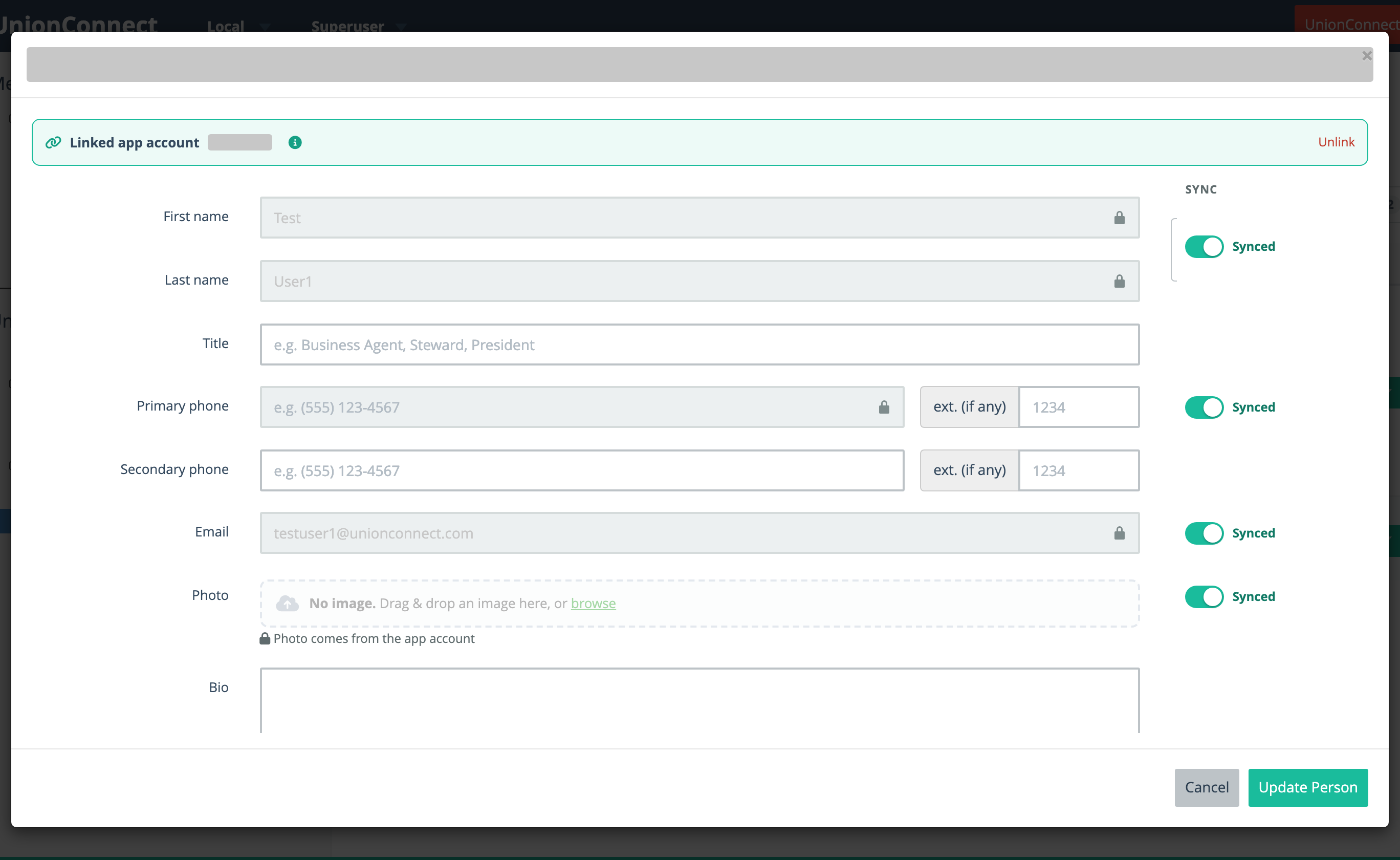
A switch takes effect as soon as you click it. You don’t need to save the form.
On the person’s edit form:
- A synced field is locked (it shows a lock icon) because its value comes from the app account. A synced photo shows “Photo comes from the app account.”
- Turning a switch off keeps the current value and unlocks the field so you can edit it. To empty Email or Primary phone, delete the text in the field. Click Update Person to save your edits.
- Turning a switch on copies the value from the app account straight away and locks the field again.
If you turn every switch off, the person stays linked but nothing syncs.
The user’s edit page (on Users and Devices) has no switches. Instead, each field that currently syncs shows “Also updates the People Database entry.” under it, so you know that saving a change there also changes the linked entry. To change which fields sync, click the entry’s name in the banner at the top of the page to open the person’s edit form. When you flip a switch there, the notes on the user’s page appear or disappear straight away, with no need to reload.
This is handy when a member’s personal cell number shouldn’t appear in a directory: turn Phone off so it’s no longer pulled from their account. Turning a switch off only stops future updates. It never erases what’s already on the person entry. To remove a number that had been synced, turn Phone off, delete the number from Primary phone, and click Update Person.
Smart Matching
Both linking screens suggest likely matches so you don’t have to search. Link to App Account suggests app accounts for the person, and Add to People Database suggests People Database entries for the user. UnionConnect checks:
- Email: exact match (case-insensitive)
- Name: first and last name both match (case-insensitive)
Email matches are shown first, followed by name matches. Only records that aren’t already linked are suggested. This helps prevent duplicate person entries when a matching record already exists.