
The Recipients view shows you exactly who a push notification was delivered to and whether each member has read it. Use it to confirm reach for a specific message, identify members who consistently miss notifications, or follow up with people who haven’t opened an important announcement.
Opening the Recipients View
From the Push Notifications Hub, find the notification you’re interested in on the Sent tab. Click either the recipient count (the green number) or the % opened link beneath it.
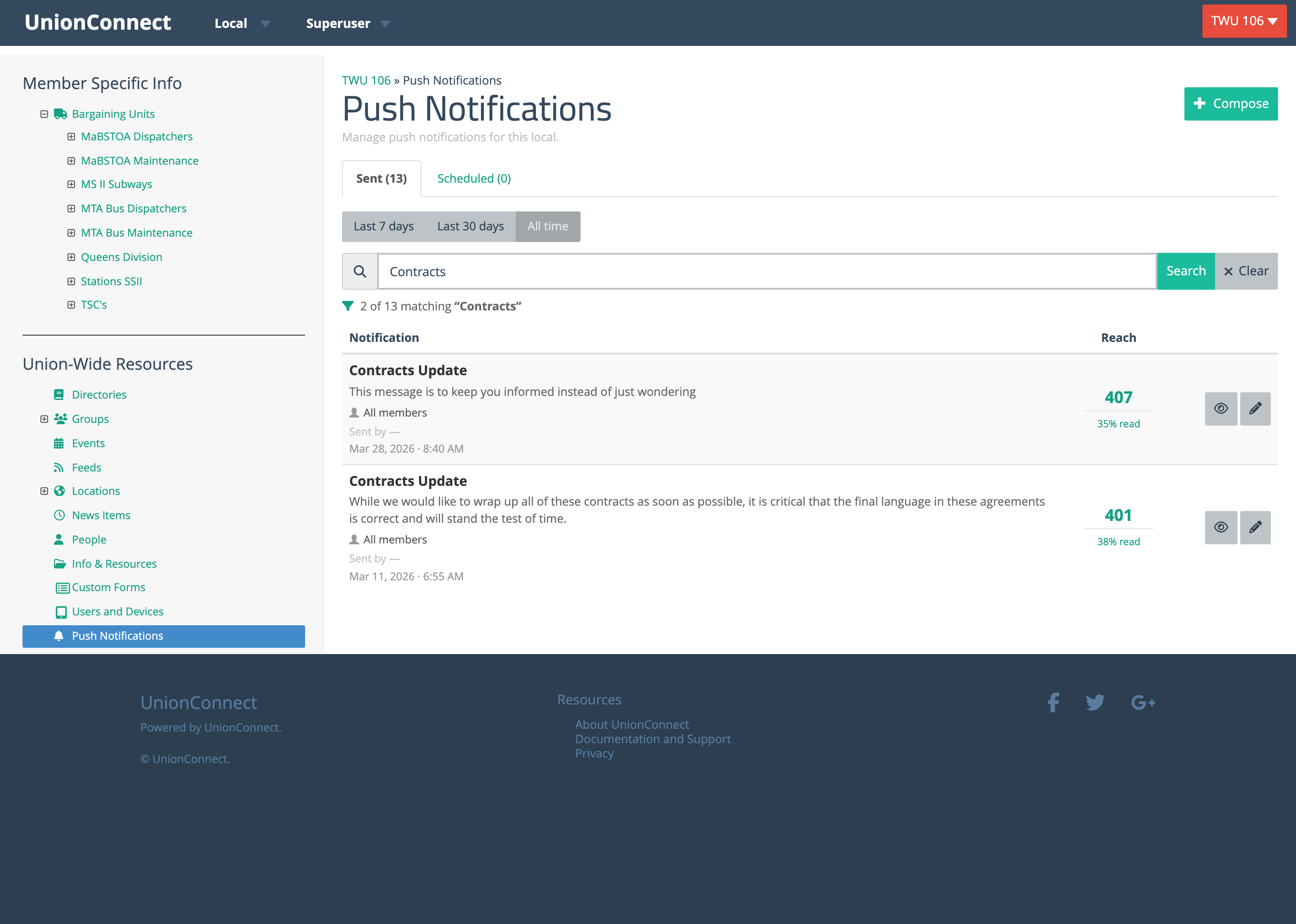
You can also open the Recipients view from the Notification Details modal — click the eye icon on a notification, then click the View recipients button at the bottom of the modal.
The Three Tabs
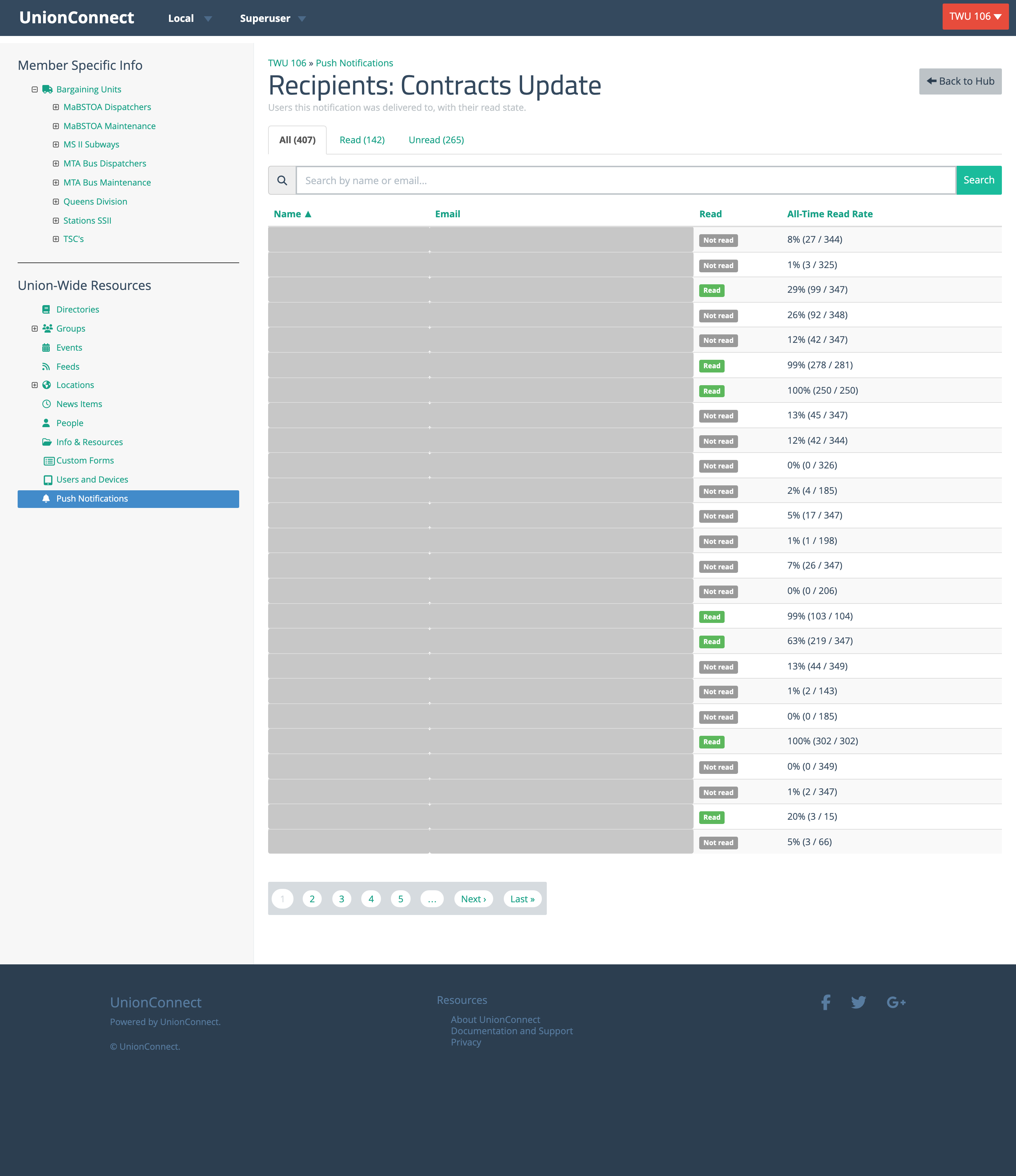
The Recipients view has three tabs, each showing a different slice of the audience:
- All — every member the notification was delivered to
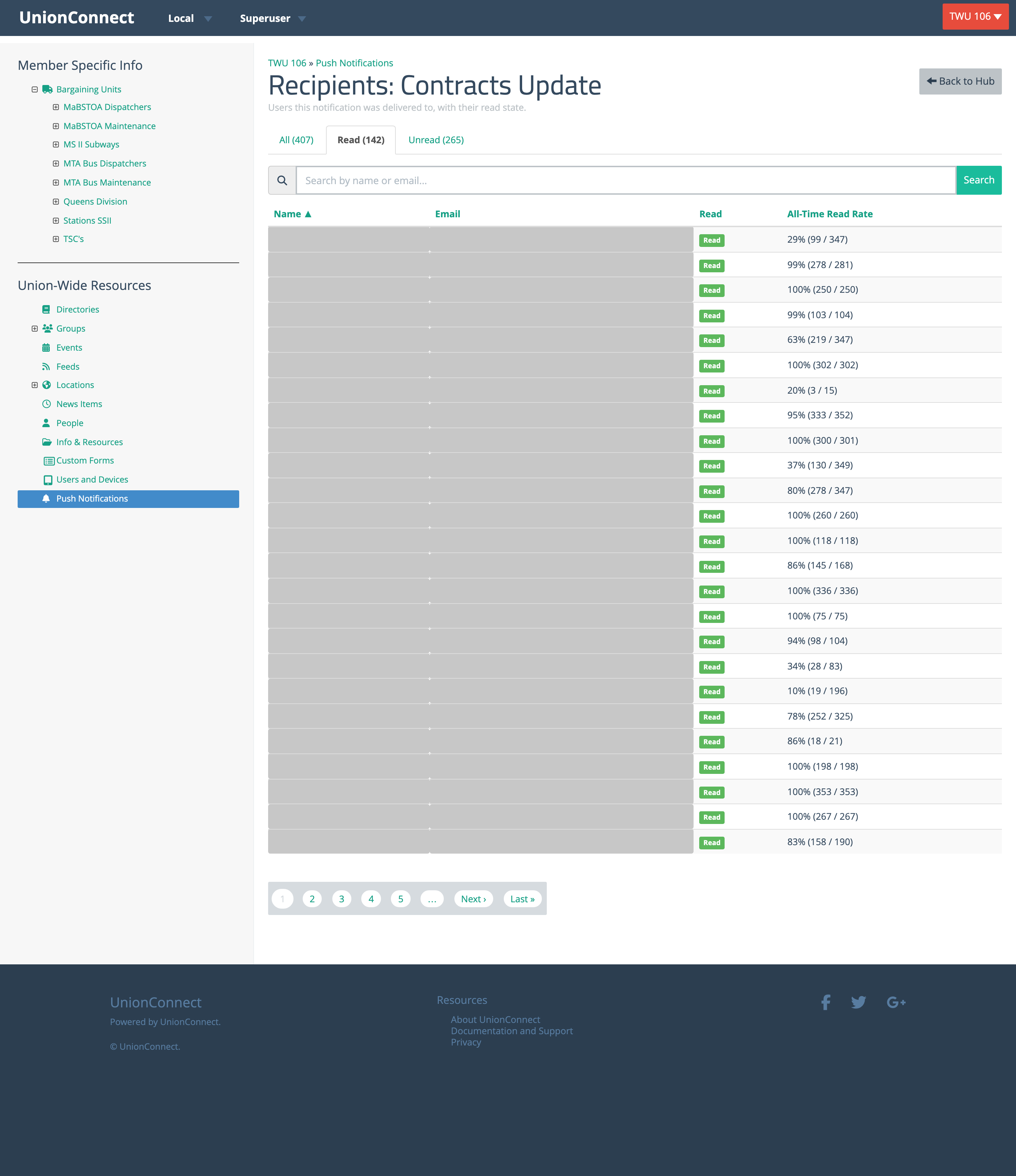
- Read — members who have opened the notification on at least one of their devices
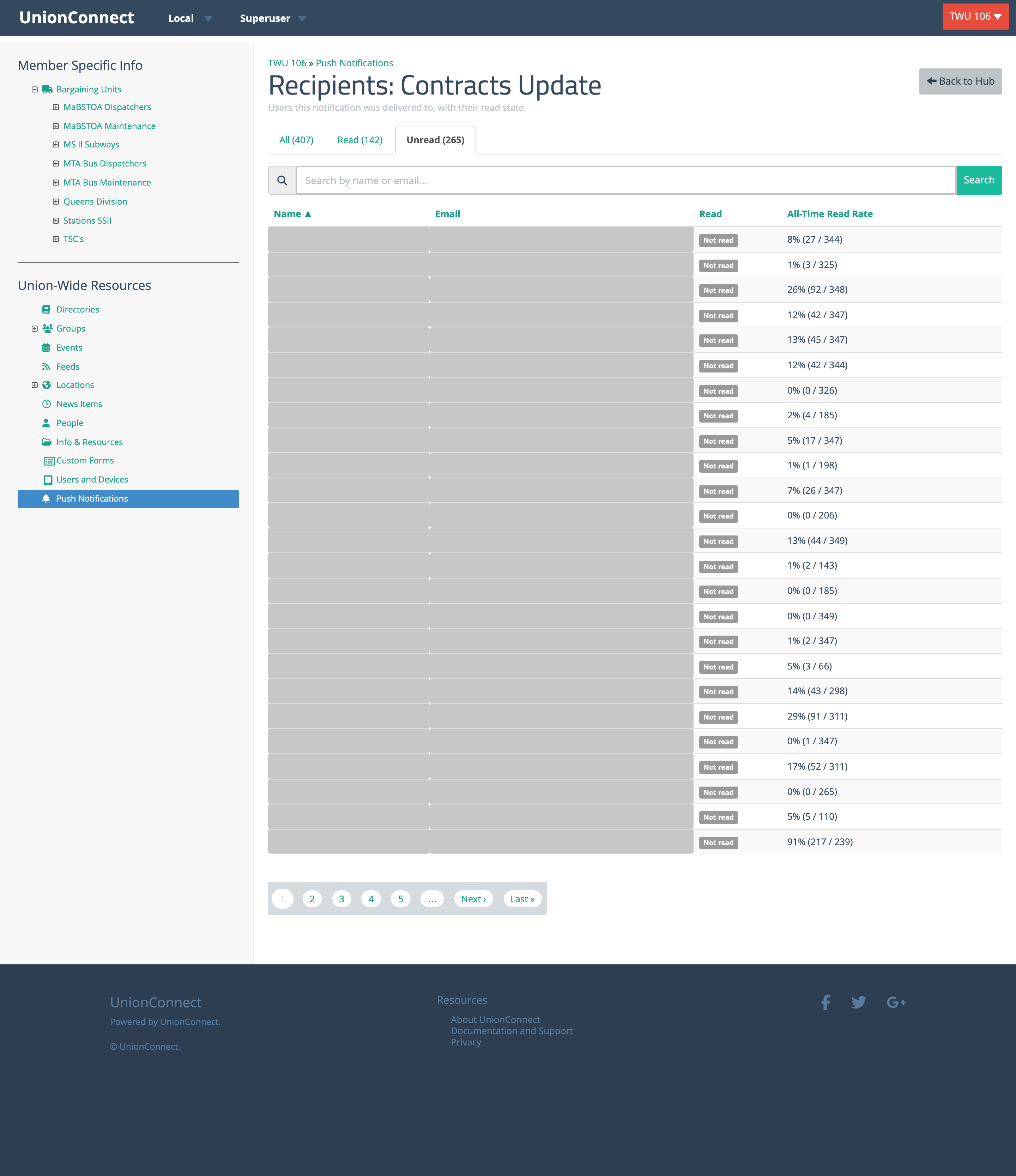
- Unread — members who have not yet opened the notification on any device
The number next to each tab name is the count of members in that tab. All is always equal to Read + Unread.
What Each Column Shows
- Name — the member’s first and last name
- Email — the email address on the member’s account
- Read — a green Read pill if the member has opened this notification on at least one of their devices, otherwise a gray Not read pill
- All-Time Open Rate — the percentage of all push notifications this member has ever received that they have opened, with the underlying counts in parentheses (e.g. 29% (99 / 347)). Members who have never received a push show No notification data.
- Push Notification Permission — whether push notifications are allowed on the member’s most recently used device: a green On, a red Off, or a gray Unknown if the device has never reported its setting. A member showing Off has turned off push alerts for the app on that device.
The All-Time Open Rate is the same number on every tab — it’s a profile of how engaged that member is with push notifications overall, not a stat for this specific message. A consistently low open rate is a good signal to reach out by another channel.
Searching
Use the search bar above the table to find a specific recipient by first name, last name, or email. Search is case-insensitive and matches partial words. The search applies within the current tab — searching on the Unread tab will only find members who haven’t read the notification.
Sorting
Click any column header to sort by that column. Click again to reverse the direction. The arrow next to the header shows the current sort. Sort works across all pages — sorting by All-Time Open Rate ascending will surface the least-engaged members first, regardless of which page they’re on.
A Few Things to Know
- One row per member, not per device. If a member has the app installed on a phone and a tablet, they appear once. They count as Read if they’ve opened the notification on either device.
- Only members are listed. Devices that aren’t tied to a user account are excluded from the count and the list.
- Click Back to Hub in the upper right to return to the Push Notifications Hub.