
The People Database (under Union-Wide Resources in the left menu) holds an entry for each person you want members to be able to find and contact — officers, stewards, staff, committee members. Entries are what you put into directories for the whole union, a bargaining unit, a location, or a group.
An entry is not the same as an app account (the login a member uses in the phone app). You can link an entry to an app account to keep its contact information in sync.
The People Database list
Each row shows the person’s name and title, up to three of the directories they are in (with +N more when there are others), and an App account column. A linked entry shows a check mark, Linked, and the name on the app account; an unlinked entry shows a dash.
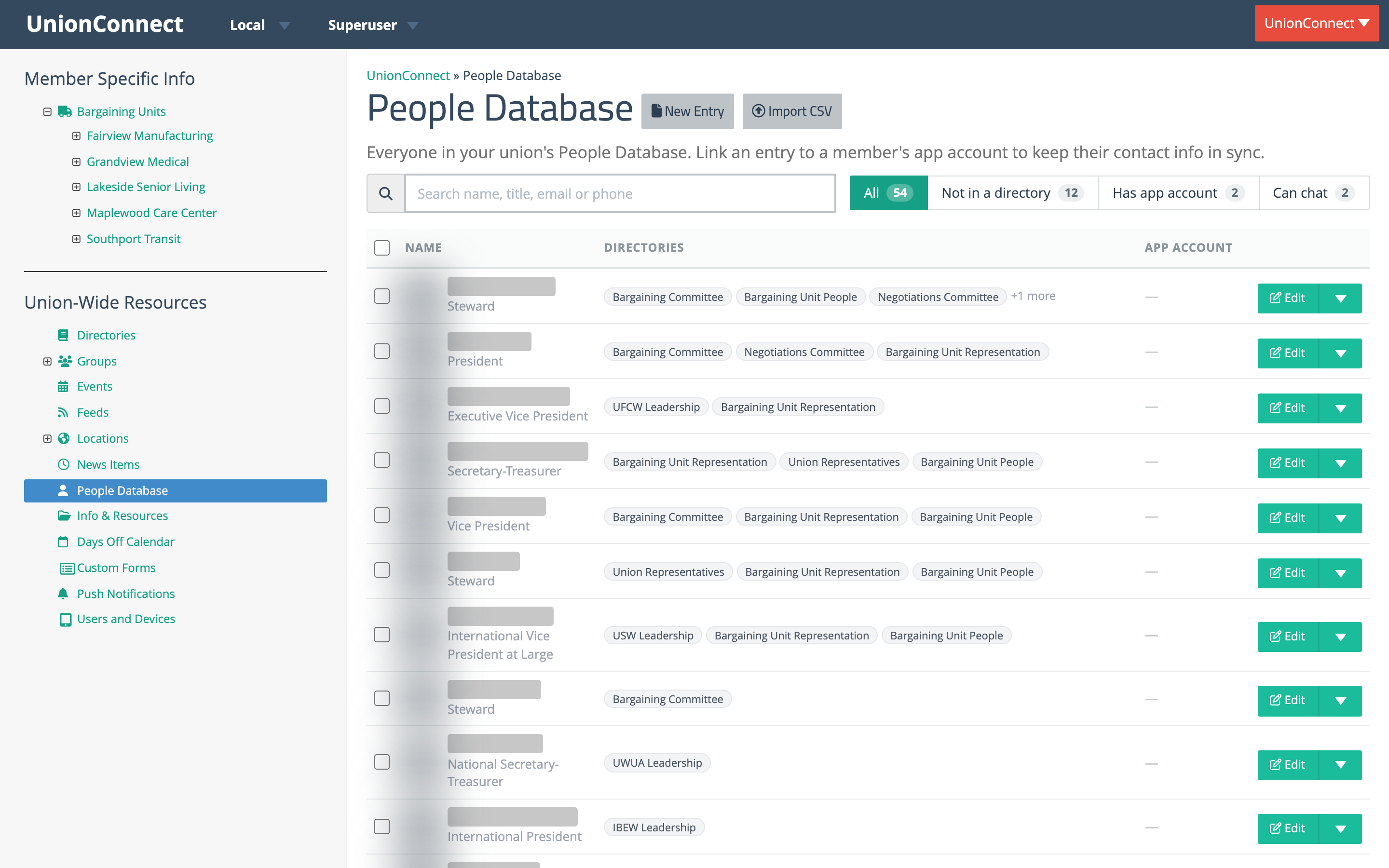
- Search — the box matches name, title, email, or phone, and the list updates as you type.
- Filters — the buttons beside the search box show a count and narrow the list: All, Not in a directory, and Has app account. If your local has Chat turned on, there is also a Can chat filter.
- On a narrow window, the Directories column and then the App account column are hidden so the name and Edit button always fit.
Seeing an entry’s details
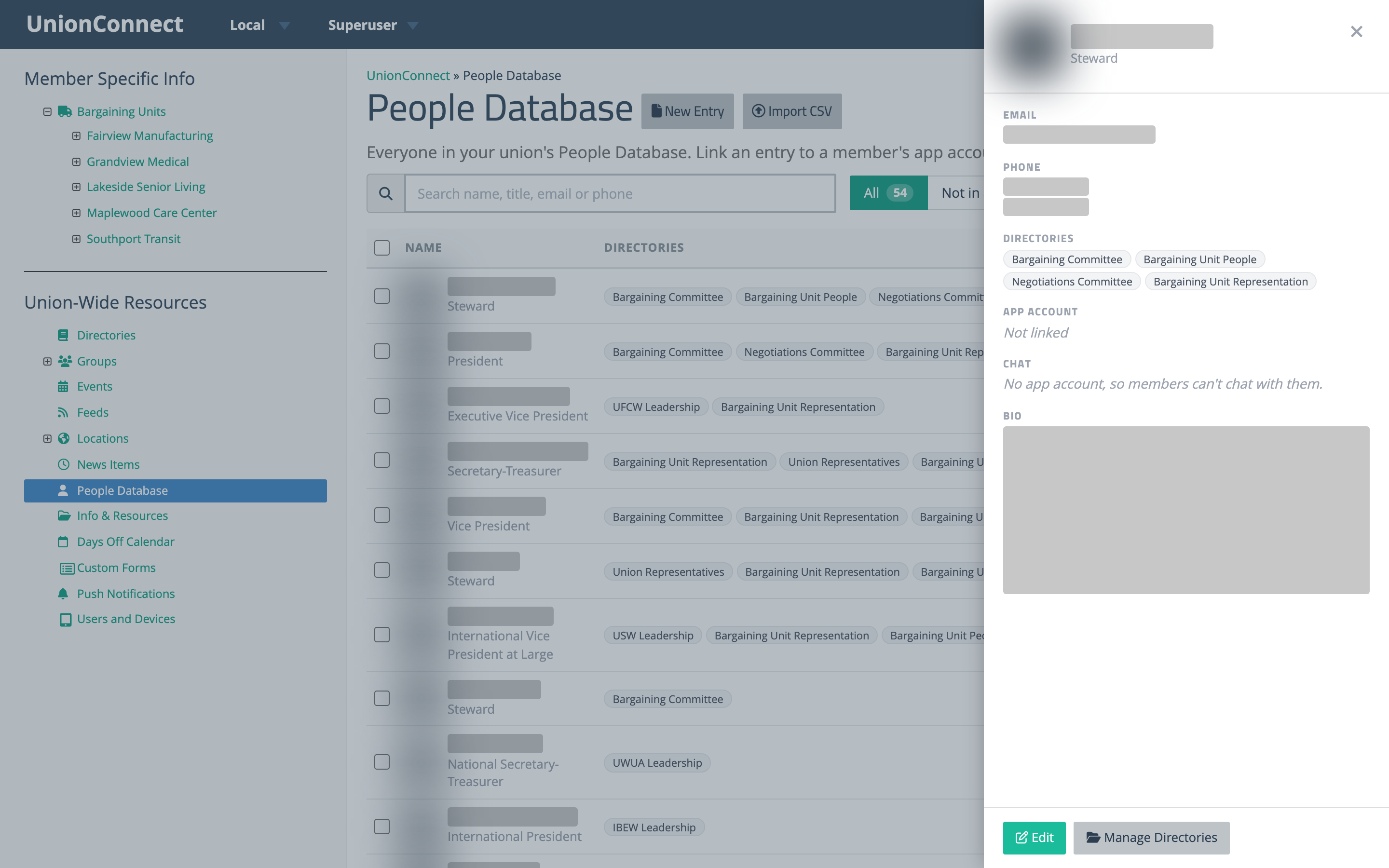
Click a person’s name or row to open a details panel on the right. It shows their email, phone numbers, every directory they are in, their app account (and whether contact info stays in sync), and their bio. Use Edit or Manage Directories at the bottom of the panel to make changes.
Chat status
If your local has Chat turned on, linked entries also show whether members can chat with that person from the directory in the app:
- Can chat (teal) — members see a Chat option for this person.
- Removed from chat (amber) — an admin ticked Remove from chat on the person’s app account. The details panel links to their account so you can change it.
- Chat off (by member) (grey) — the member turned chat off in the app’s settings. Only they can turn it back on.
- Chat off for members (grey) — Chat is unticked under How members can contact them on the entry, so members can’t start a chat with this person. The person can still message members.
If more than one reason applies, the first one in this list is shown. The Can chat filter counts only entries showing Can chat. Entries with no app account can’t be chatted with, so they show no chat status. A small chat bubble icon also marks chat-ready people on a directory’s Manage/Reorder People page and its directory view.
Working with several entries at once
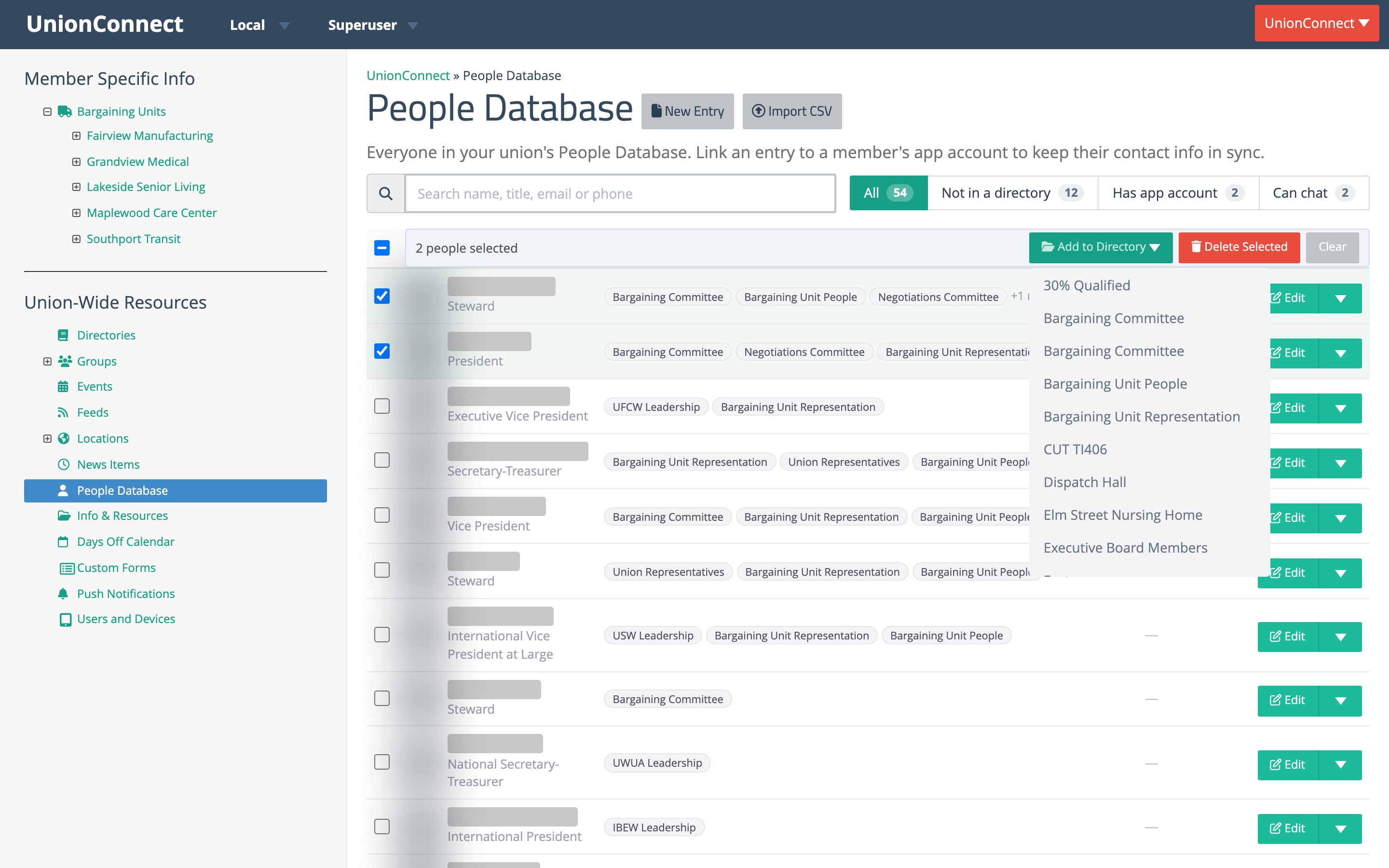
Tick the checkboxes on the left of the rows (or the box in the heading to select everyone on the current page). A bar appears over the column headings with the number selected and these actions:
- Add to Directory — pick one of your local’s directories from the dropdown to add everyone selected. People already in that directory are skipped, and a message tells you how many were added.
- Delete Selected — see Deleting People in Bulk.
- Clear — untick everything.
More
- Adding a Person
- Removing a Person
- Managing Directory Assignments
- Importing People from a Spreadsheet
- Deleting People in Bulk
- Linking People to User Accounts