
A custom role is a named bundle of capabilities you assign to people. This page walks through creating one, then editing or deleting it later. To start, open Local → Edit local (or choose Union Settings from the menu under your local’s name, top right), go to the Roles & Permissions tab, and click New role.
The role editor has three panels: Role details, Applies to, and Can manage.
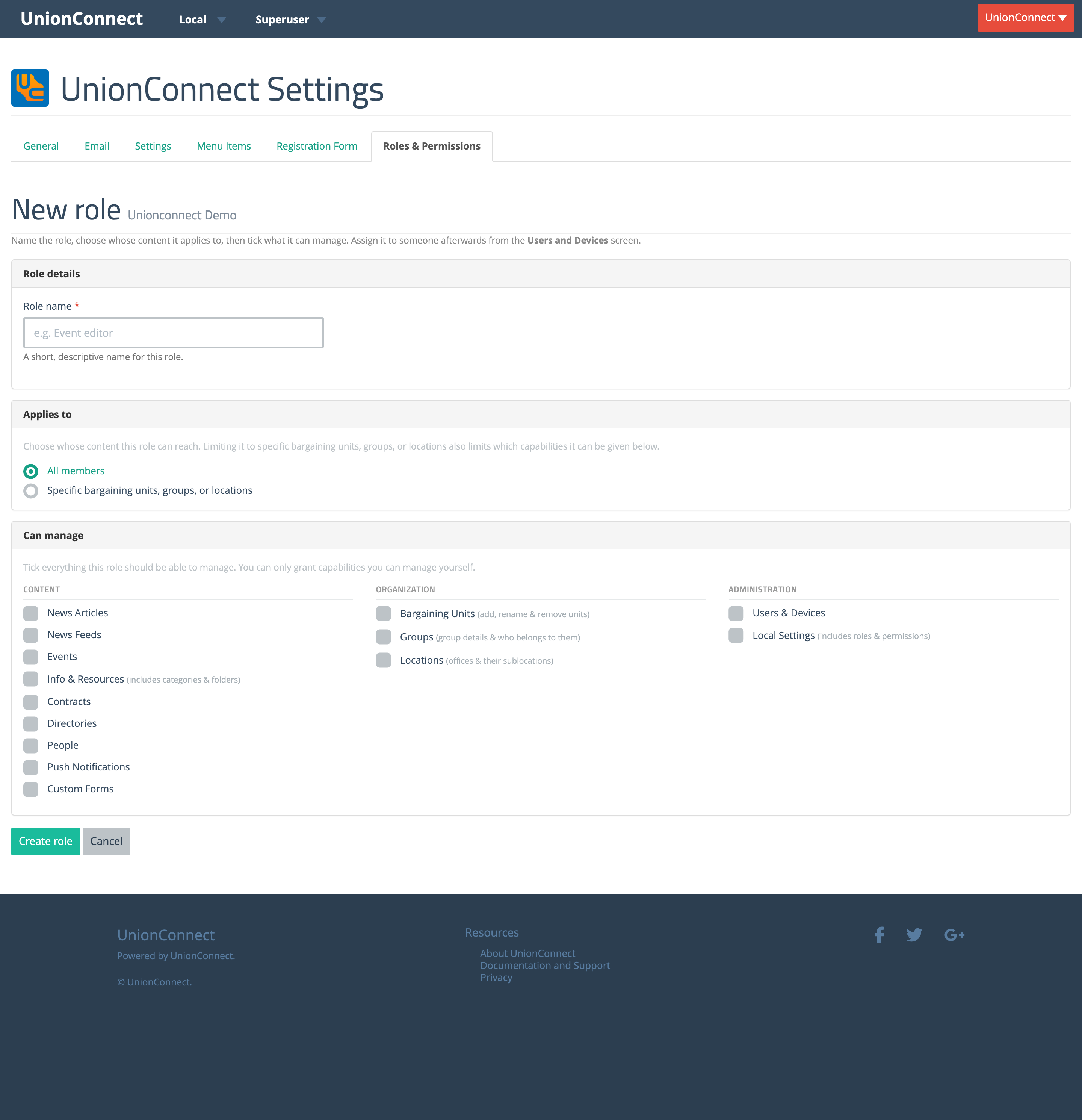
1. Role details
Give the role a short, descriptive Role name — for example, Events editor or Local 5 steward. This is the name you’ll pick from when assigning the role to people.
2. Applies to (who the role can reach)
Choose whose content this role can reach:
- All members (the default) — the role can reach content across your whole local.
- Specific bargaining units, groups, or locations — the role is limited to just the audiences you pick. A picker appears where you choose one or more bargaining units, groups, or locations. Content shared with any audience you don’t select stays out of the role’s reach.
Limiting a role also narrows which capabilities you can give it. Capabilities that don’t belong to a single audience — like People Database and everything under Organization and Administration — grey out with the note “Only for roles that apply to all members,” because they can’t be confined to a subset of your union.
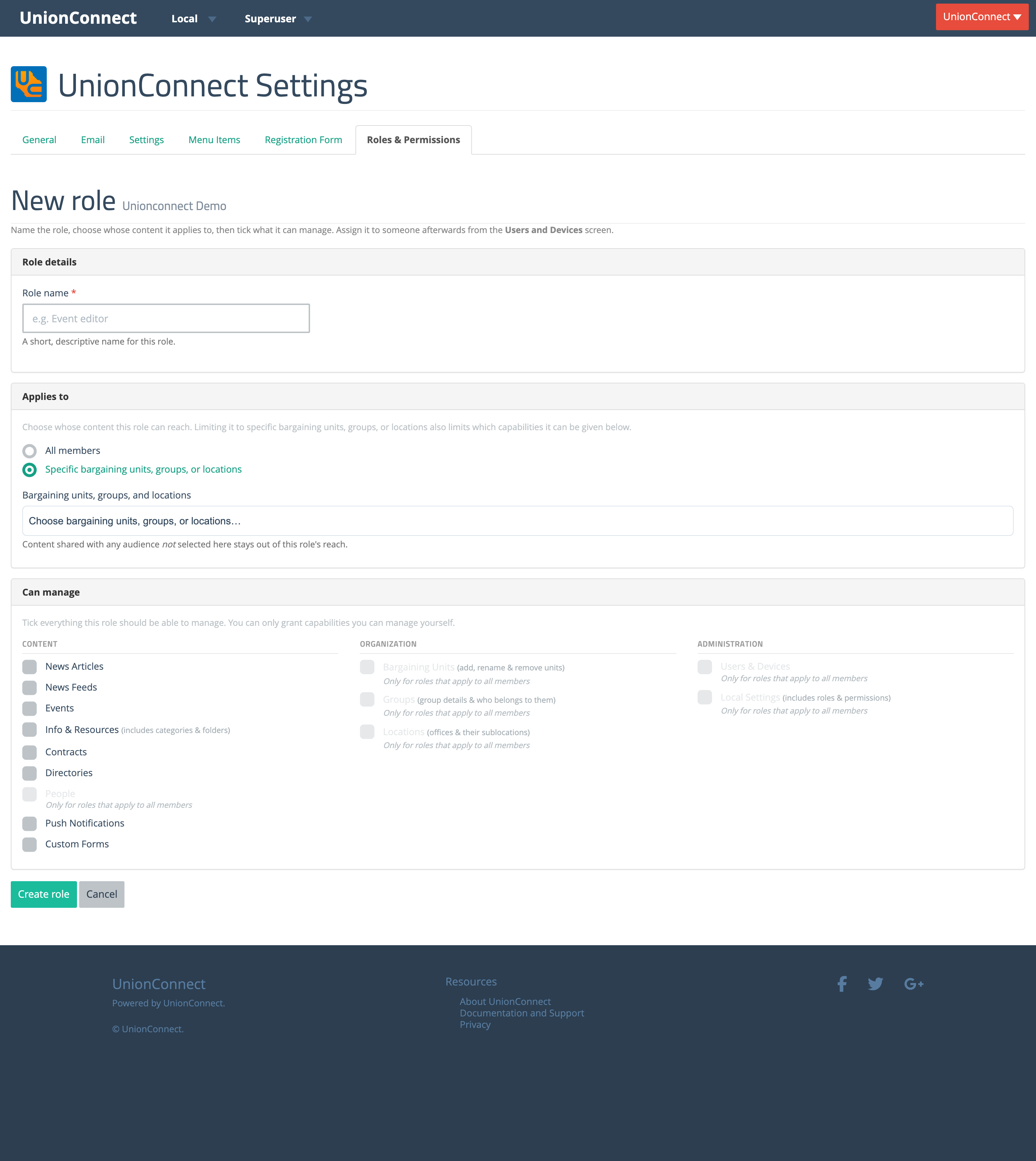
Tip: Picking a bargaining unit automatically includes the groups and locations beneath it, so you don’t have to select each one. Scoping never reaches upward — a role limited to a group can’t act on the whole bargaining unit above it.
3. Can manage (the capabilities)
Tick everything this role should be able to manage. Capabilities are grouped into Content, Organization, and Administration. For a full description of each one, see the Capabilities Reference.
You can only grant capabilities you hold yourself — a role can never give someone more access than you have. If there’s nothing you can grant, the editor tells you so.
When you’re done, click Create role. The new role appears in the Roles table on the Roles & Permissions page, ready to assign to members.
Editing a role
On the Roles & Permissions page, click Edit on any custom role to reopen the same three-panel form. Changes take effect immediately — if people already hold the role, saving changes their access right away. The editor tells you how many people currently hold the role.
Deleting a role
Click Delete on a custom role and confirm. If anyone currently holds the role, you’ll be warned that they’ll lose the access it grants. Deleting a role removes it from everyone who had it — it doesn’t delete their accounts.
The built-in Administrator and Content manager roles can’t be edited or deleted.