
Members are assigned to a bargaining unit when they sign up, but admins can change the assignment at any time — for example when a member transfers between units, or when a sign-up was filed under the wrong unit. Here’s how:
- Login to the app manager.
- From the menu on the left-hand side click Users and Devices.
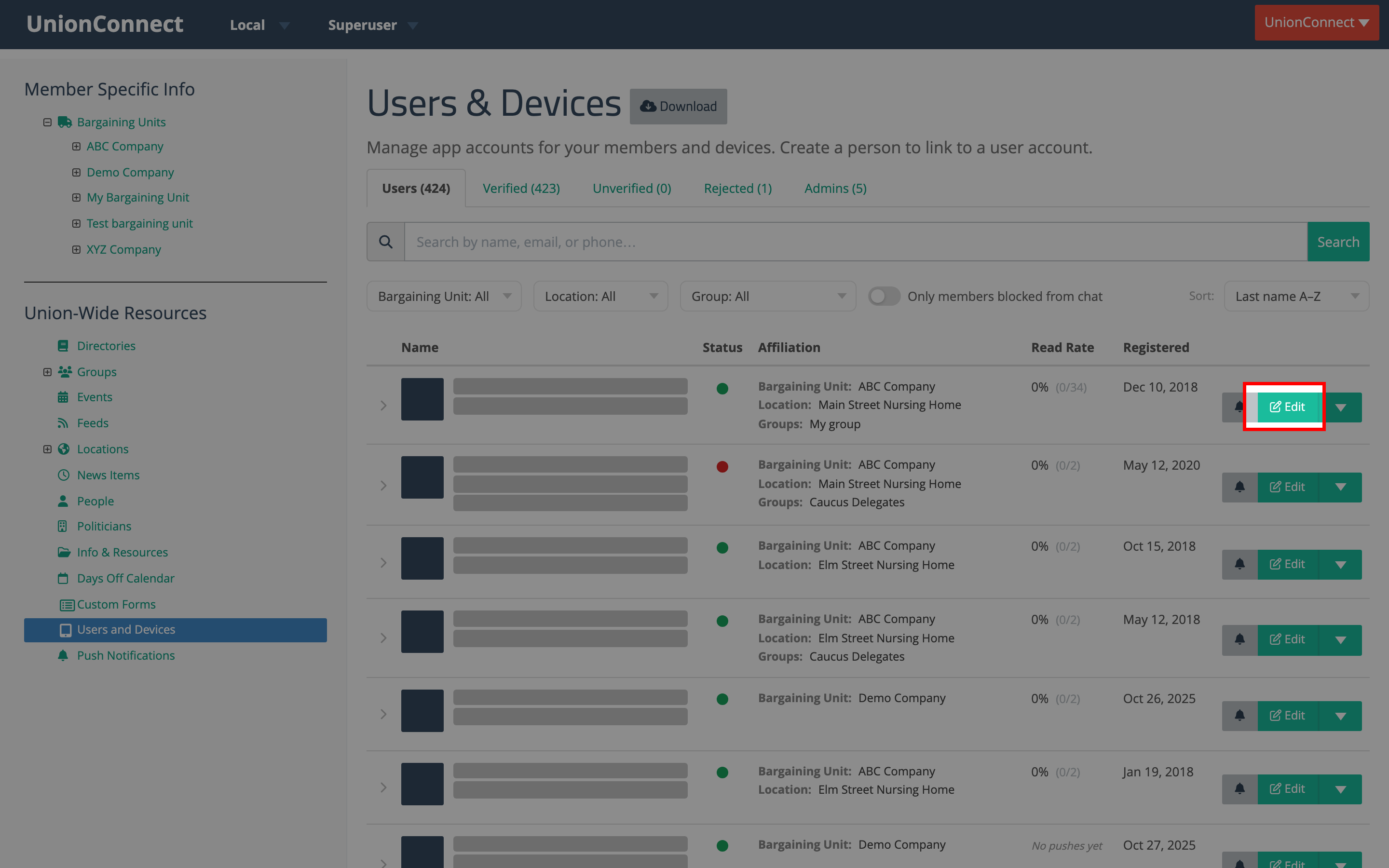
- Find the member you want to update (use the search box if needed), then click the green Edit button on their row:
- Scroll down to the Affiliation section. The member’s current bargaining unit is shown in the Bargaining Unit dropdown:
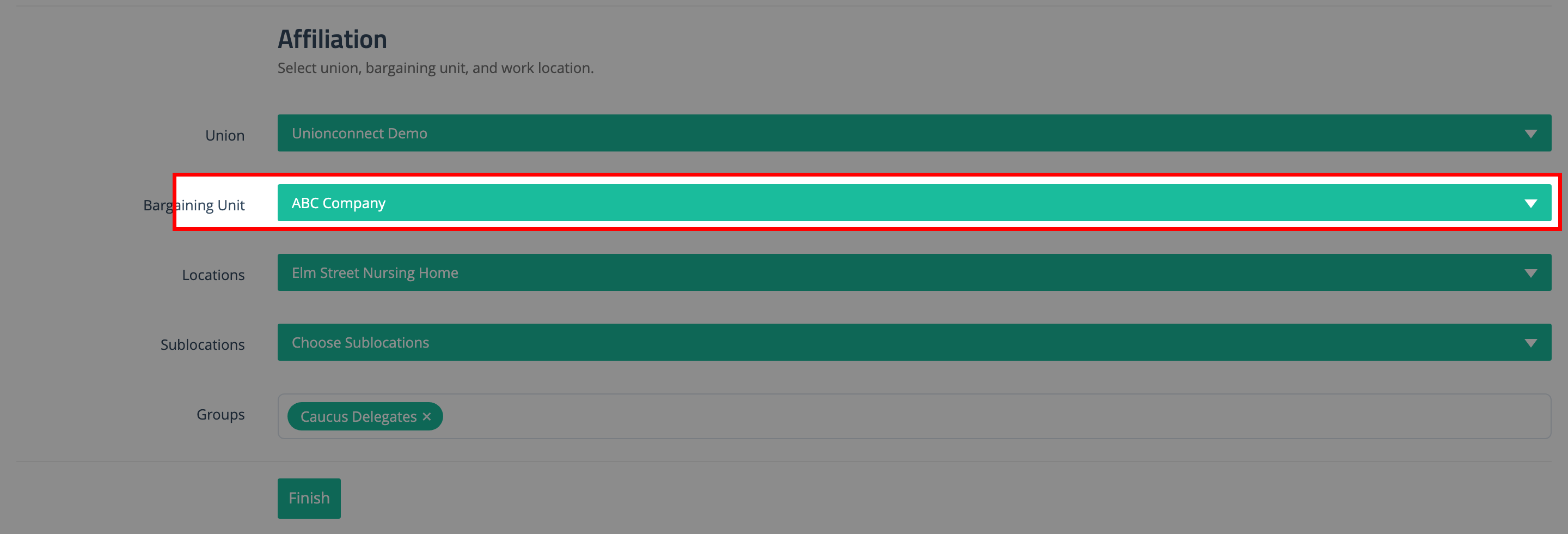
- Click the dropdown and pick the new bargaining unit from the list.
- If the local uses locations within bargaining units, the Locations dropdown below will reload to show the locations available for the newly selected bargaining unit. Pick one if appropriate. The Sublocations dropdown (if your local uses them) also updates to match.
- The Groups field at the bottom of the Affiliation section lets you assign the member to any union-wide groups, or to groups belonging to the newly selected bargaining unit. Groups from the previous bargaining unit that don’t carry over are removed automatically when you save.
- Click the green Finish button at the bottom of the form to save.
The change takes effect immediately. The next time the member opens the app, they’ll see the news, events, and push notifications for their new bargaining unit.
Note: Only the bargaining units that already exist in your local will appear in the dropdown. If the unit you want isn’t there, see Creating a New Bargaining Unit first.