
The Push Notifications Hub is a central place to manage all push notifications for your local. From the hub you can view sent notifications, manage scheduled notifications, compose new notifications to multiple audiences, and track how many members received and read each message.
Opening the Push Notifications Hub
- Login to the app manager
- In the sidebar under Union-Wide Resources, click Push Notifications
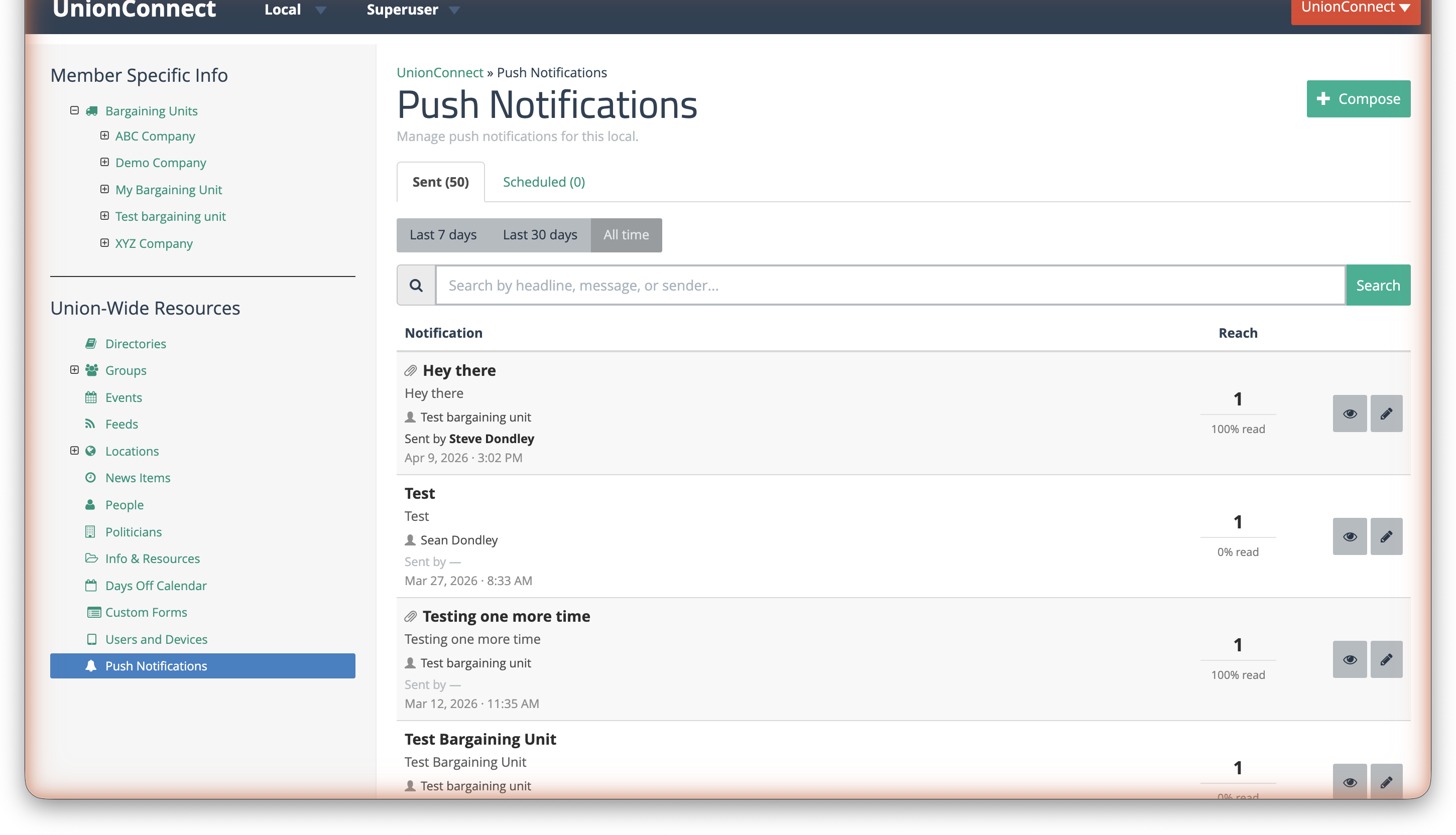
The hub has two tabs: Sent and Scheduled. The Sent tab shows notifications that have already been delivered, and the Scheduled tab shows notifications waiting to be sent at a future date and time.
Sent Tab
The Sent tab lists all notifications that have been delivered to your members, sorted by date with the most recent first. Each notification shows:
- Headline — the title of the notification
- Message preview — a snippet of the message body
- Audience — who the notification was sent to (e.g. a bargaining unit, location, group, or individual)
- Sender — the admin who sent the notification
- Date — when the notification was sent
- Reach — how many members received the notification and what percentage have read it
You can filter the Sent tab by date range using the Last 7 days, Last 30 days, and All time pills. Use the search bar to search by headline, message, or sender name.
Scheduled Tab
The Scheduled tab shows notifications that have been scheduled to send at a future date. From this tab you can edit or delete scheduled notifications before they are sent. Each scheduled notification shows the date and time it will be delivered, along with a countdown (e.g. “in 3 days”).
Viewing Notification Details
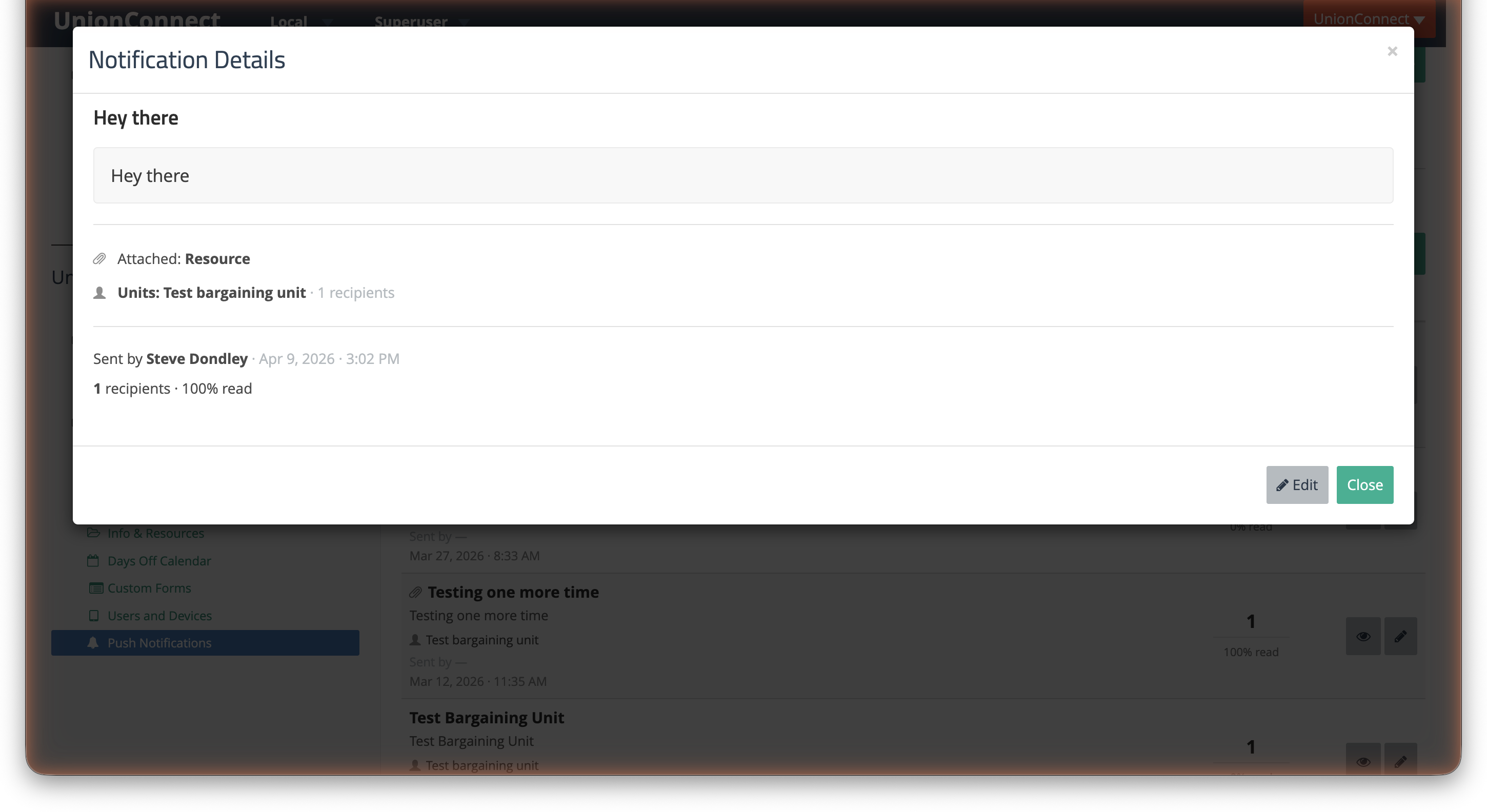
Click the eye icon next to any notification to open the Notification Details modal. This shows the full message, audience, any attached content, who sent it, and the reach statistics.
Editing a Notification
Click the pencil icon next to a notification — or click Edit from the details modal — to open the Edit Notification form. You can update the headline, message, URL, and content attachment.
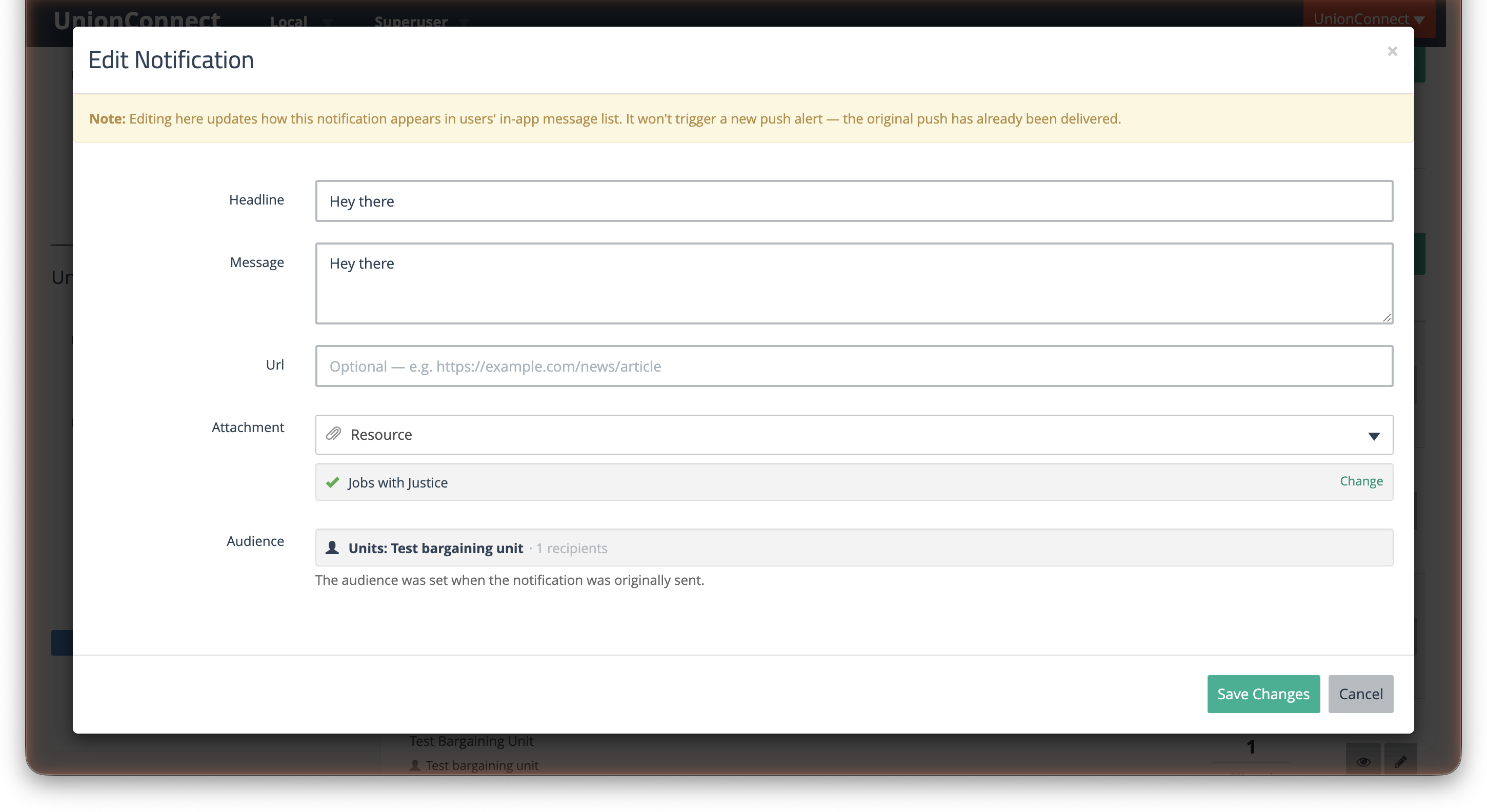
For sent notifications, editing updates how the notification appears in members’ in-app message list — it will not trigger a new push alert. For scheduled notifications, you can also change the delivery date and time.
Composing a New Notification
Click the green Compose button in the top right to open the compose modal. Composing a notification is a two-step process:
Step 1: Write Your Message
- Enter a Headline (required) — this is the title members see in the push alert
- Enter a Message (required) — the body of the notification
- Optionally enter a URL that members can open from the notification
- Optionally attach a content item (News Item, Event, Resource, or Form) — when a member taps the notification they will be taken directly to that content in the app
- Select one or more audiences: All members, specific bargaining units, locations, sublocations, or groups. Each audience shows a member count so you know how many people will be reached.
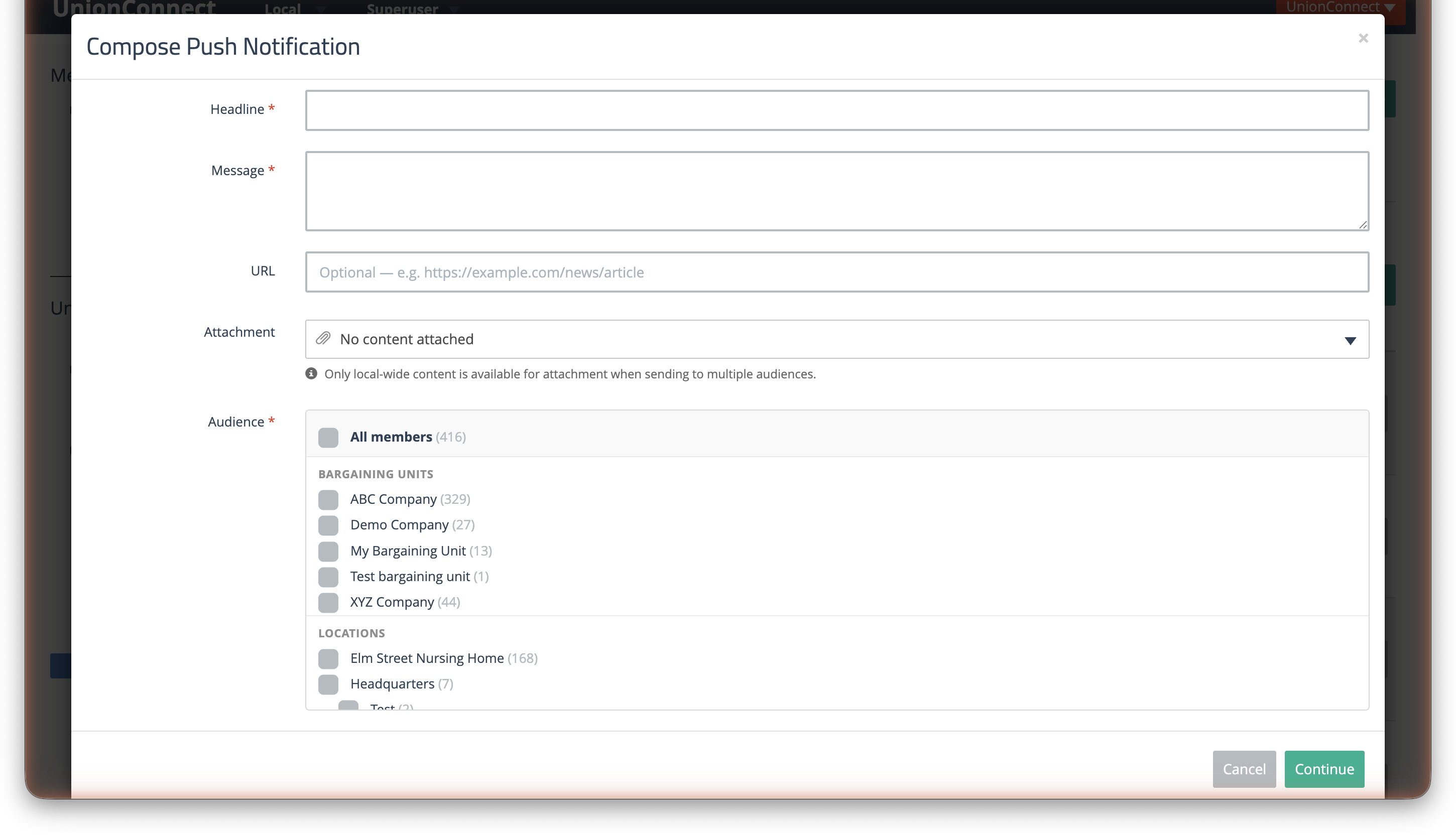
- Click Continue to proceed to the delivery step
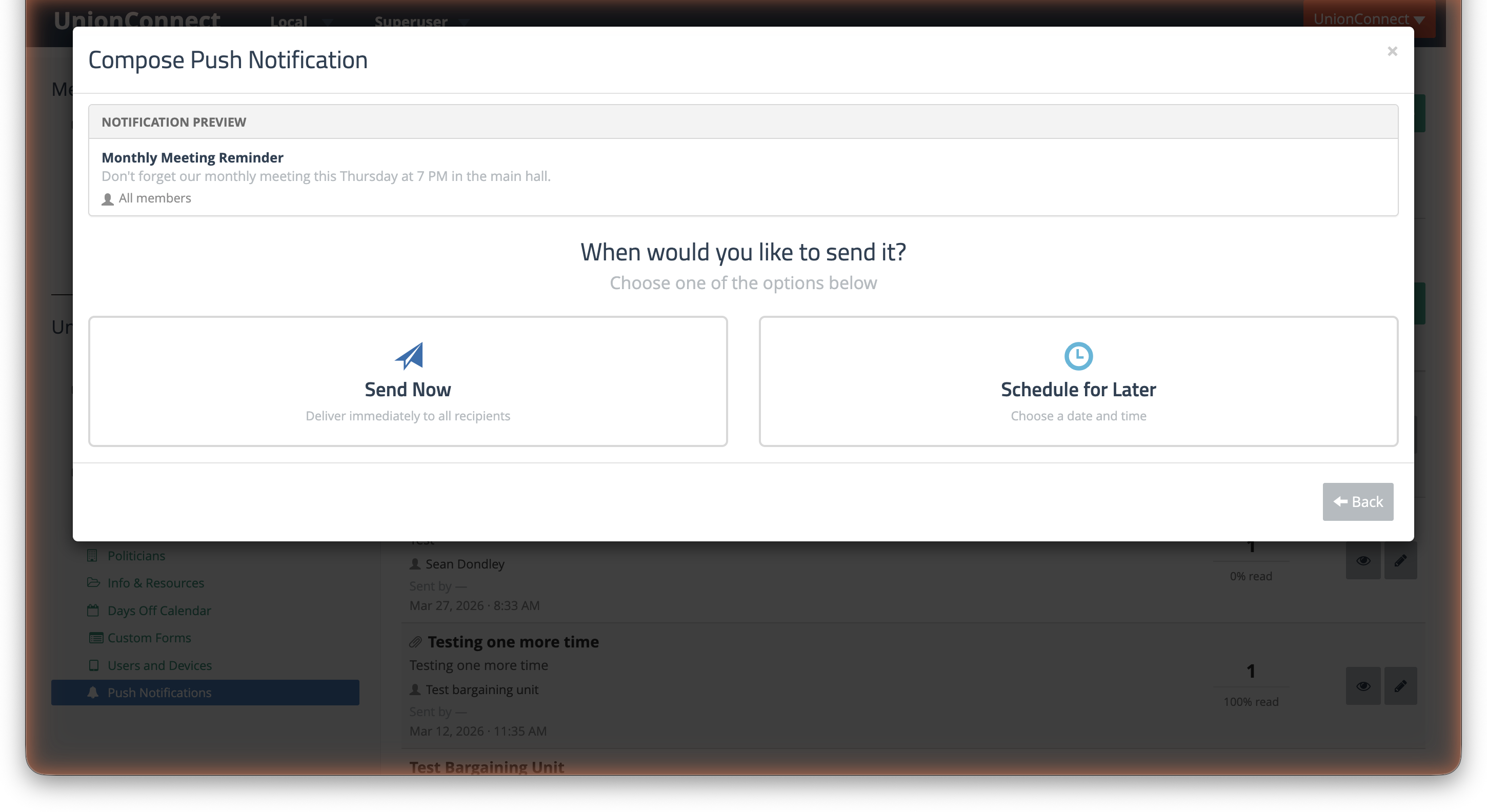
Step 2: Choose When to Send
A preview of your notification is shown at the top. Below it, choose one of two options:
- Send Now — delivers the notification immediately to all recipients
- Schedule for Later — pick a date and time for the notification to be delivered automatically
Deleting a Scheduled Notification
To delete a scheduled notification before it is sent, go to the Scheduled tab and click the trash icon next to the notification you want to remove. You can also delete it from the Edit modal by clicking the red Delete button in the lower left. The scheduled delivery will be cancelled and the notification will be permanently removed.