
The Options tab on the Edit Local page controls how the app behaves for your members. To get here, go to Local → Edit local and click the Options tab.
Accounts
These settings control what happens when members sign up or register new devices.
- Who is notified on signup — This used to be a switch on this tab. It is now set under Signup notifications on the Email tab; see Email Settings.
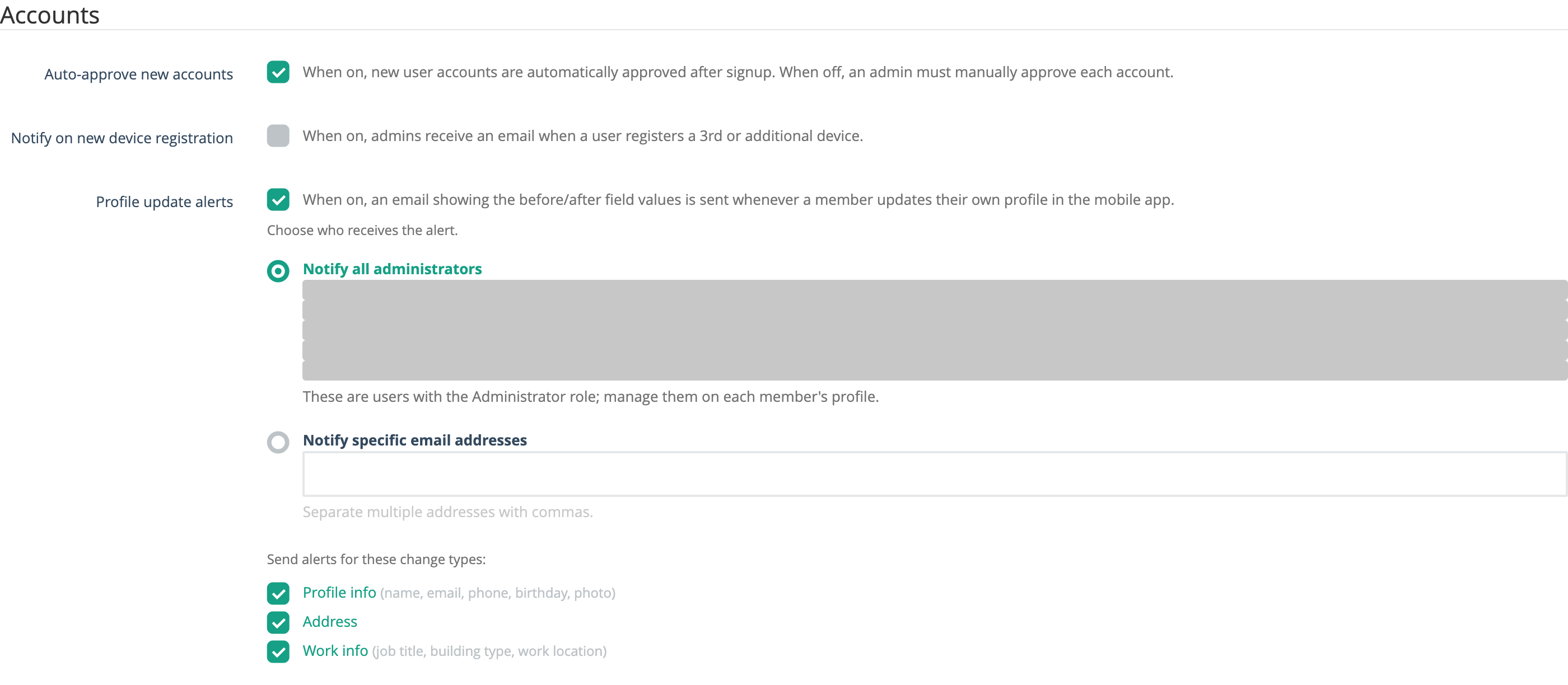
- Auto-approve new accounts — When on, new user accounts are automatically approved after signup. When off, an admin must manually approve each account.
- Notify on new device registration — When on, admins receive an email when a user registers a 3rd or additional device.
- Profile update alerts — When on, an email showing the before/after values is sent whenever a member updates their own profile in the mobile app. Turn it on to reveal the options below. Off by default.
When Profile update alerts is on, you can choose who is notified and which kinds of changes trigger an alert:
- Choose who receives the alert — either Notify all administrators (everyone with the Administrator role on this local) or Notify specific email addresses (a comma-separated list you enter).
- Send alerts for these change types — three toggles, all on by default: Profile info (name, email, phone, birthday, photo), Address, and Work info (job title, building type, work location).
The alert email lists the member’s name and shows a before/after table for each changed field, so you can see exactly what was updated. A copy is also recorded under Email → Email history.
Display
These settings control what members can see in the app.
- Hide dates in mobile app — When on, publication dates are hidden on articles and content in the mobile app.
Terminology
Customize the labels used throughout the app to match your organization’s vocabulary.
- Location label — What your organization calls its work locations (e.g., “Locations”, “Employers”, “Regions”). This label is used throughout the app wherever locations are referenced.
- Enable sublocations — When on, sublocations are available as a secondary level under your locations. Turning this on reveals an additional Sublocation label field where you can customize what sublocations are called (e.g., “Sublocations”, “Worksites”, “Districts”).
- Local’s main timezone — Select the main timezone for your organization. This affects how times are displayed throughout the app.
Member Profiles
Control what members are allowed to change in their own profiles from the app.
- Allow members to change their local — When on, members can switch to a different local from the app. This also lets them change their bargaining unit and location. This setting appears only if your union has more than one local.
- Allow members to change their locations — When on, members can change their location from the app. The last word follows your Location label (for example, “Allow members to change their employers”).
Event RSVP Options
This table controls the RSVP buttons members see on events in the mobile app. Every local starts with four responses: Going, Interested, Not Interested, and Not Going. In the table you can:
- Turn a response on or off — tick or untick its Enabled box. Only enabled responses appear in the app.
- Rename a response — edit its Title. This is the label on the button members tap.
- Change its color — click the color swatch and pick a new one.
- Add your own response — click Add response, type a title, and press Enter. You can delete responses you added with the trash button. The four built-in responses are marked default; you can rename, recolor, or turn them off, but not delete them.
- Reorder the buttons — drag a row by its handle on the left.
Changes in the RSVP table save as soon as you make them; you don’t need to click Update for these.
For the other settings on this tab, click Update at the bottom of the page to save your changes.