
The fastest way to push a specific piece of content — a news item, event, resource, or form — is to send the notification directly from that content’s listing. The attachment and audience are filled in for you.
Steps
- Log in to the app manager.
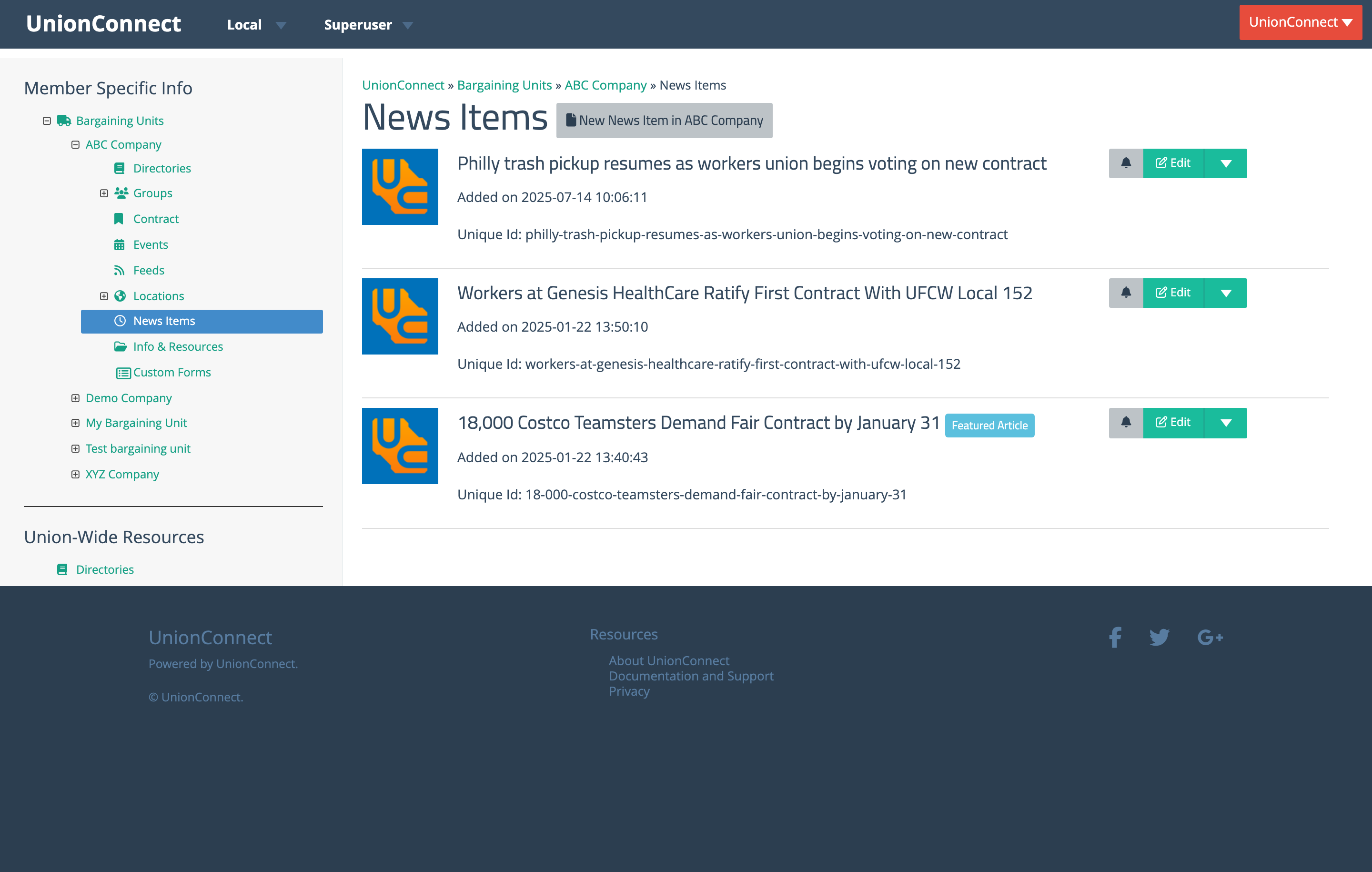
- Open a content listing under a bargaining unit — News Items, Events, Info & Resources, or Custom Forms.
- Click the bell icon next to the content item you want to send. On the Events list, this is the Notify button. For a recurring series it reads Notify · date and is about the next date; to send about a later date, use Notify on the series editor’s Dates tab.
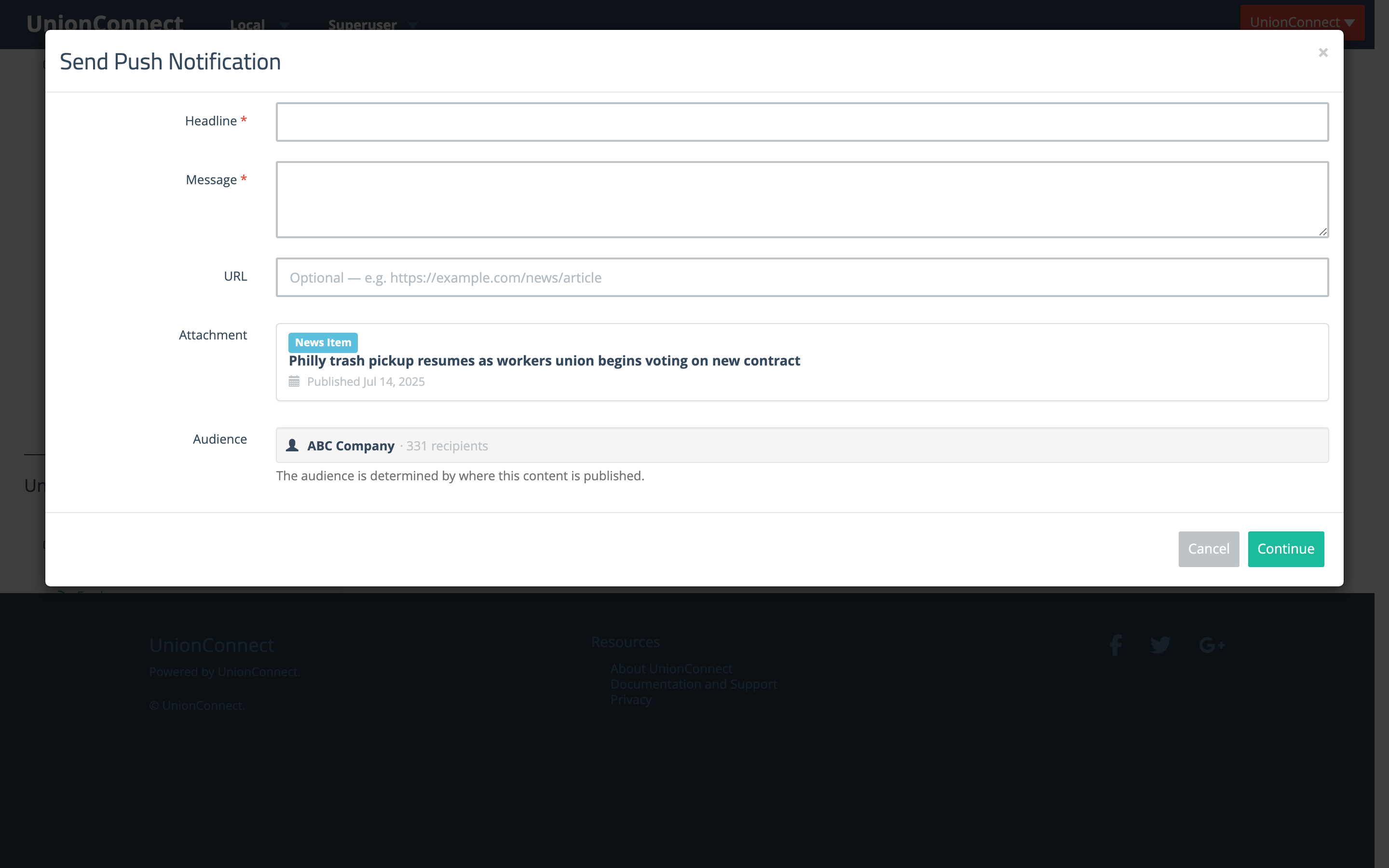
The Send Push Notification modal opens with the content item already attached and the audience set to the place where the content is published.
- Enter a Headline and Message. The attachment and audience are pre-filled — you don’t need to change them.
- Click Continue.
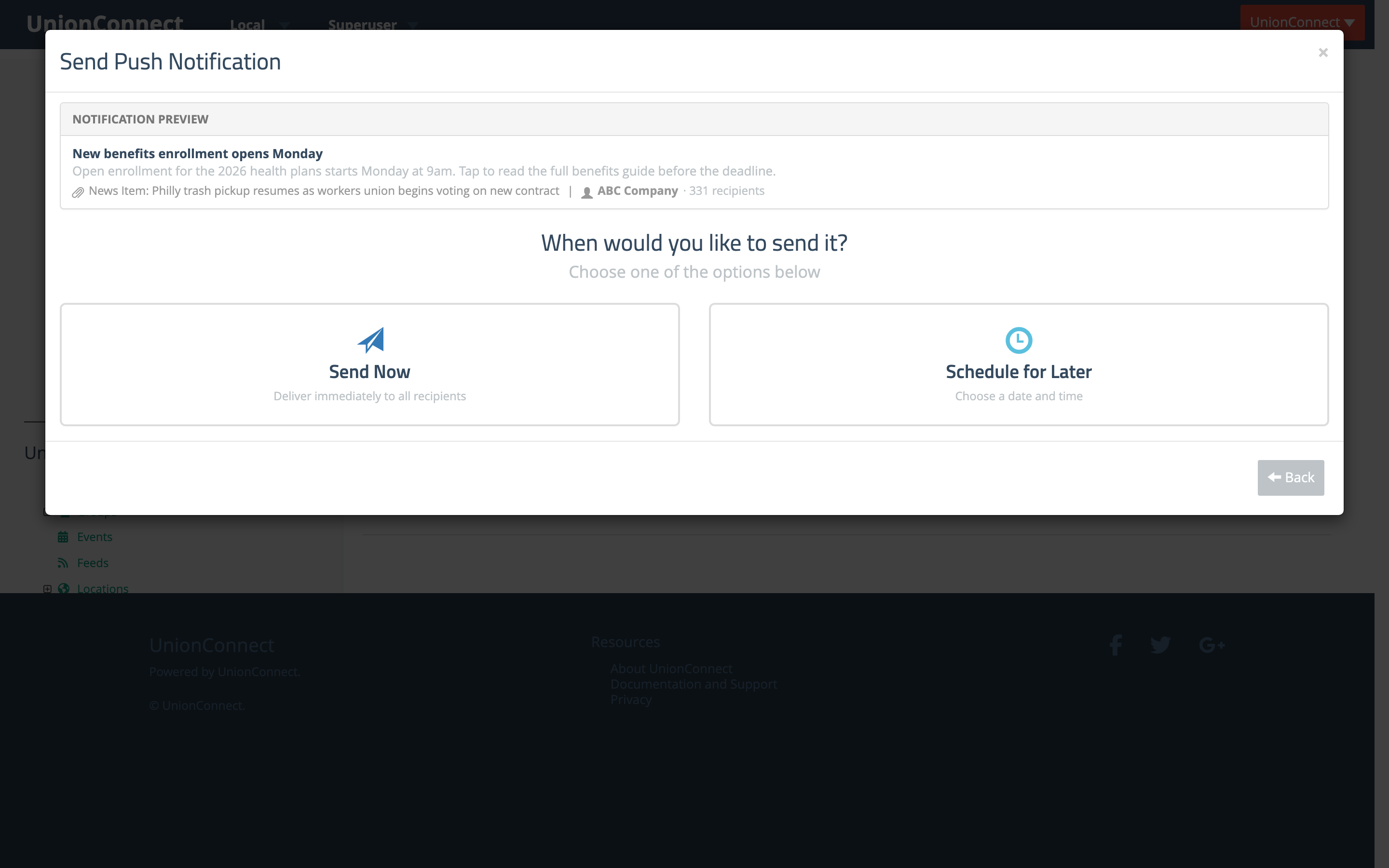
- Choose Send Now to deliver immediately, or Schedule for Later to pick a date and time.
When members tap the notification, the app opens directly to the attached content.