
You can send a push notification to a single member directly from the user list — handy for one-off reminders or follow-ups.
Steps
- Log in to the app manager.
- Click Users and Devices from the left menu.
- Find the member you want to notify and click the bell icon next to their name.

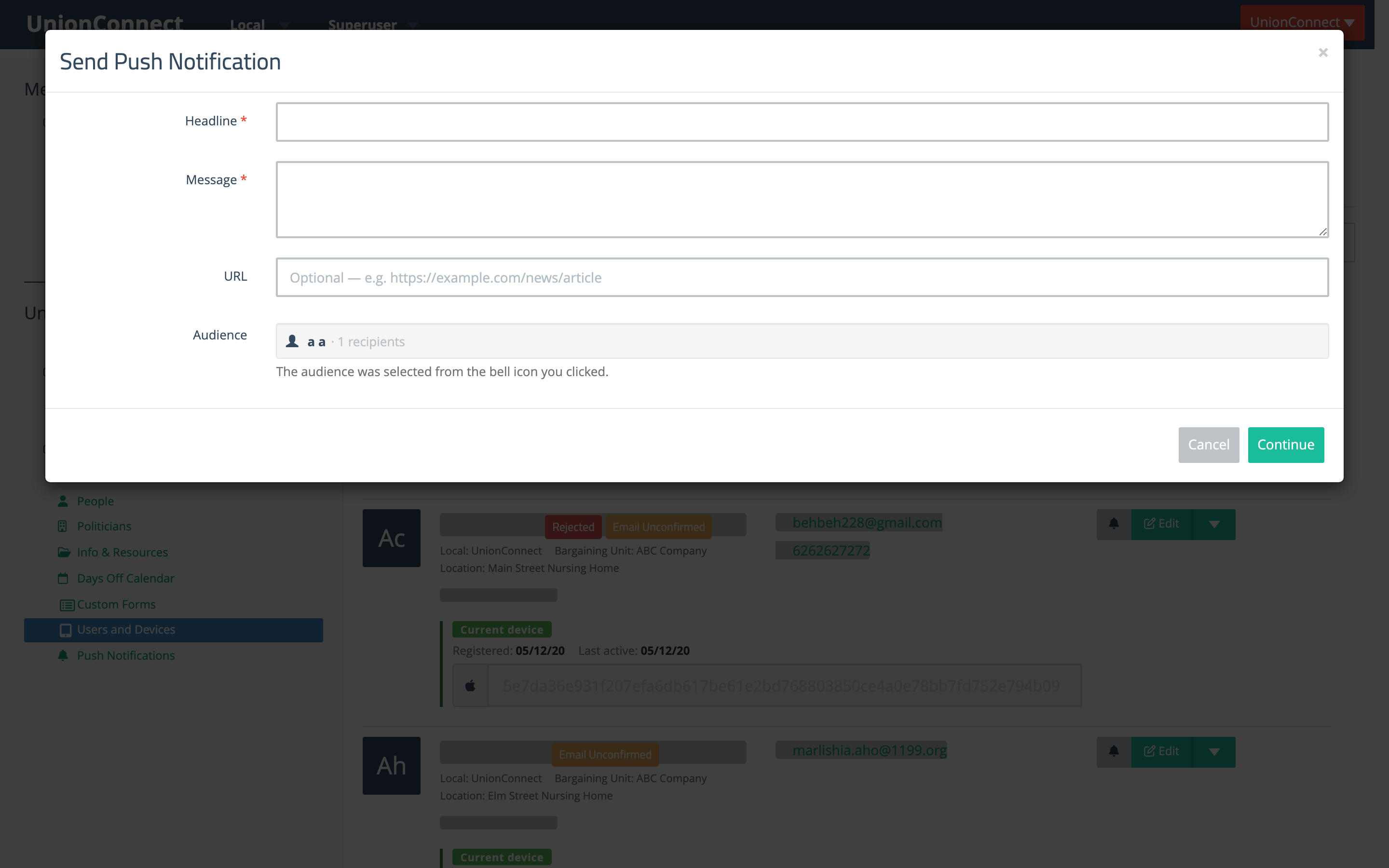
The Send Push Notification modal opens with the member already set as the audience.
- Enter a Headline and Message. Both are required.
- Optionally enter a URL to open when the member taps the notification, or use the Attachment dropdown to attach a piece of content.
- Click Continue.
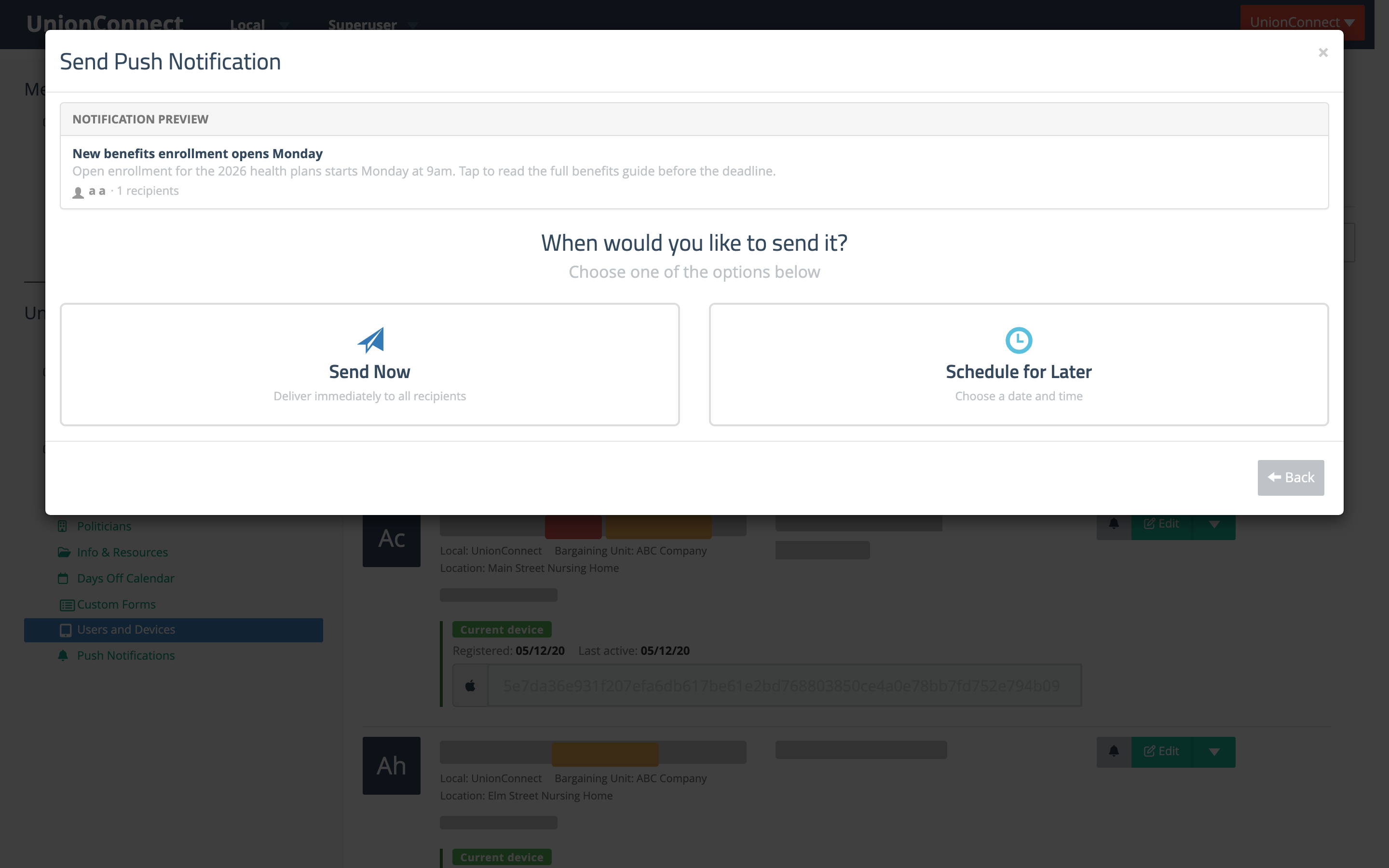
- Choose Send Now to deliver immediately, or Schedule for Later to pick a date and time.
You can review the delivery and read state of any sent notification from the Push Notifications Hub.